 Try ShortPoint now
When you create a custom SharePoint User Profile property, it doesn’t automatically appear in the property list of the People Search connection. You will need to manually add it in order to map the custom property using the People Search connection.
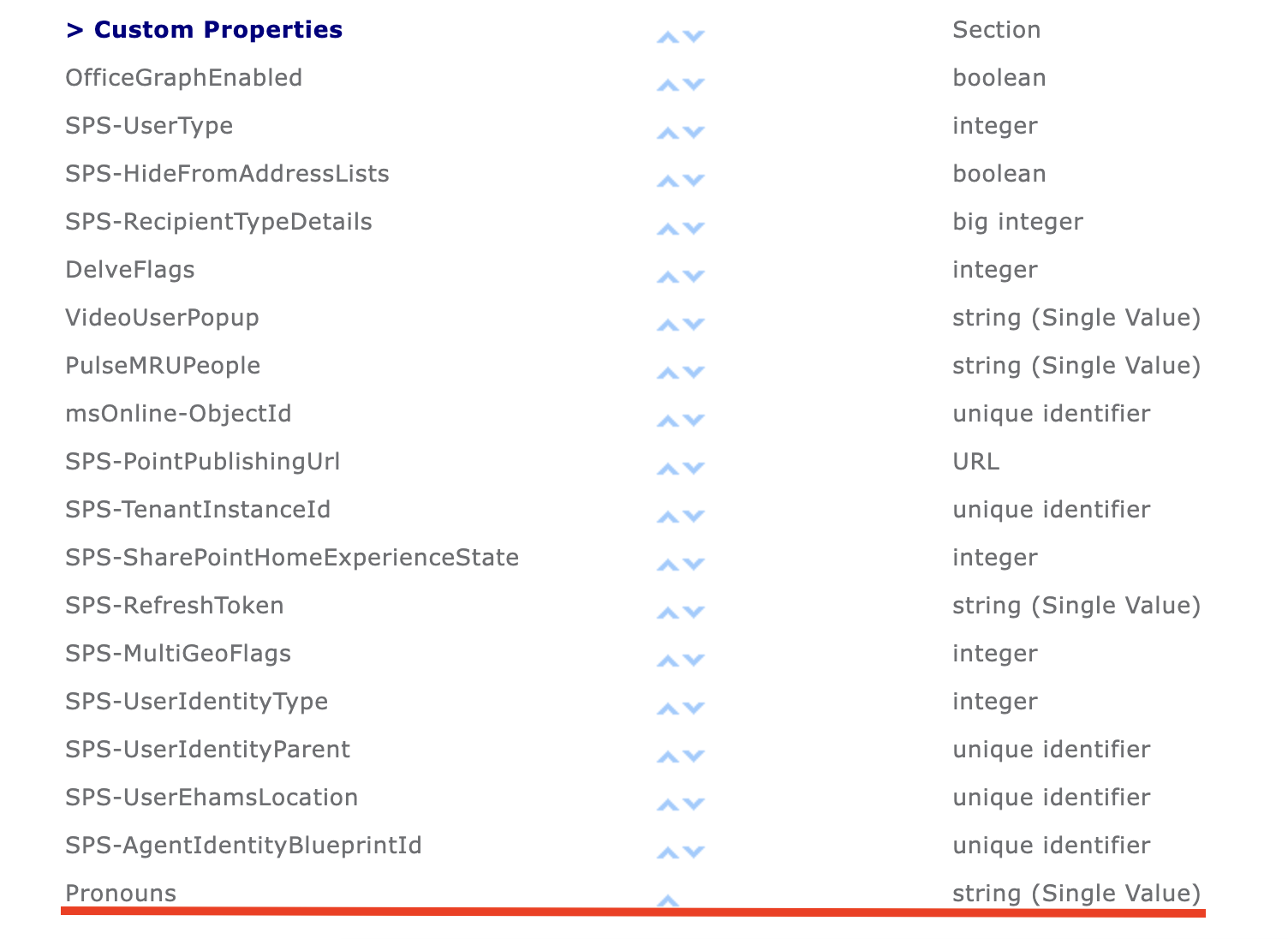
This article will guide you through the whole process. Let’s get started!
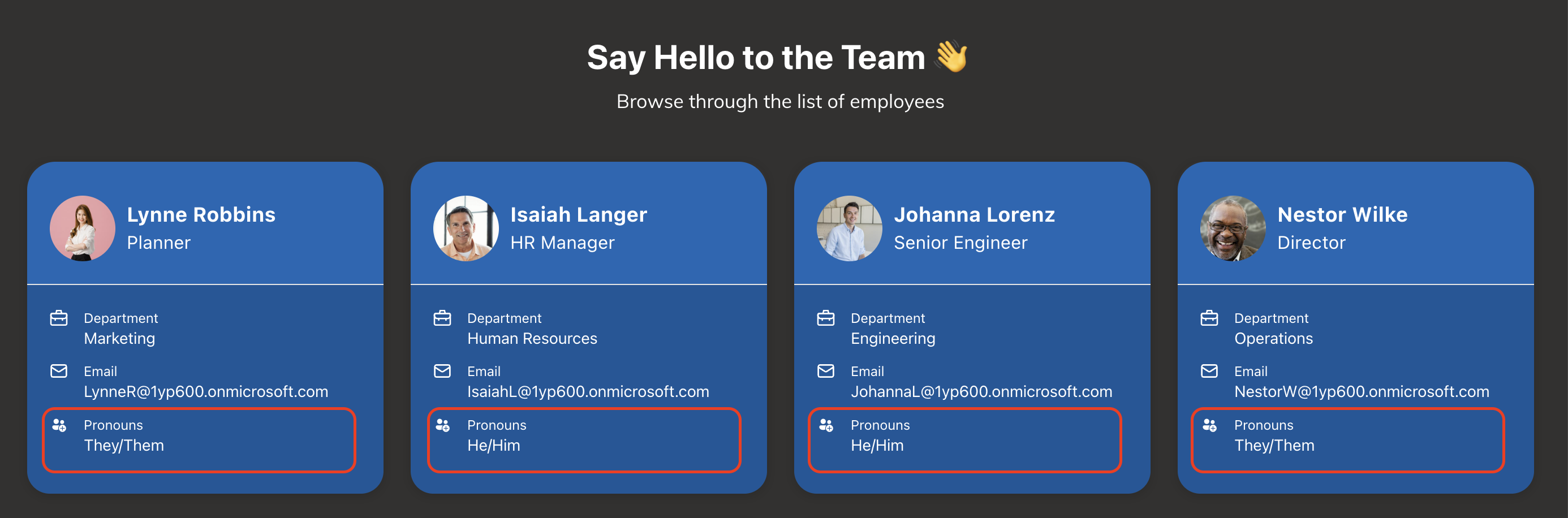
TABLE OF CONTENTS
Prerequisites
- You must have the latest version of ShortPoint SPFx installed.
- You must be a ShortPoint Designer with an active license.
- You must create a custom User Profile property. For more information, check out SharePoint User Profile Properties: What They Are and How to Create Custom Properties in SharePoint.
- You must already have the Design Element you want to use to connect on your SharePoint page.
Step-by-step Tutorial
Follow the interactive tutorial to map custom User Profile properties using ShortPoint People Search. For this guide, we will use the ‘Pronouns’ custom property we previously created. To learn more about creating custom User Profile properties, check out SharePoint User Profile Properties: What They Are and How to Create Custom Properties in SharePoint.
Step 1: Edit the ShortPoint web part
- Go to the SharePoint page you want to use and click Edit.
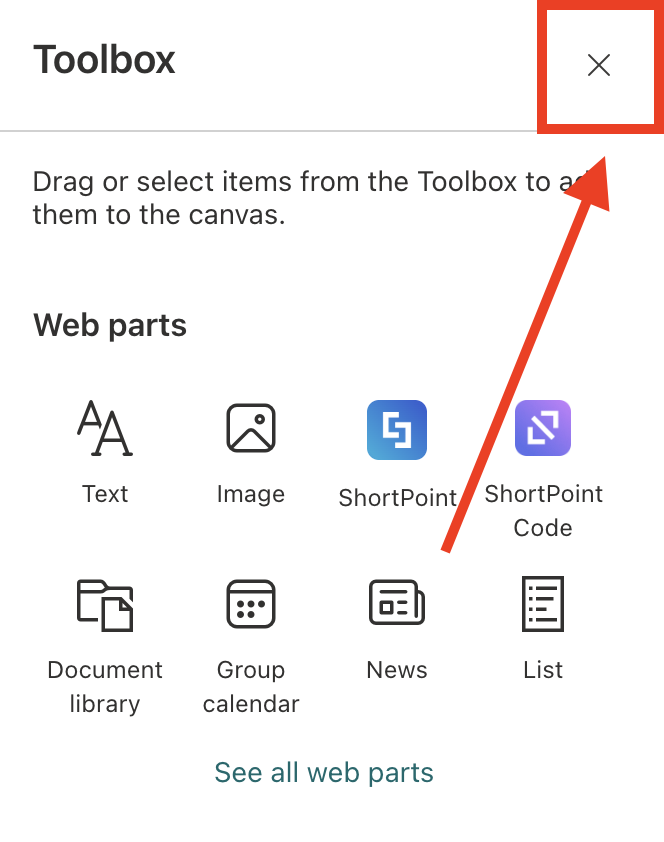
- Close the Toolbox.
- Edit the ShortPoint web part.

Step 2: Edit the Design Element
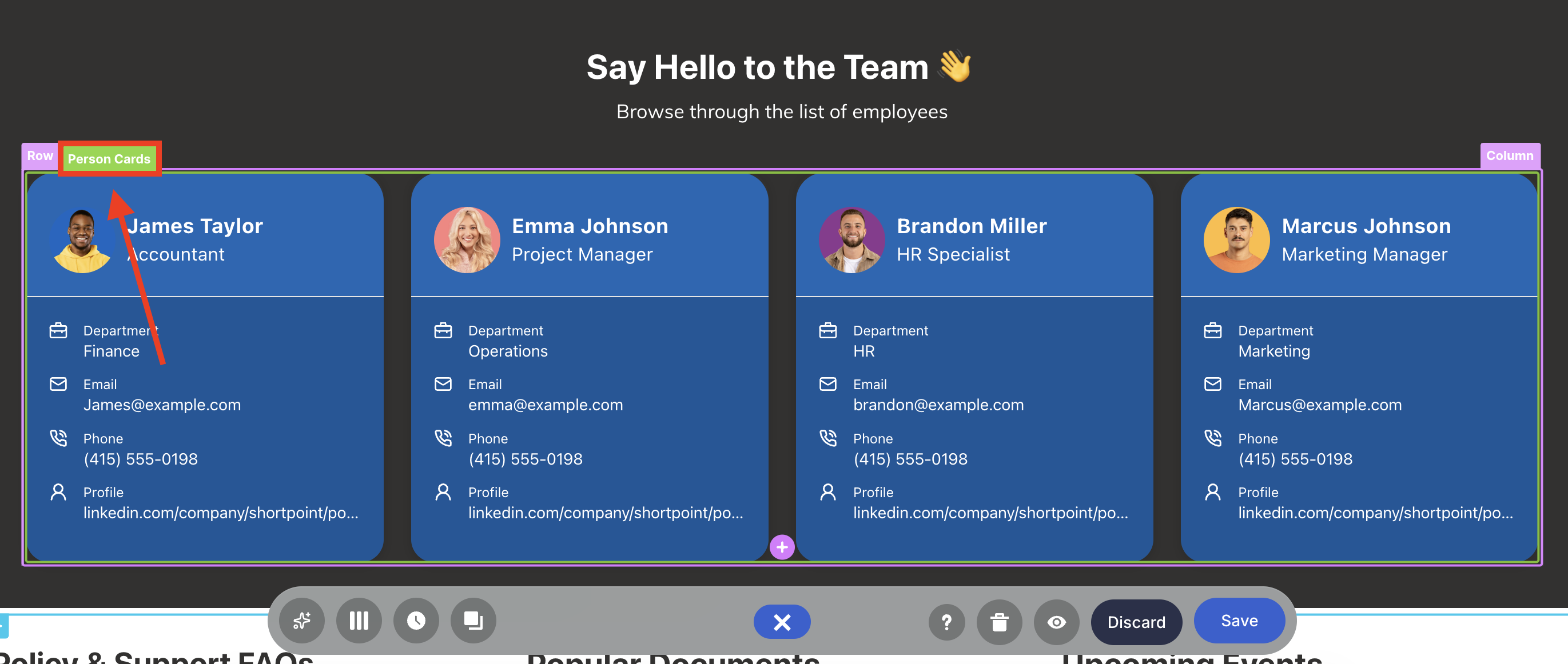
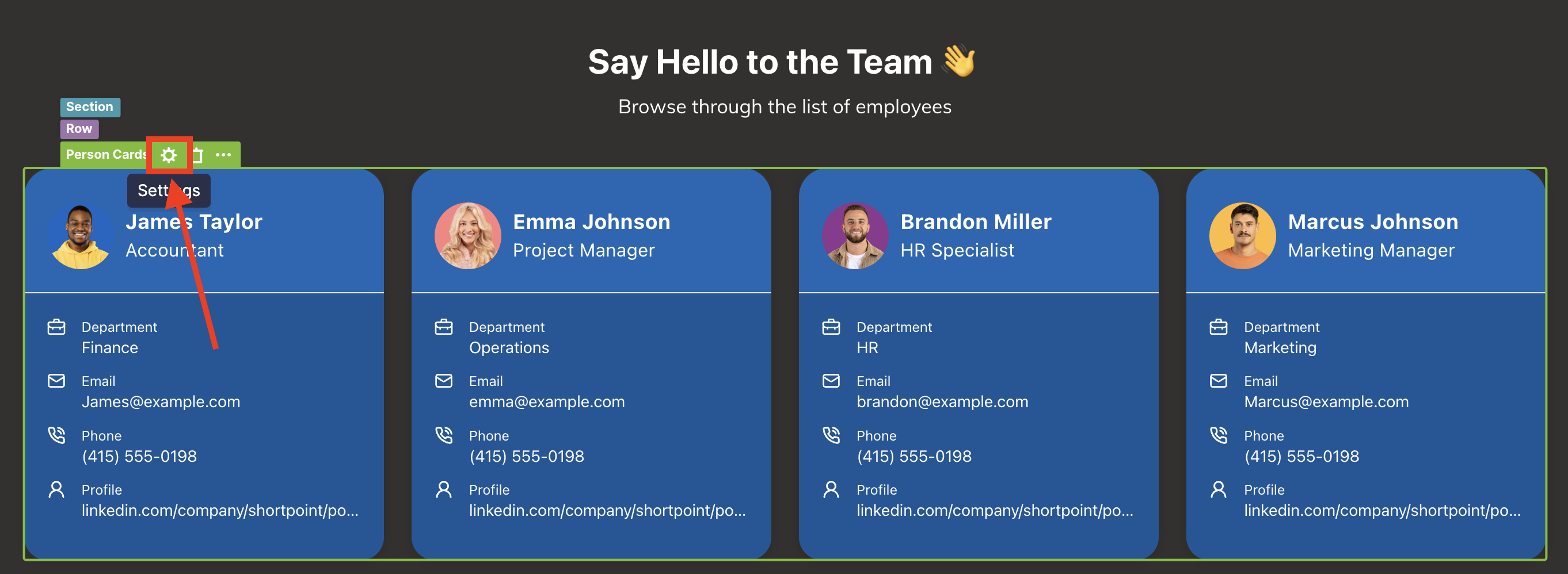
NOTEBefore proceeding, make sure you already have the Design Element you want to use on your SharePoint page. For this guide, we’ll use Person Cards.
- Click the EasyPass tag of the Design Element.
- Select the cogwheel icon.
Step 3: Add Custom Property
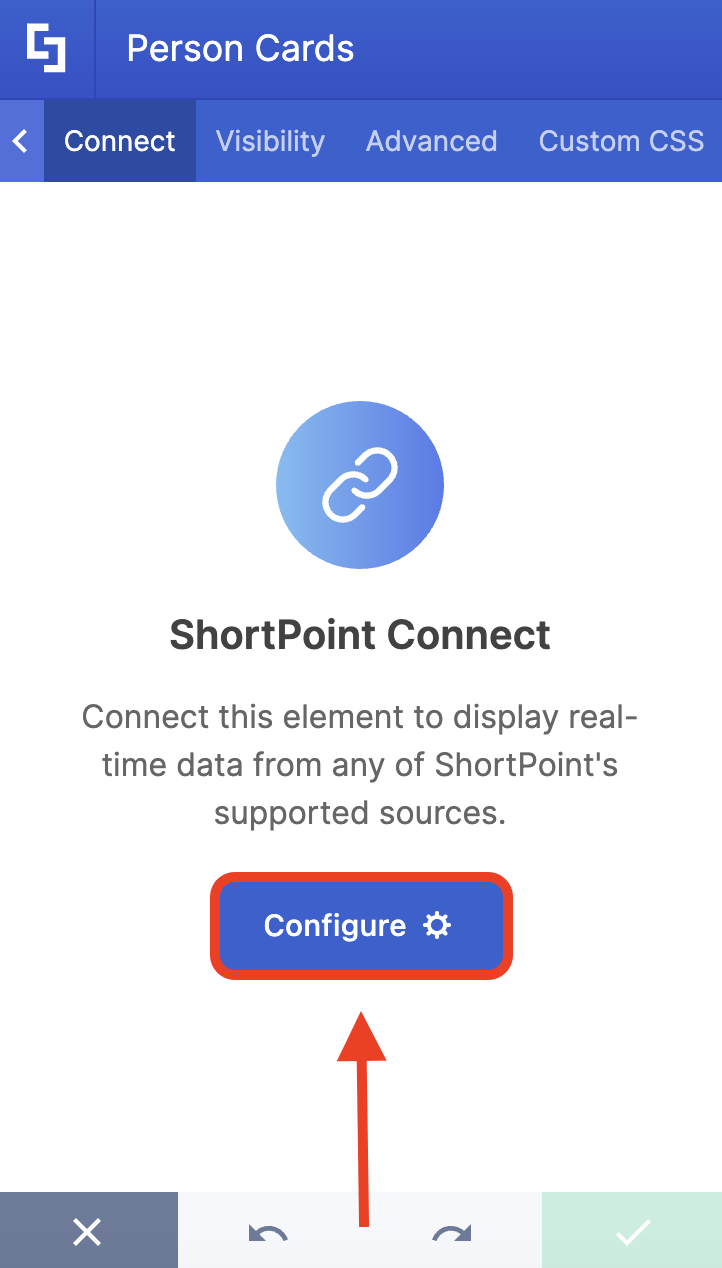
- Go to the Connect tab.
- Select Configure.
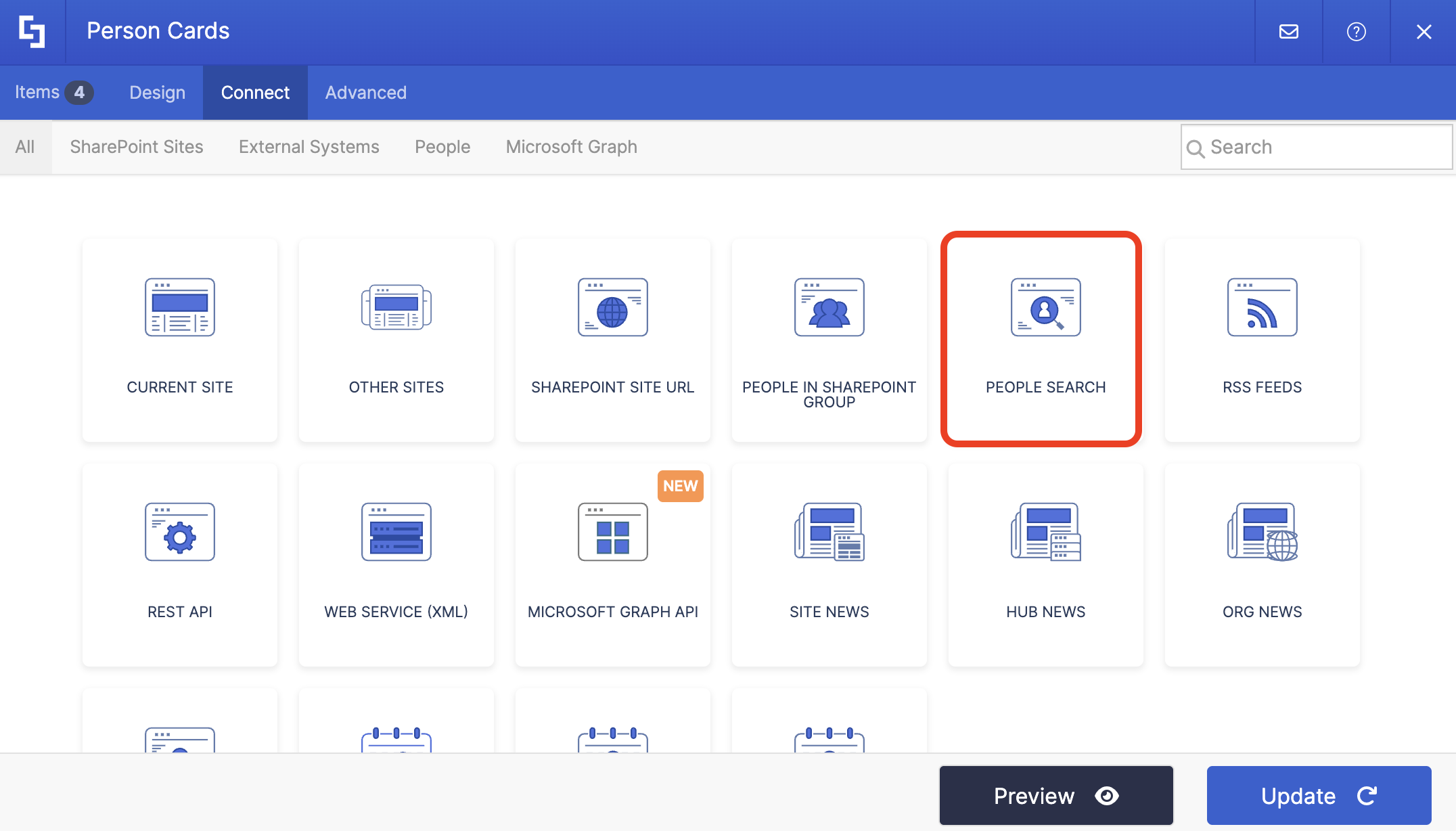
- Choose the People Search connection.
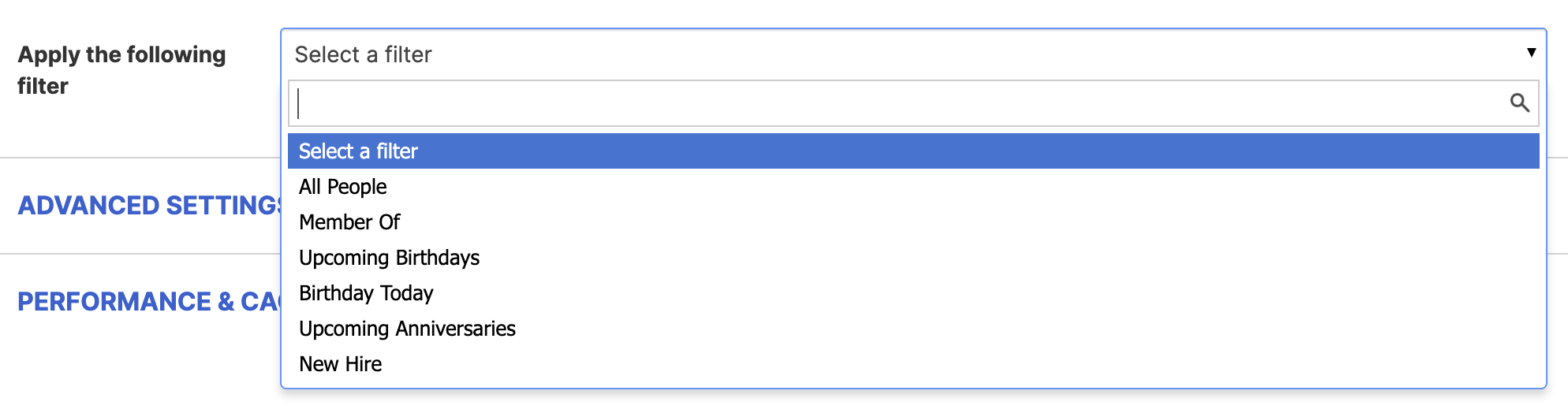
- Select the filter you want to use.
- Toggle on the Additional Properties option.
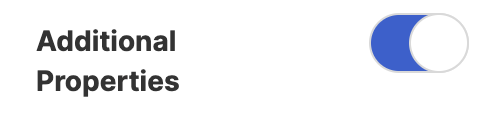
- You'll see a list of all the properties you can map. Type the name of the custom property you created and select it.
- Once satisfied, click Connect.
Step 4: Map Items
- Go to the Items tab.
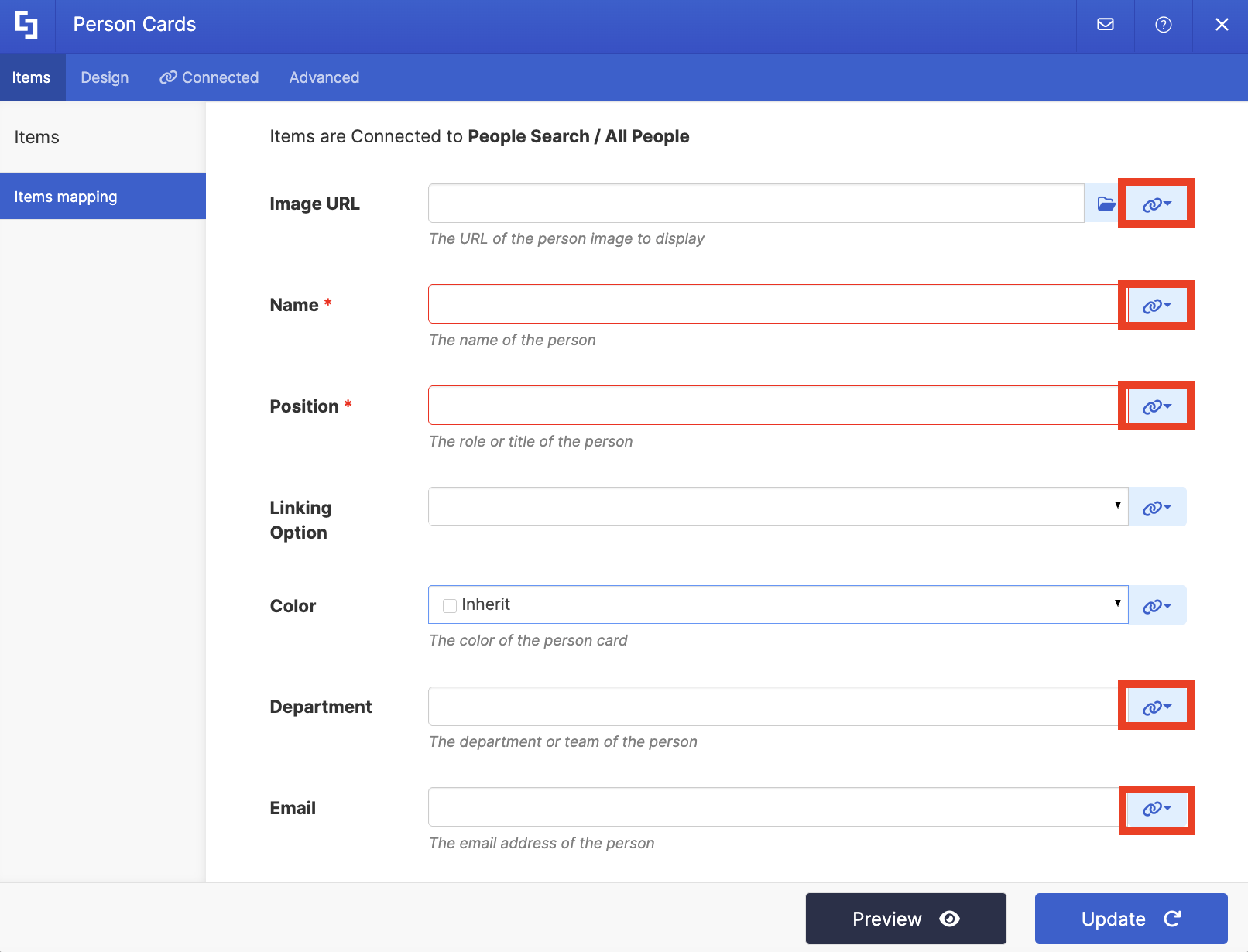
- Delete all the default content.
- Use the link icon to map the properties you want shown. You’ll notice that in the properties list, you’ll see the custom User Profile property. In our case, it’s the ‘Pronouns’ property:
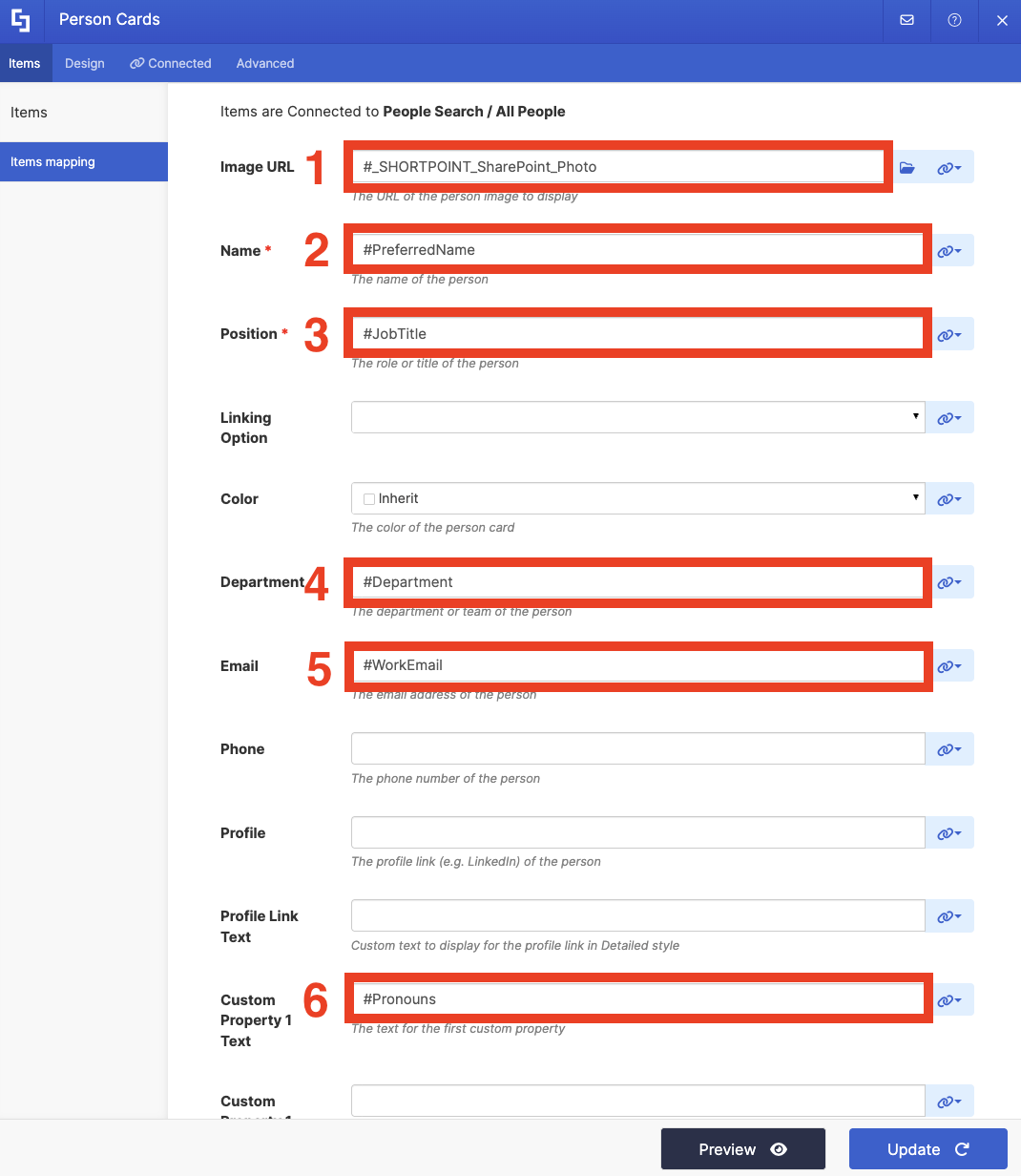
- For reference, here’s how we mapped the properties. You can do the same or map your own:
TIPIf you’re using the Person Cards Design Element and want to add a custom field, check out How to Add Custom Properties in Person Cards.
- #_SHORTPOINT_SharePoint_Photo - shows the employee’s photo.
- #PreferredName - shows the employee’s name.
- #JobTitle - shows the employee’s work title.
- #Department - shows the employee’s department.
- #WorkEmail - shows the employee’s email.
- #Pronouns - shows the content inside the custom property we created, which in this case are the employee’s preferred pronouns.
- Click Update.
Step 5: Save
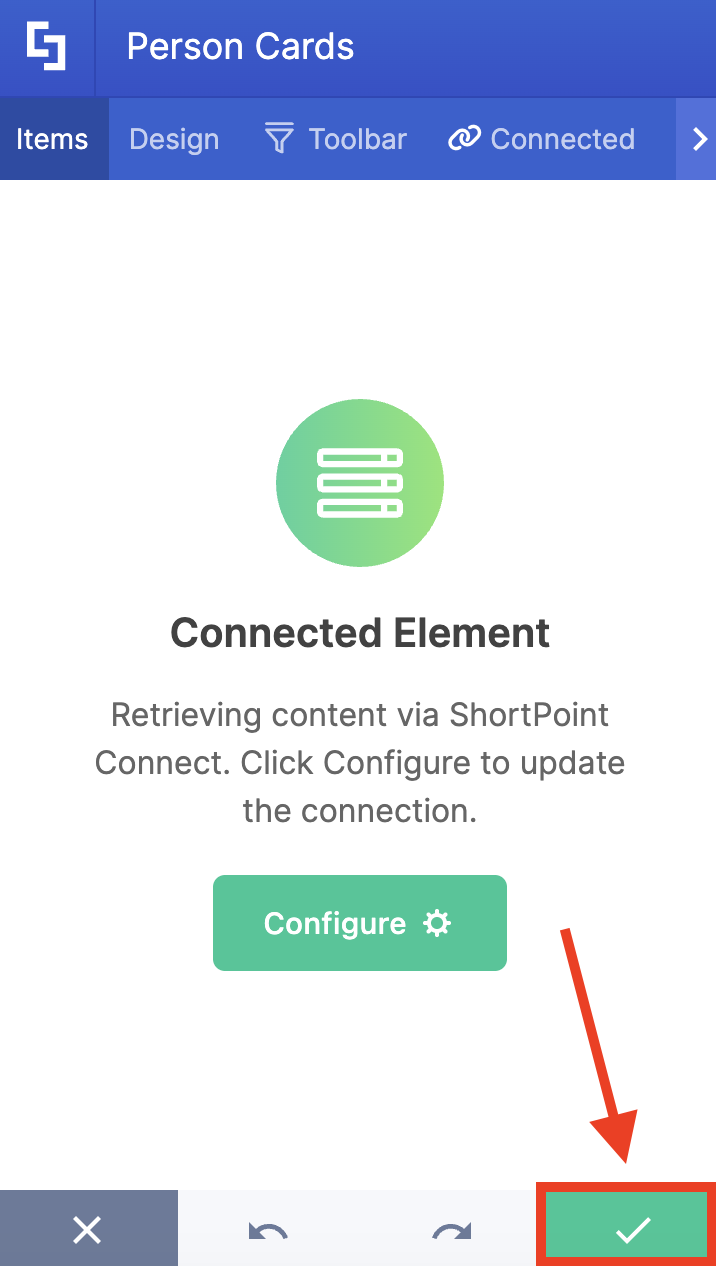
- Click the green check mark:
- Save your changes:

- And Publish your page:

Great work! You’ve successfully mapped your custom User Profile property.
Frequently Asked Questions
What do I need before mapping custom User Profile properties using ShortPoint People Search?
You need the latest version of ShortPoint SPFx installed, an active ShortPoint Designer license, the Design Element you want to connect on your SharePoint page, and you must accomplish the steps in SharePoint User Profile Properties: What They Are and How to Create Custom Properties in SharePoint.
How do I start editing the ShortPoint web part on my SharePoint page?
Navigate to the SharePoint page, click Edit, close the Toolbox, and then edit the ShortPoint web part.
How can I add a custom User Profile property to the People Search connection?
In the ShortPoint web part, open the Design Element's EasyPass tag, click the cogwheel icon, go to the Connect tab, select Configure, choose People Search connection, enable Additional Properties, and select your custom property.
How do I finalize and publish my changes?
Click the green check mark to save changes, then save and publish your SharePoint page.
Related articles:
- Connection Type: People Search
- How to Show People From a Specific Department Using People Search Connection Type
- ShortPoint People Search: Upcoming Anniversaries and New Hire Configuration
