 Try ShortPoint now
There is something special about walking into the office (or logging onto your digital workspace) and seeing a "Happy Birthday!" shout-out from a teammate. It’s a small gesture that goes a long way in building culture, but keeping track of dates across a growing department can feel like a full-time job.
This is where ShortPoint's People Search connection comes in! It gives you a visual and customizable way to display upcoming birthdays. Follow the detailed step-by-step guide to learn how to accomplish this. Let's dive right in!
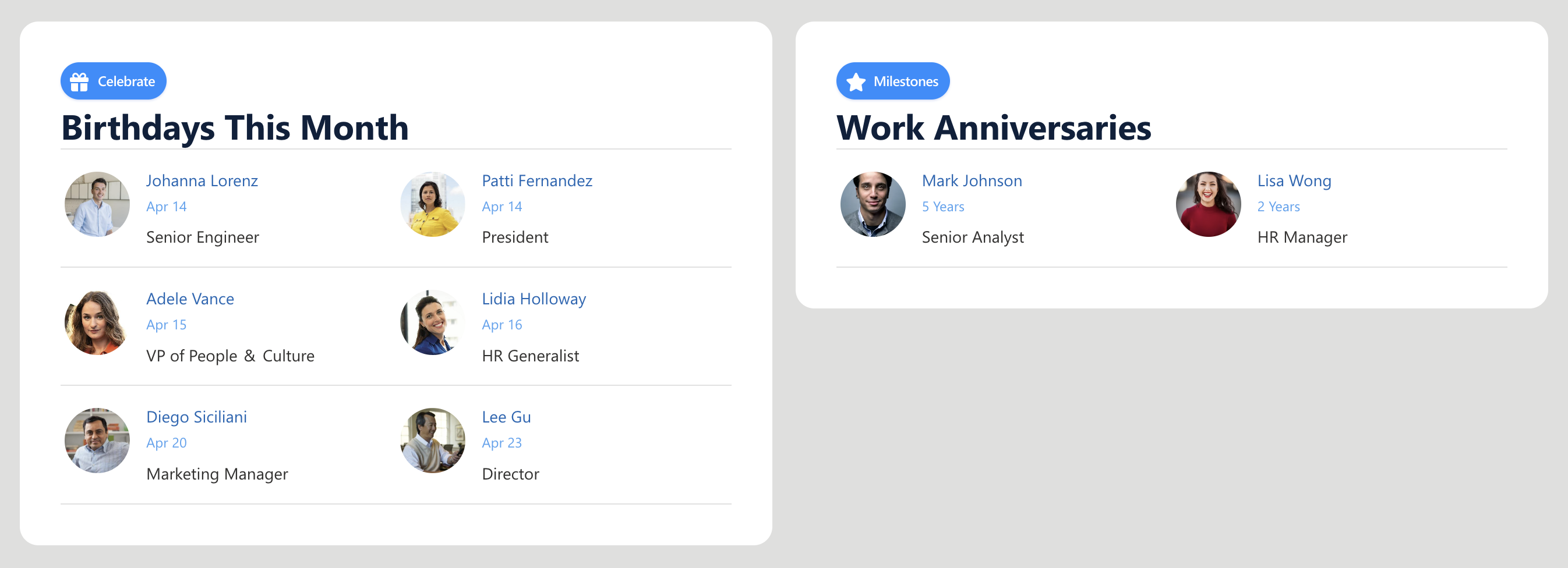
TABLE OF CONTENTS
- Prerequisites
- What Is the ShortPoint People Search Connection?
- How to Showcase Upcoming Birthdays in SharePoint
- Practical Use Cases for Upcoming Birthdays in SharePoint
- Start Displaying Upcoming Birthdays
- Frequently Asked Questions
Prerequisites
- You must have the latest ShortPoint SPFx version installed.
- You must be a ShortPoint Designer with an active license.
- You must already have the Design Element you’ll use for the connection on your page.
What Is the ShortPoint People Search Connection?
People Search is a ShortPoint connection type that uses Microsoft 365’s built-in People search index, which crawls and indexes properties from Microsoft Entra ID (formerly Azure Active Directory) and user profiles. However, instead of just giving you a simple list of properties, the connection lays out the data in a visual and configurable way. You can display employee names, photos, job titles, birthdays, departments, hire dates, and more, all styled to match your intranet's look and feel.
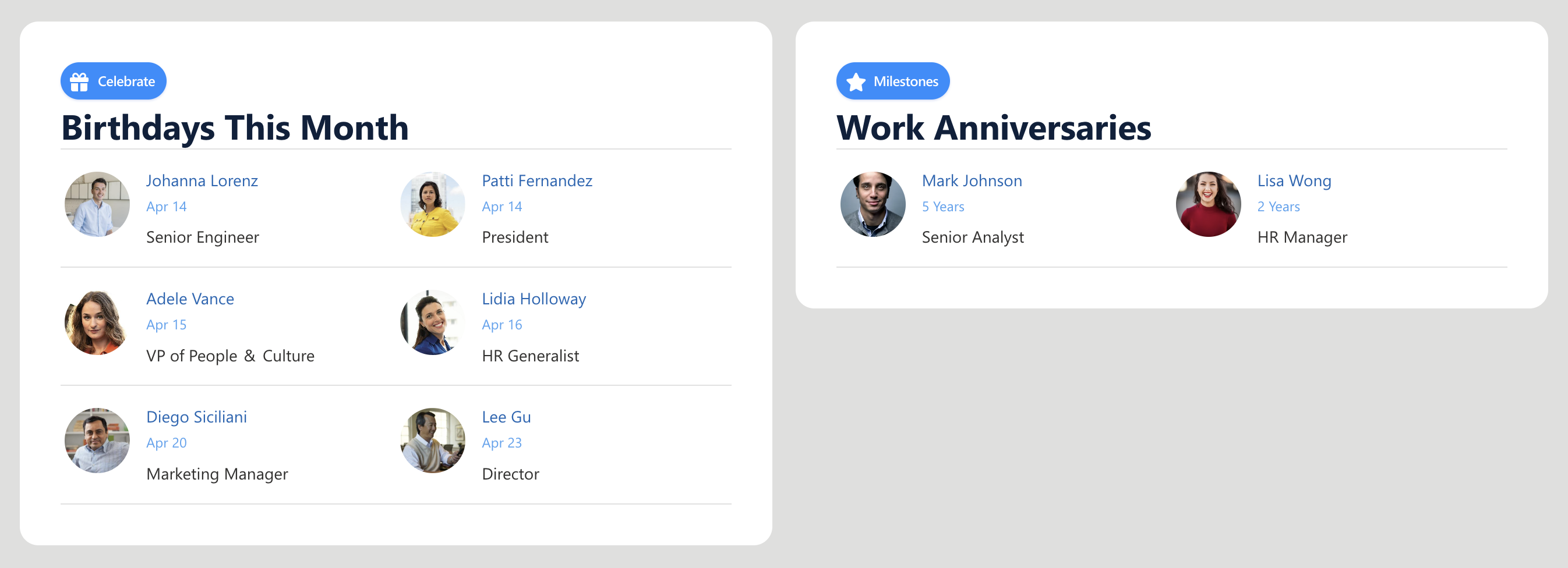
Now, what does that have to do with birthdays? The People Search connection has a smart upcoming birthdays filter that scopes the birthdates of all employees. Rather than showing everyone in the directory, it only shows people whose birthday falls within a specific window.
How to Showcase Upcoming Birthdays in SharePoint
Bringing interactive birthday sections into your SharePoint pages is super simple and easy. Follow the detailed step-by-step guide we prepared for you. And, to ensure a successful connection, make sure to accomplish each part.
Part 1: Add Employee Birthdays
This section will show you how to add birthdays to user profiles in SharePoint. Accomplishing these steps is essential. If none of your user profiles have an entry in the SPS-Birthday field, the crawled property won't appear in the search schema at all, which you will need in the next part. So, before you proceed, make sure to accomplish Part 1 first.
Step 1: Open User Profiles
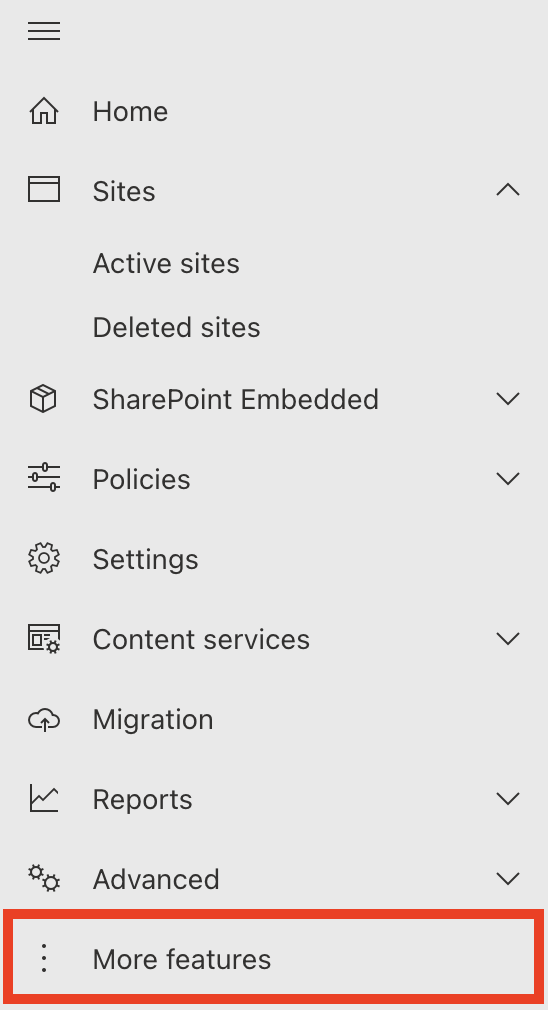
- Go to the SharePoint Admin Center and select More Features:
- Look for User Profiles and select Open.
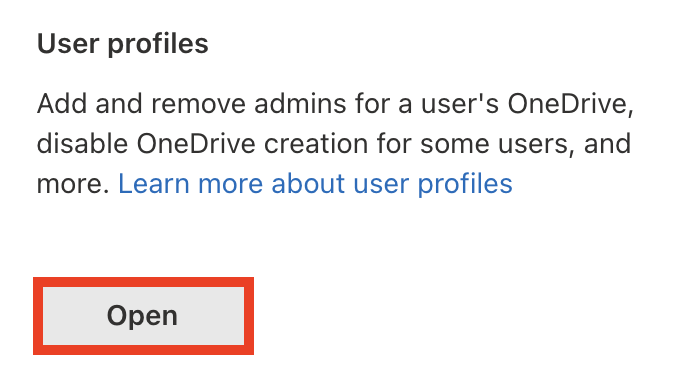
- Click Manage User Profiles

Step 2: Add Birthdates
- Find the user whose birthday you want to configure.

- Then, select Edit My Profile.
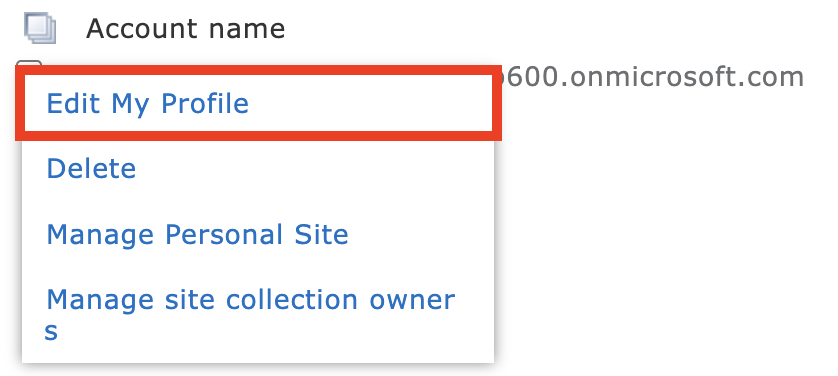
- Scroll down until you see the Birthday field. Write down the selected employee's birthday. It should follow the Month and Day format, and it should be shown to Everyone.

- Click Save and close.

- Repeat the same steps for every employee whose birthdates you want to set.
Great work! You've successfully added birthdates to SharePoint user profiles. You may now proceed to Part 2.
Part 2: Map Birthday Property
This section shows you how to query managed properties in SharePoint's search schema. Follow the steps below to get started:
Step 1: Open Crawled Properties
- Go back to the SharePoint Admin Center and click the Open button under Search.
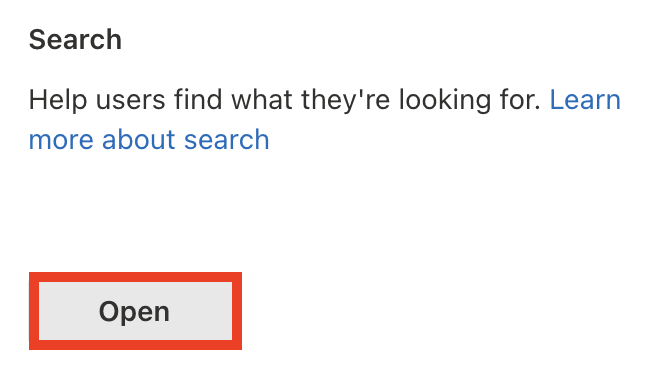
- Select Manage Search Schema:
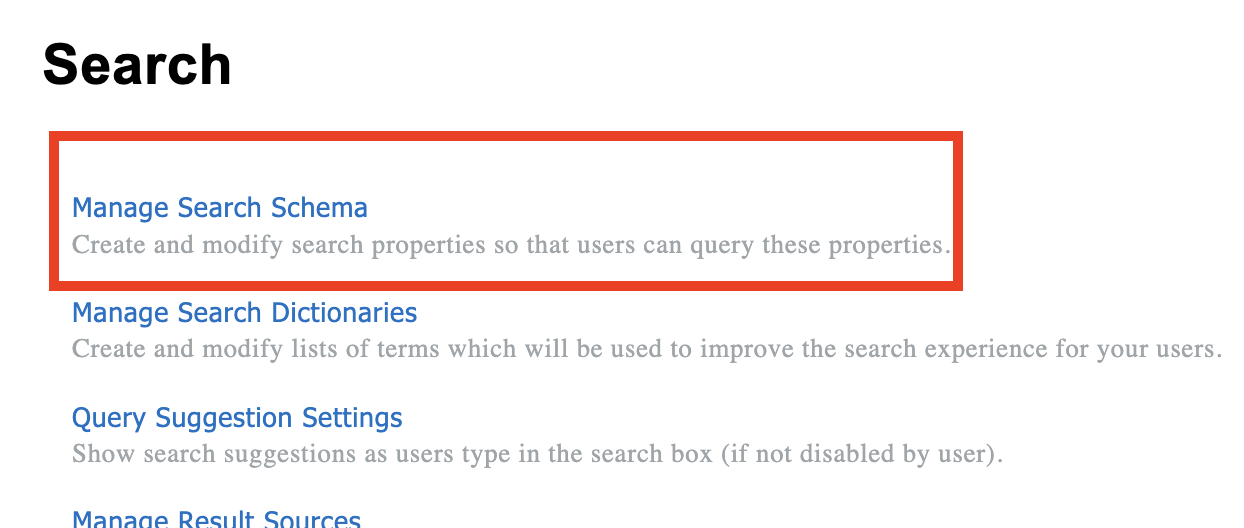
- Go to the Crawled Properties tab:

Step 2: Configure the SPS-HireDate Property
- In the list of properties, locate the People:SPS-Birthday and click it to open the menu:

- Click Add a Mapping:
- Search for [1] RefinableDate18 property. Select it and click [2] OK:
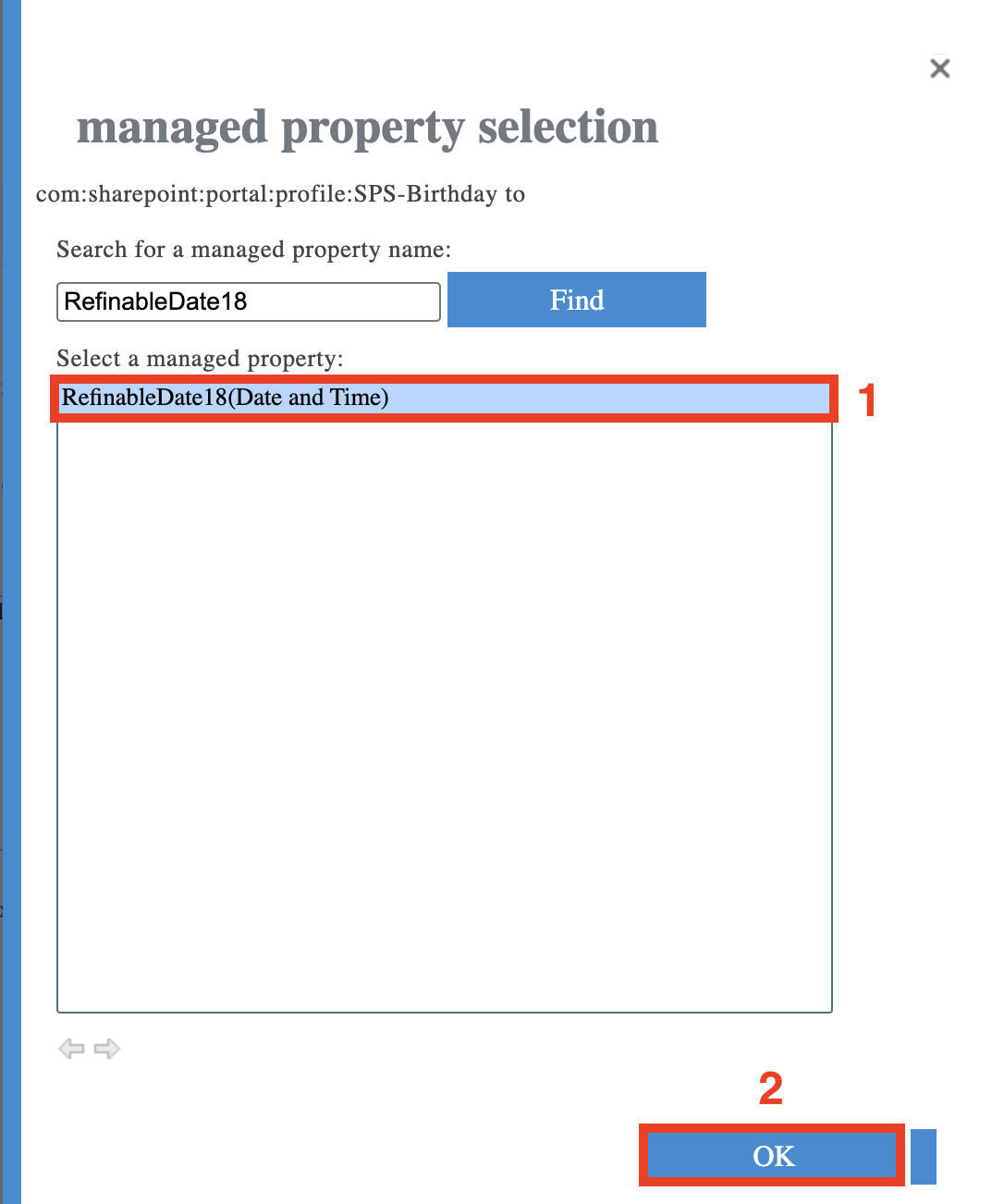
NOTEYou can choose any RefinableDate property. In this article, we are using RefinableDate18 because this is the default selection when you configure the Upcoming Birthdays filter in People Search.
- Scroll to the bottom of the page and click OK to save the settings.

Step 3. Check the RefinableDate property settings
- Switch to the Managed Properties tab:

- Find the RefinableDate property that you have mapped earlier.
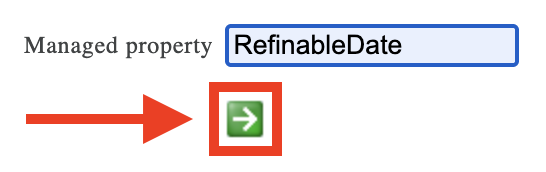
- Click the property name to open the settings:

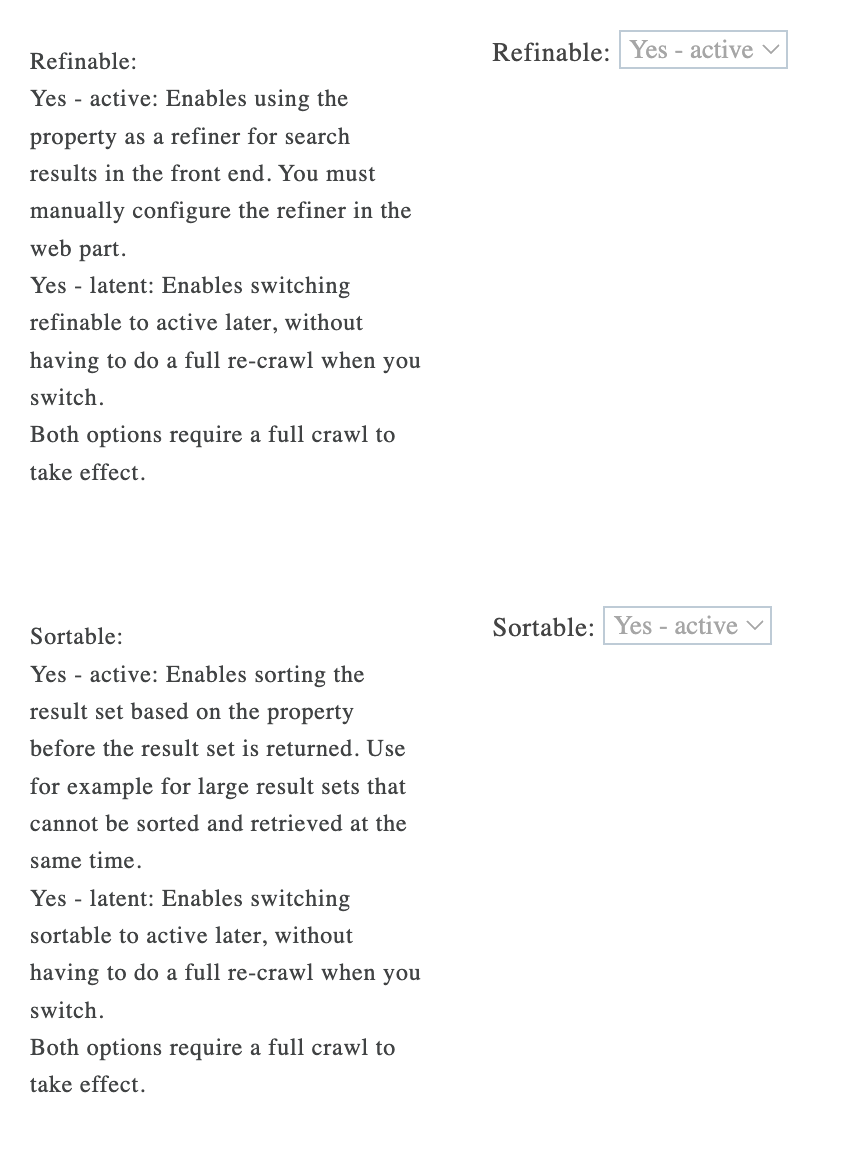
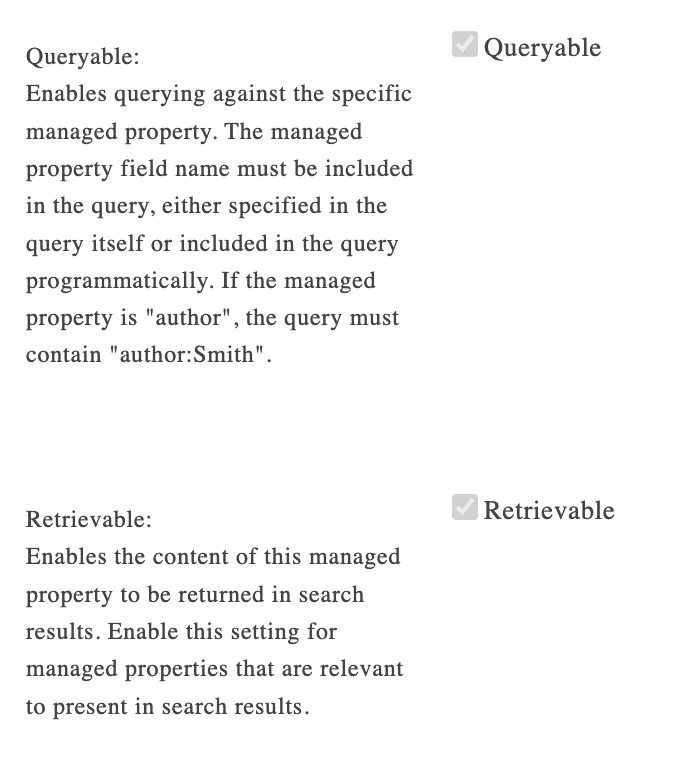
- In the opened settings, make sure the following options are checked or active:
- queryable;
- retrievable;
- refinable;
- sortable.
 |  |
- Click OK to save the changes if you made any.

Amazing! You've successfully configured the SPS-Birthday property. You can now start connecting.
Part 3: Connect
This section tackles the actual connection using the ShortPoint People Search connection type.
Step 1: Open the ShortPoint Web Part
- Go to the SharePoint page you want to use and click Edit.
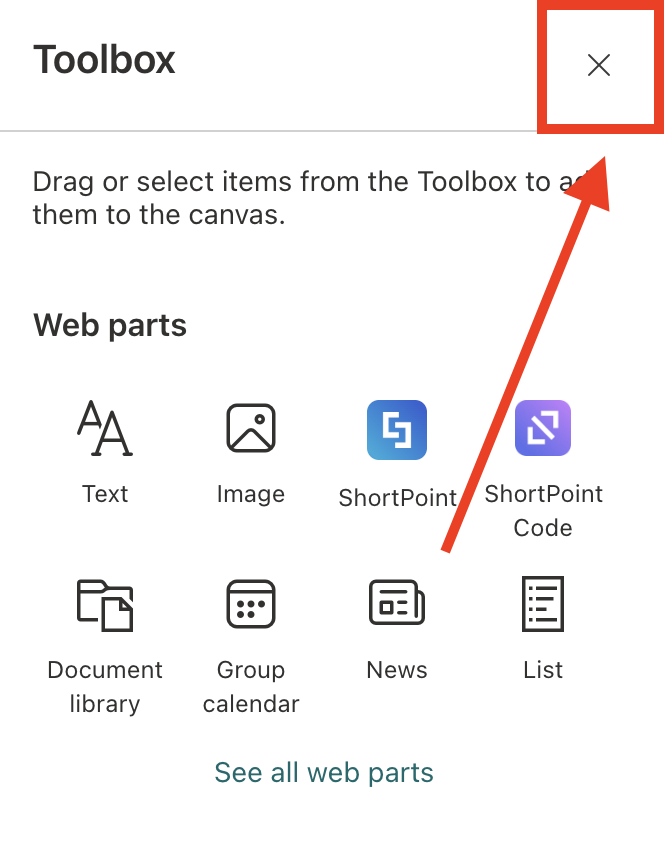
- Close the Toolbox:
- Edit the ShortPoint Web Part:

Step 2: Edit the Design Element
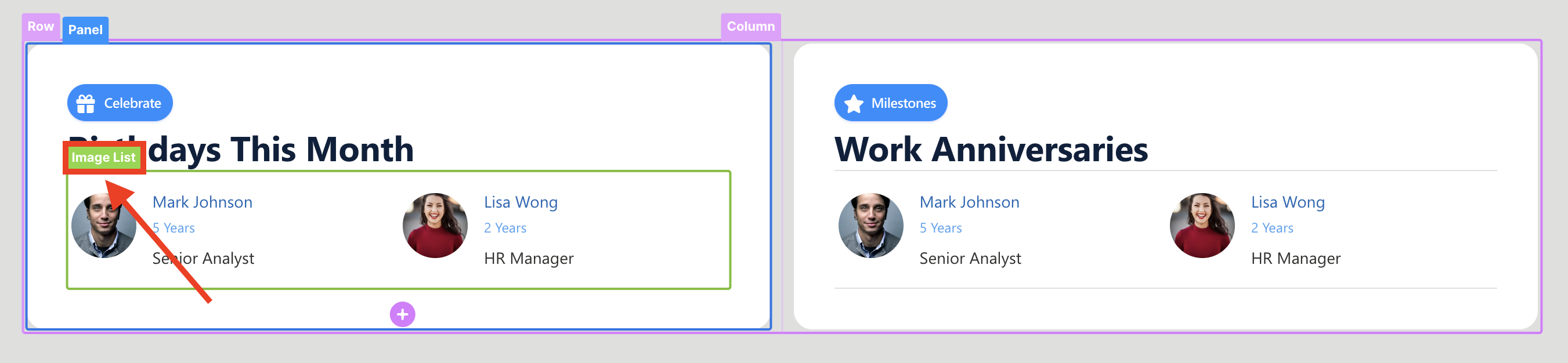
NOTEBefore proceeding, make sure you already have the Design Element you want to use to connect on your SharePoint page. For this guide, we'll use Image List.
- Select the EasyPass tag of the Design Element:
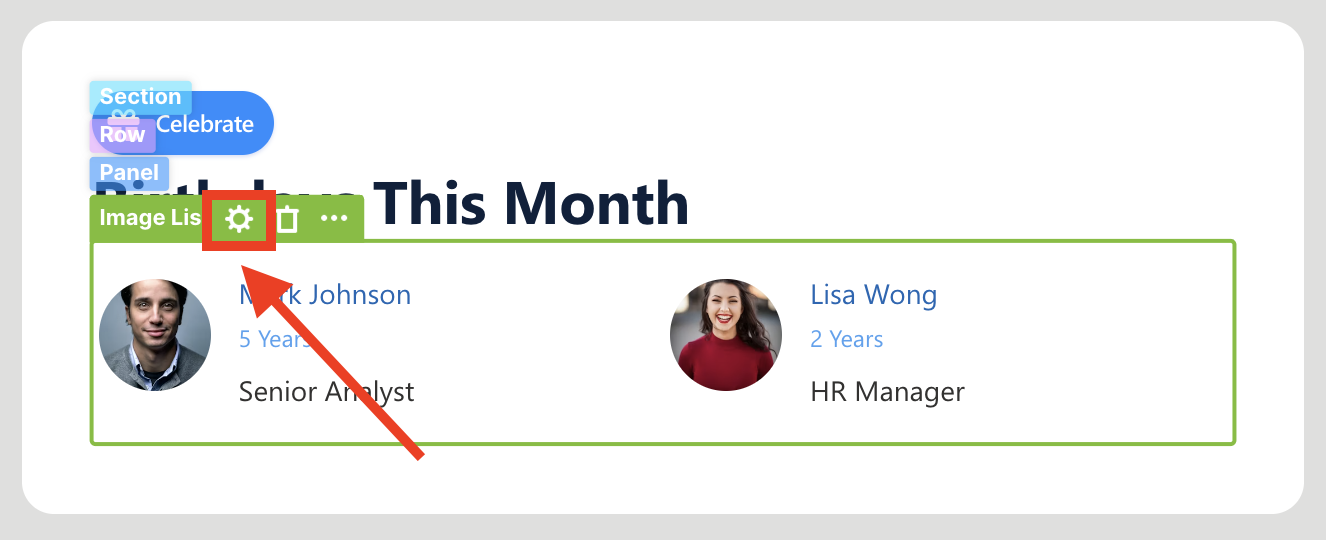
- Click the cogwheel icon to open its settings:
Step 3: Choose People Search
- Go to the Connect tab.
- Click Configure:

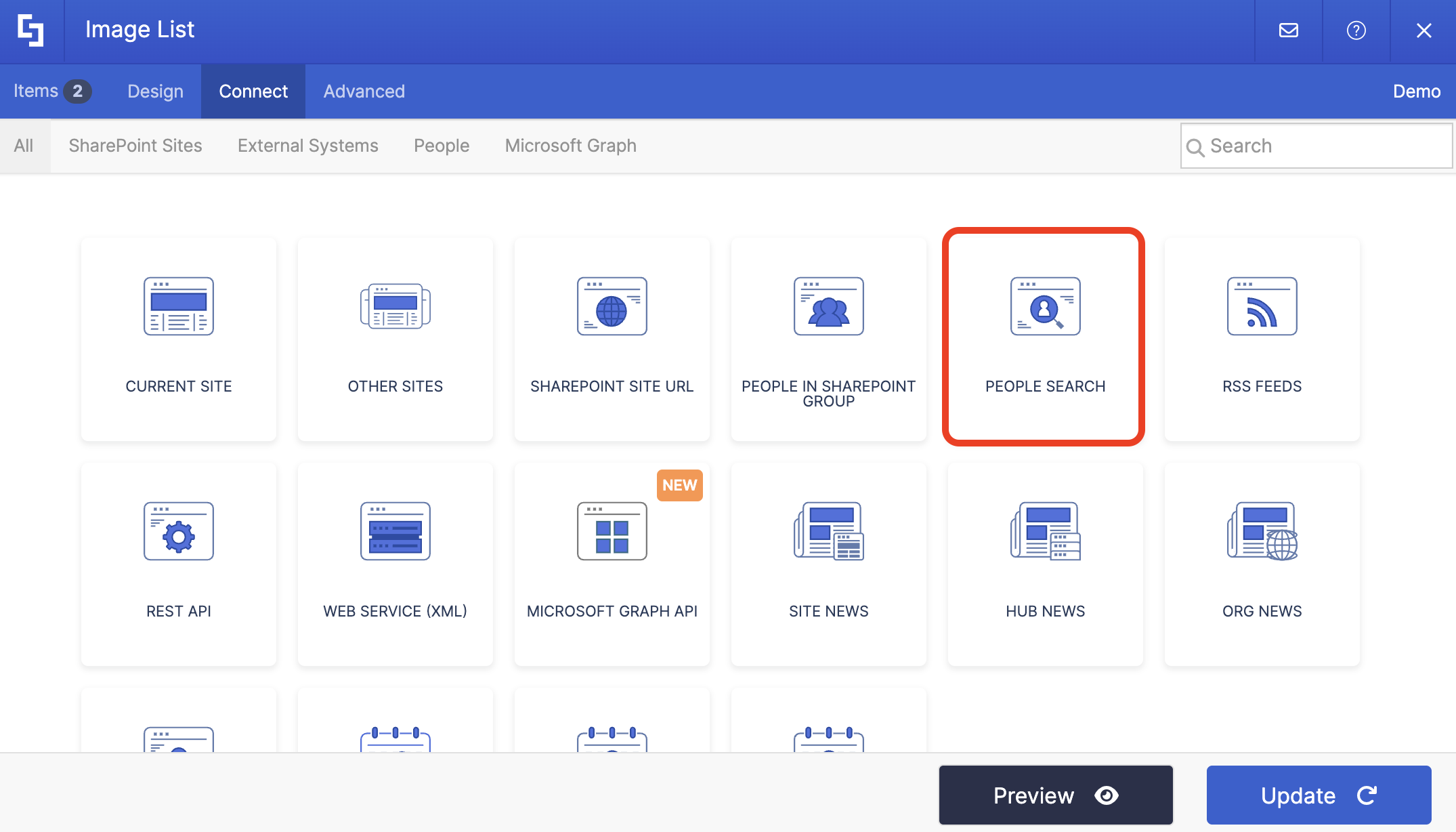
- Select People Search:
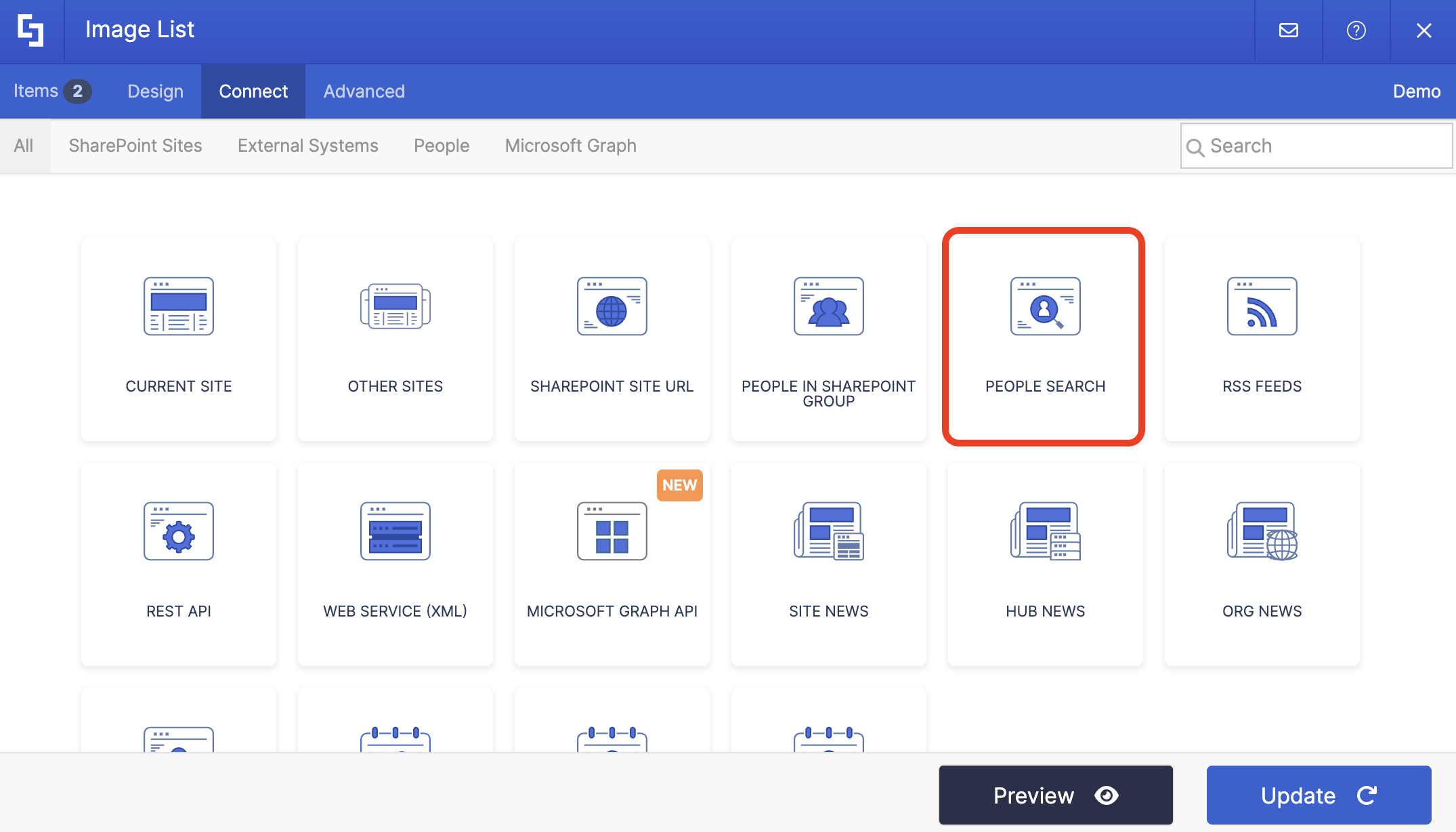
Step 4: Connect
- Choose the Upcoming Birthdays filter from the drop-down:
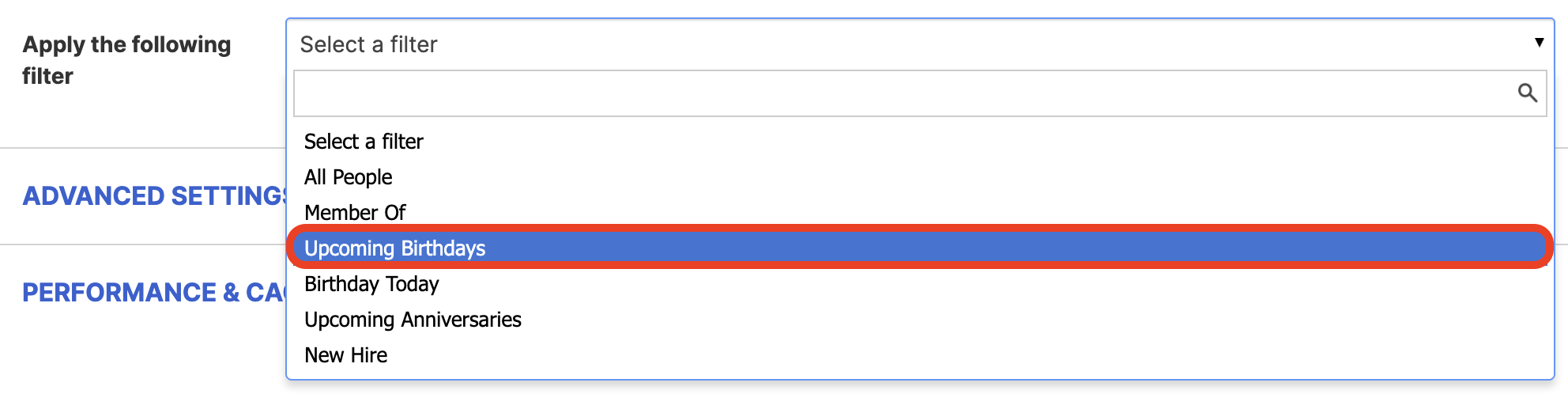
- Make sure that the mapped property for Upcoming Birthdays is selected correctly. In our case, it's RefinableDate18:

- Next, choose how many days ahead to display upcoming birthdays. Entering 30, for example, will show all users with birthdays in the next 30 days.

- Once done, click Connect.
Step 5: Map Items
- Go to the Items tab.
- Delete all default content.
- Use the link icon to map the properties you want shown.
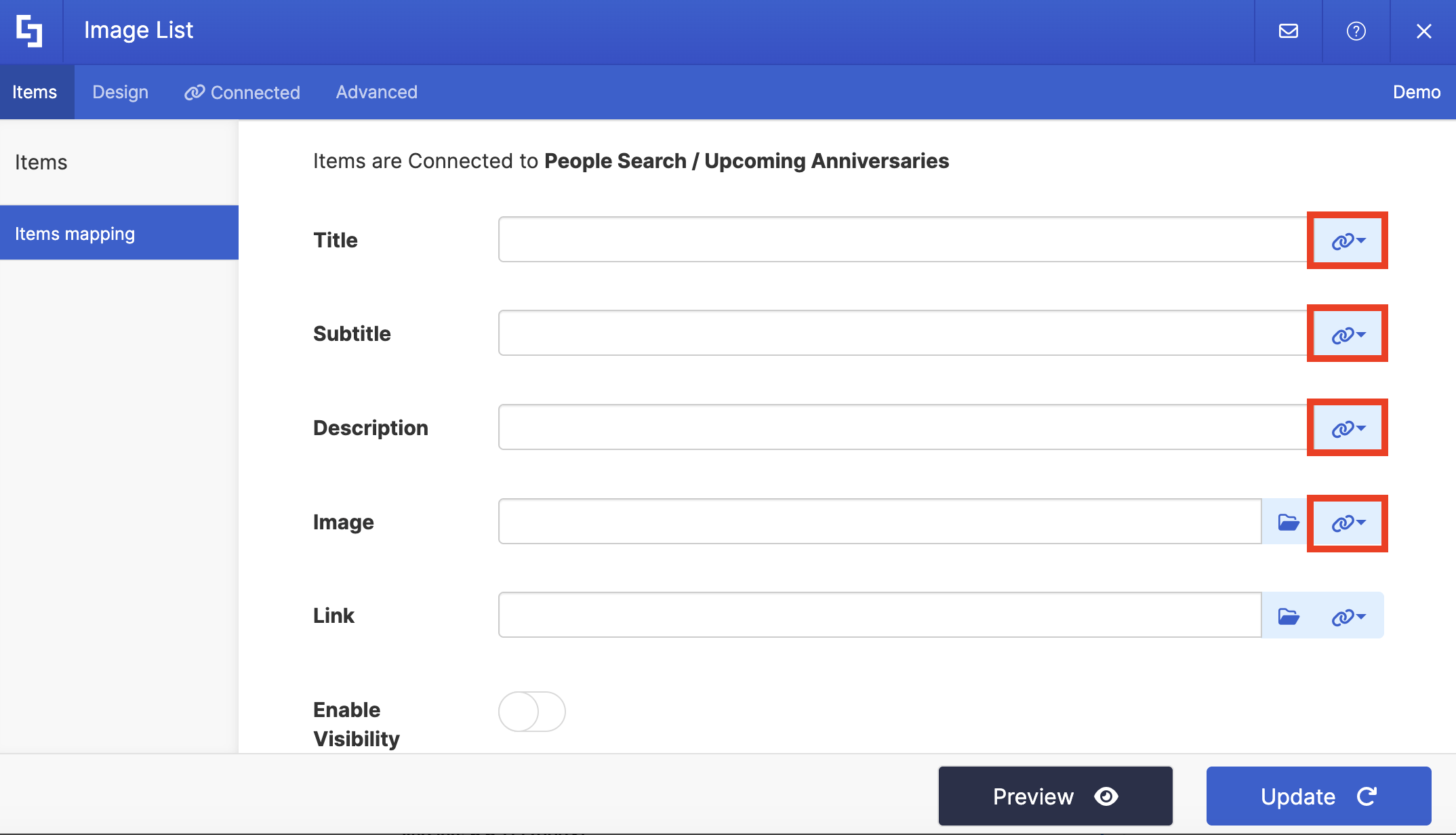
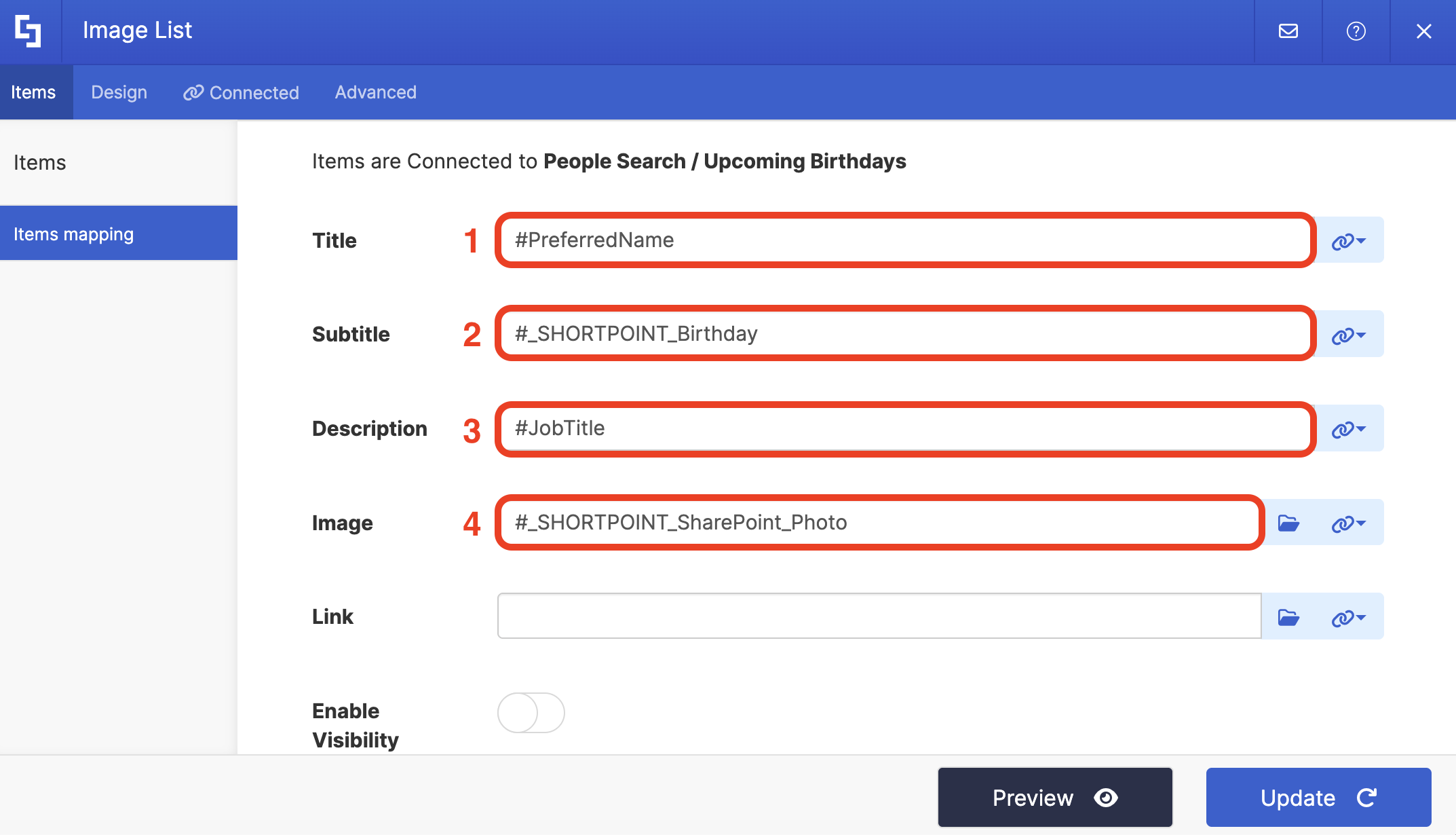
- For reference, below are the properties we mapped:
- #PreferredName - shows the name of the employee as the title.
- #_SHORTPOINT_Birthday - shows the birthday of the employee.
- #JobTitle - shows the work title of the employee.
- #_SHORTPOINT_SharePoint_Photo - shows a photo of the employee.
Step 6: Save and Publish
- Click Preview to see how the Design Element looks.
- Once satisfied, click Update.
- Select the green check mark.
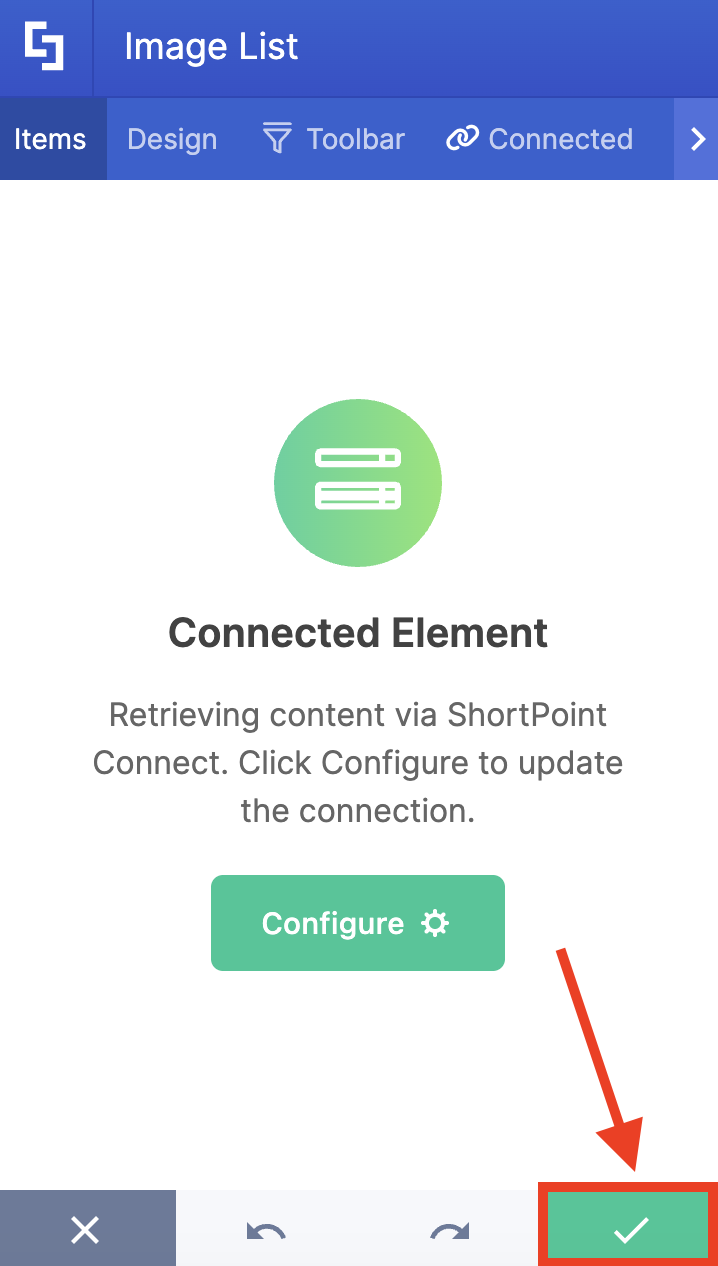
- Save your changes:

- And Publish your page:

Congratulations! You can now display upcoming birthdays on your SharePoint page. This will surely add a touch of personalization to your intranet.
Practical Use Cases for Upcoming Birthdays in SharePoint
How can you actually use this on your site? Here are four ways to bring this data to life:
Monthly Milestone Roundup
Create a dedicated "Culture" page and use the ShortPoint Tiles design element. Configure the filter to look 30 days ahead. This gives the whole department a bird's-eye view of upcoming celebrations, making it easier to plan a single monthly cake day for everyone.
Automated Executive Reminders
If your leadership team likes to send personal notes to employees, you can create a private "Manager Dashboard." By filtering the People Search to a specific department and setting the birthday window to 7 days, managers always know who to reach out to without digging through HR records.
The "Who’s Next?" Carousel
Use the ShortPoint Image Carousel to display the profile photos of upcoming birthday stars. It adds a high-visual, human element to the intranet, making the celebration feel more personal and vibrant than a simple text list.
Start Displaying Upcoming Birthdays
Modern intranets are more than just document repositories; they are the digital heart of your company. By adding small, human touches like an automated birthday list, you’re not just sharing data; you’re building a community.
Add a human touch to your intranet today! ShortPoint Designers can jump right in and try the connection. New to ShortPoint? Start your FREE 15-day trial today, or schedule a one-on-one demo with our experts.
Frequently Asked Questions
Do employees need to share their full date of birth for this to work?
The birthday field technically stores a full date, but organizations can choose to display only month and day in the ShortPoint layout. The underlying data must exist for People Search to filter upcoming birthdays, but your display settings can mask or omit the year entirely. Most companies show “Birthday: April 21” rather than the complete DOB.
What if some employees do not have a birthday saved in their profile?
Those users simply won’t appear in the upcoming birthdays list until their information is completed. HR or IT can run profile completeness campaigns, encouraging staff to add birthdays through internal communications.
Can we show today’s birthdays separately from upcoming birthdays?
Yes. Create two ShortPoint design elements connected to People Search: one filtered to birthdays today and another for upcoming birthdays.
Can we reuse the same approach for work anniversaries or hire dates?
Absolutely. The same People Search connection concept applies to “Upcoming Work Anniversaries". For more information, check out How to Display Upcoming Anniversaries in SharePoint.
Related articles:
