Try ShortPoint now
TL;DR: To get started with Power BI for SharePoint, add the ShortPoint Power BI Design Element to your page. It shows live, interactive Power BI reports and dashboards right on your SharePoint Online pages, so your team doesn’t have to switch tabs. You’ll need the latest ShortPoint SPFx version, a ShortPoint Designer Pro or Enterprise license, and a Power BI license that lets you share reports. Then choose how people will view the reports. With user-based licensing, each viewer signs in with their own Power BI Pro or PPU license. With capacity-based licensing, anyone with permission can see the reports without signing in or having their own license.
Data drives modern decision-making, but raw numbers rarely inspire action on their own. When team members have to jump across multiple browser tabs and login screens just to check a Power BI report, engagement drops, and key metrics get overlooked.
The ShortPoint Power BI Design Element solves this challenge by allowing organizations to display live, interactive Power BI dashboards and reports directly inside their SharePoint Online pages with native-looking design and layout controls. This integration leverages the power of Power BI, ensuring that users can access up-to-date data and real-time data visualizations without leaving the SharePoint environment.
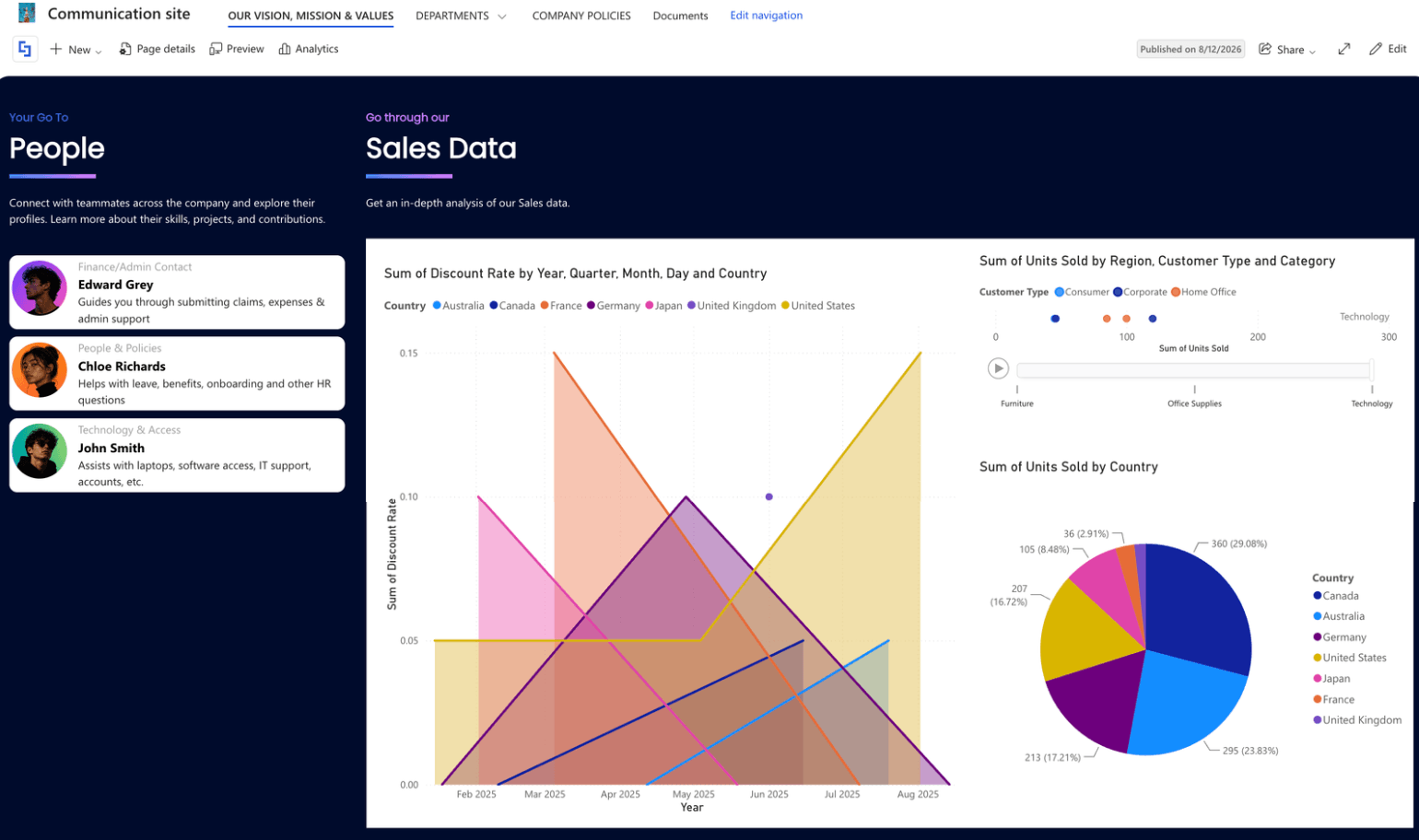
TABLE OF CONTENTS
- Prerequisites
- What is Power BI?
- What is the ShortPoint Power BI Design Element?
- Add Power BI Report to SharePoint
- 4 Practical Use Cases
- Frequently Asked Questions
- Do all site visitors need a Power BI Pro license to view embedded reports?
- How often will users be prompted to sign in?
- Does ShortPoint support Multi-Factor Authentication (MFA) for Capacity-based integration?
- Can I customize the layout and appearance of the Power BI element?
- Do all SharePoint users need a Power BI Pro license to view embedded reports?
- Does Power BI support embedding reports in SharePoint without requiring users to log in repeatedly?
- How does Power BI improve data-driven decisions within SharePoint?
Prerequisites
To integrate Power BI dashboards and reports using ShortPoint, you will need the following:
- You have the latest ShortPoint SPFx version installed on your SharePoint environment.
- You are a ShortPoint Designer with either a Pro or Enterprise License. For more information, check out Licensing Options.
- You have an active Power BI License that enables you to share your reports.
- The users who will view your reports also have the appropriate Power BI licenses and/or permissions.
What is Power BI?
Before we go into the nitty-gritty of what the ShortPoint Power BI Design Element is, it's essential to understand what Power BI is first.
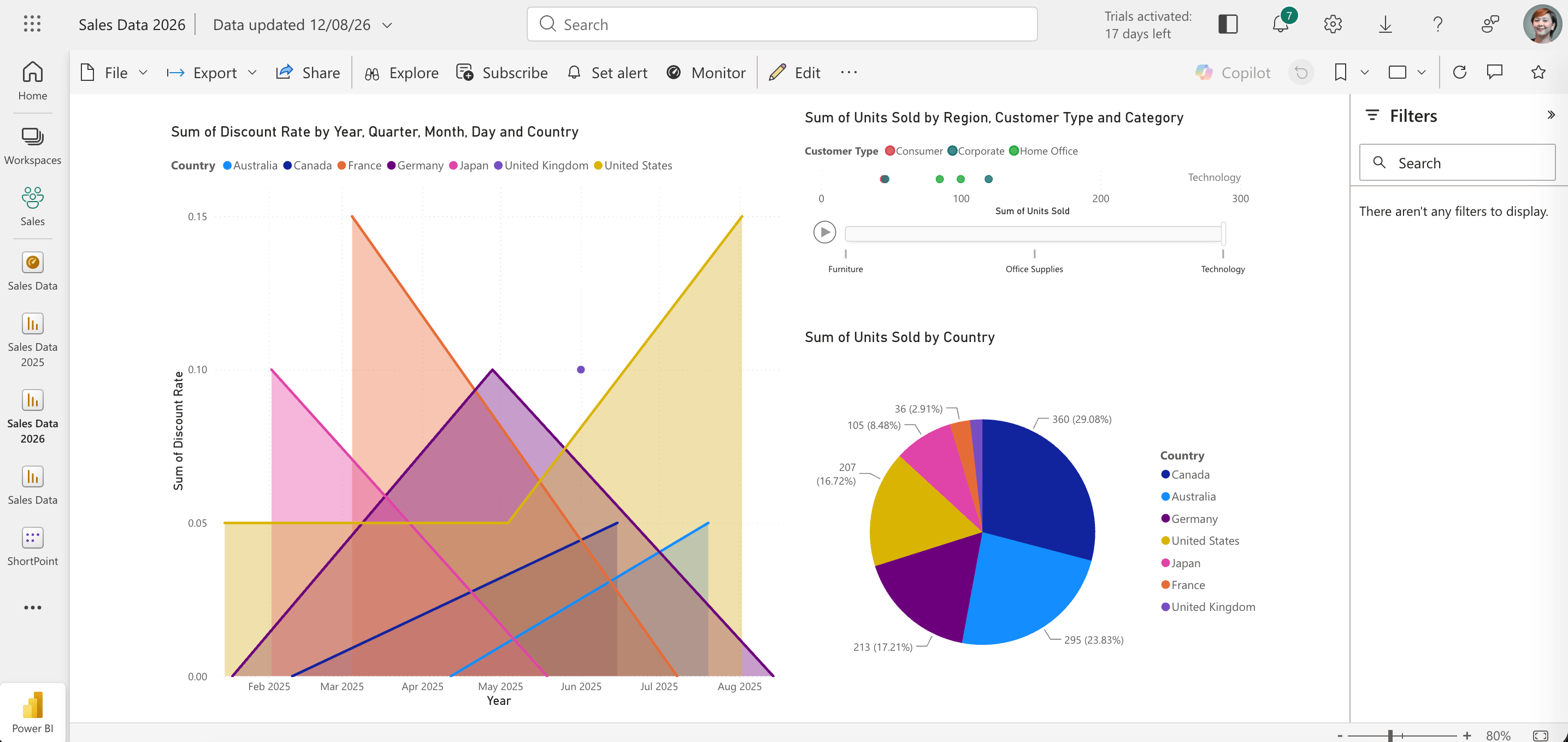
In a nutshell, if you have tons of data sitting in Excel spreadsheets, SQL databases, or cloud services like Google Analytics and Salesforce, Power BI is your best friend! It takes those raw, often messy data and turn them into reports or dashboards that translate complicated information into a language everyone can understand (charts, bar graphs, or whatever makes sense for you and your team).
What is the ShortPoint Power BI Design Element?
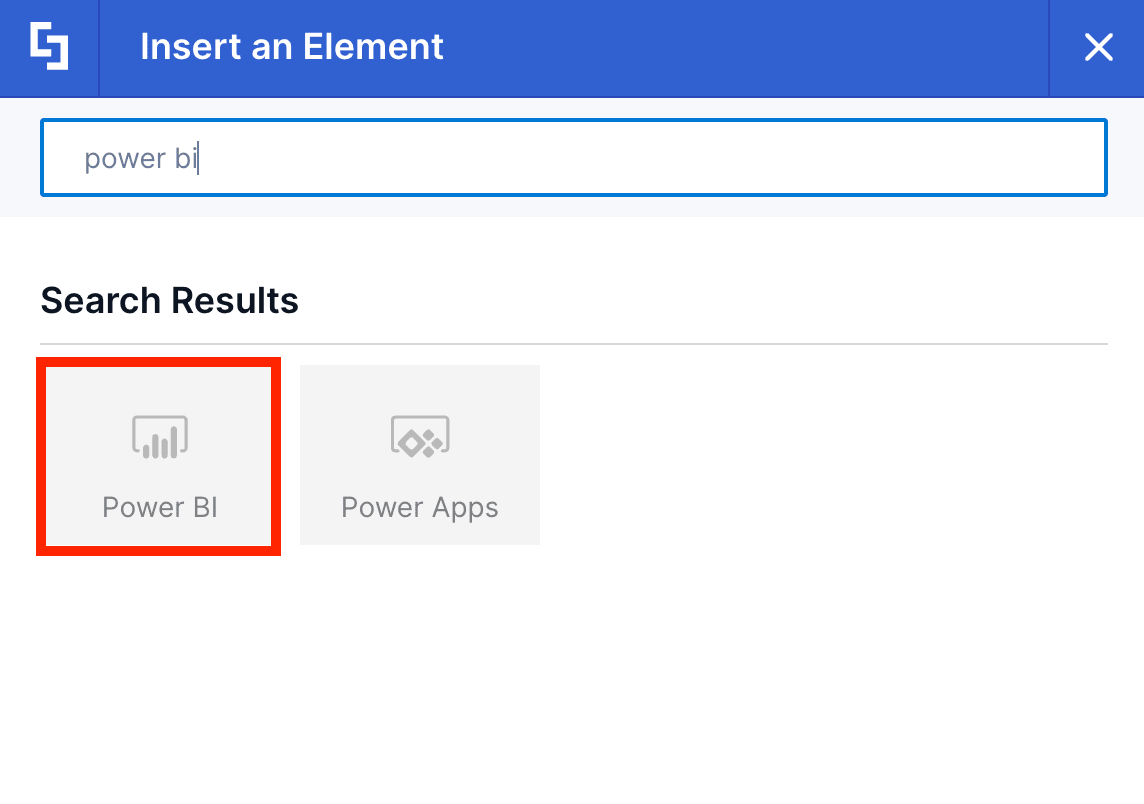
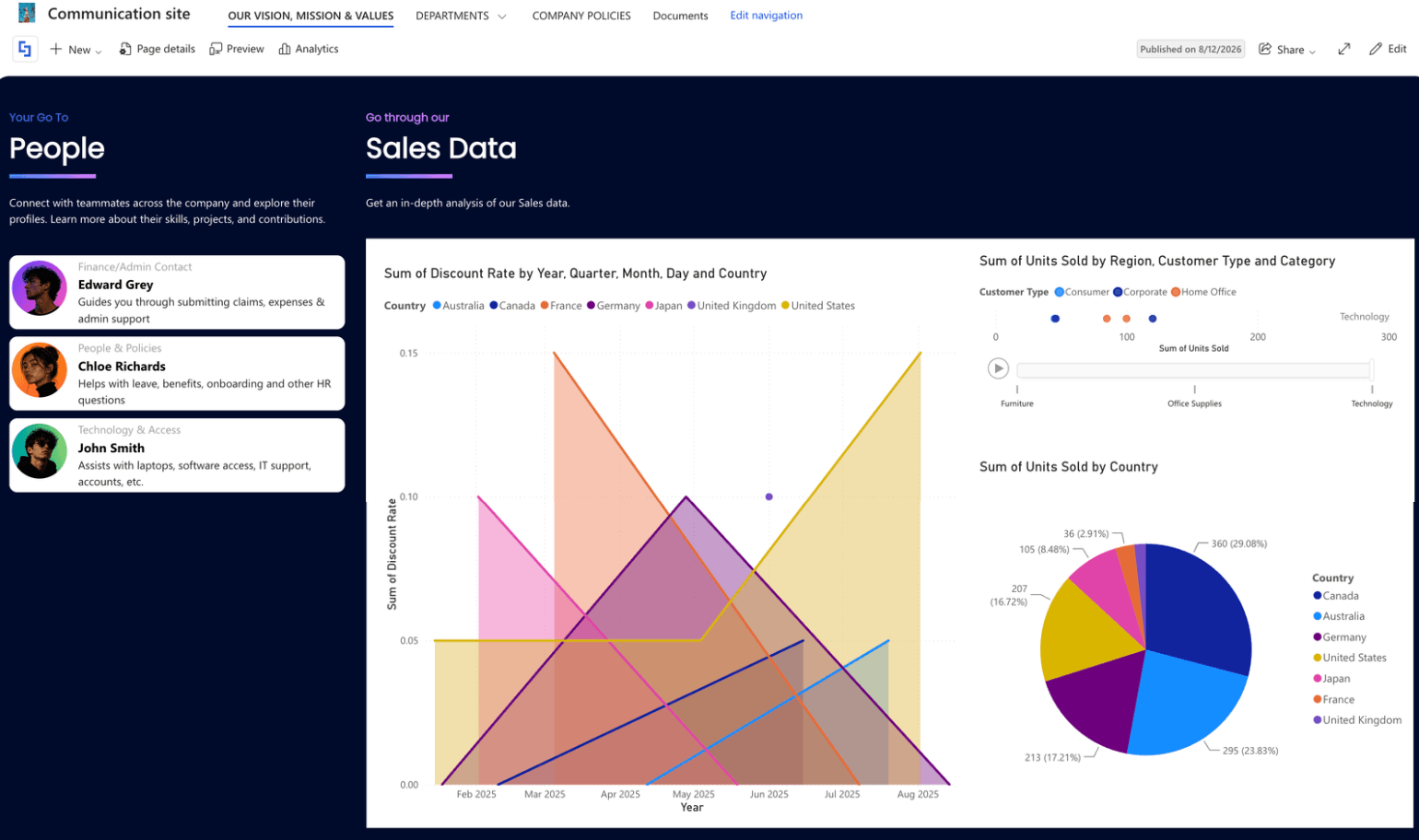
The Power BI Design Element acts as a bridge between Power BI dashboards/reports and your SharePoint workspace. Essentially, it allows you to display informative data right on your SharePoint sites.
To make things even better, starting from ShortPoint SPFx version 9.5.0.0, you can now add the Power BI Design Element using the Live Mode experience.
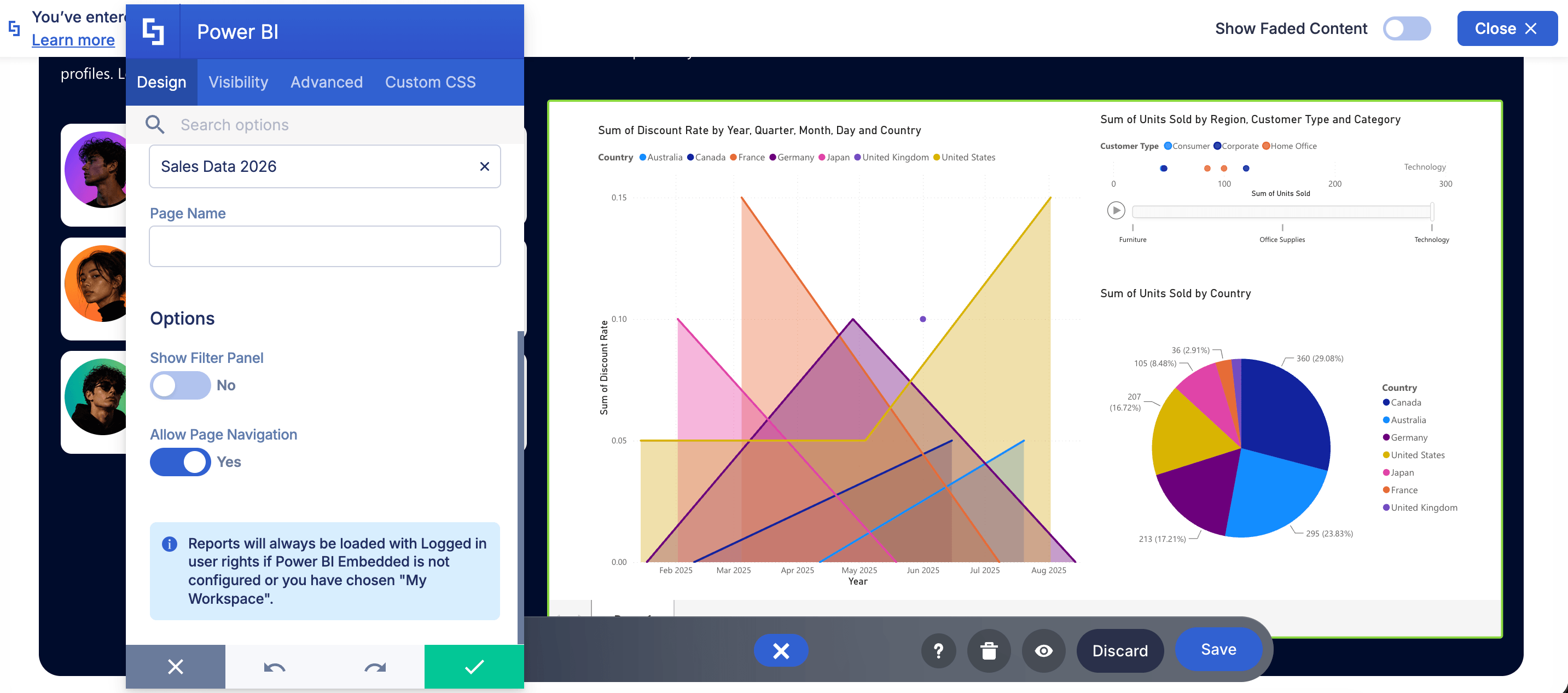
The ShortPoint Power BI Design Element gives page builders fine-grained control over how reports and dashboards appear alongside other site content. You can allow page navigation and even adjust its size:
ShortPoint offers two distinct ways to integrate Power BI output, depending on the type of Power BI license you have:
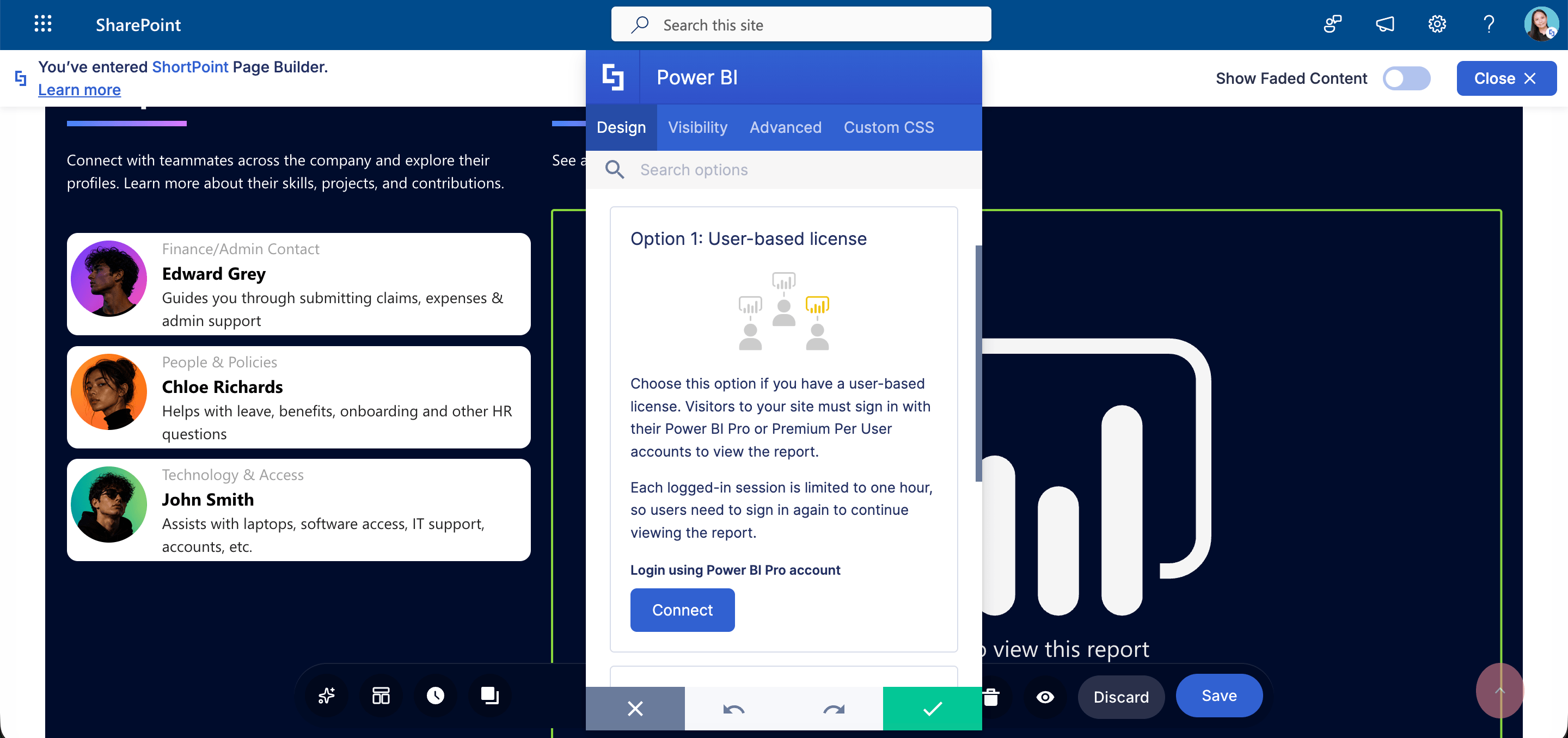
- User-based Licensing - when you have this license, site viewers must log in to their Power BI accounts to see the report or dashboard on the SharePoint site. Go to Power BI Integration Option 1: User-based License Integration for more details.
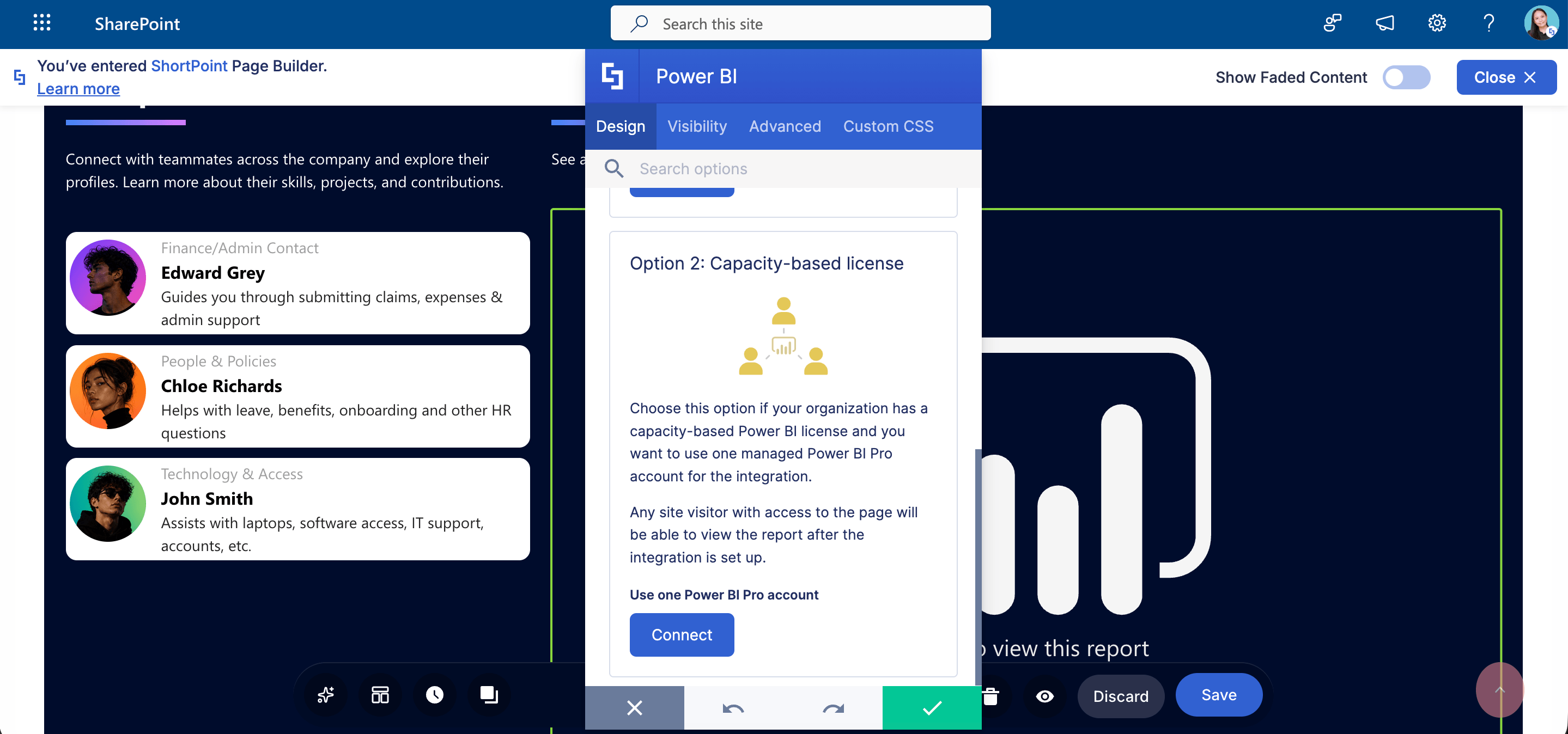
- Capacity-based Licensing - when you have this license, any viewer with permission will be able to see the report or dashboard without logging in. Check out Power BI Integration Option 2: Capacity-based License Integration to learn more.
For more information on these license types, check out Setting Up Power BI Integration.
Add Power BI Report to SharePoint
Ready to start adding Power BI Reports or Dashboards to your SharePoint sites? It's super easy! Simply follow our quick start guide here: Adding Your First Power BI Report to SharePoint.
4 Practical Use Cases
Executive & Leadership Dashboards
High-level executives rarely have time to navigate complex analytics platforms. By embedding a high-level Power BI executive dashboard onto the header of a SharePoint Executive Hub, leadership can view real-time revenue, operational expenses, and strategic goals as soon as they open their browser.
Departmental Sales & Marketing Hubs
Keep sales reps and campaign managers aligned by embedding live pipeline reports right next to team announcement banners, document libraries, and calendars. Sales teams can filter pipeline metrics by region or quarter without ever leaving their department site.
Project Management & Resource Tracking Workspaces
For large-scale enterprise projects, project managers can embed project-specific Power BI tiles into dedicated SharePoint project pages. Team members can easily track task completion rates, budget burn rates, and milestone timelines alongside meeting notes and project deliverables.
Company-Wide Intranet Landing Pages
Using Capacity-based Licensing (Power BI Embedded), organizations can display company-wide metrics—such as annual sustainability targets, employee engagement stats, or quarterly health and safety records—on the main intranet homepage. Every employee receives instant visibility without needing an individual Power BI Pro license.
Frequently Asked Questions
Do all site visitors need a Power BI Pro license to view embedded reports?
It depends on your setup option:
- Under User-based licensing, every user who wants to view the report must have a valid Power BI Pro or Premium Per User (PPU) license.
- Under Capacity-based licensing, only one account requires a Pro/PPU license to publish the report, provided your organization uses Power BI Embedded capacity. Site visitors will be able to view the embedded content without an individual Power BI license.
How often will users be prompted to sign in?
For User-based integration, ShortPoint securely caches the logged-in user’s authentication token for up to 60 minutes. Once the session token expires, the user may be asked to re-enter their credentials. For Capacity-based integration, ShortPoint automatically refreshes authentication tokens in the background, offering an uninterrupted experience.
Does ShortPoint support Multi-Factor Authentication (MFA) for Capacity-based integration?
No. Currently, Microsoft enforces a technical limitation where master accounts using capacity-based embedding cannot use Multi-Factor Authentication (MFA) for automated background authentication. If MFA is enabled on the master account, the report will not load on the SharePoint page.
Can I customize the layout and appearance of the Power BI element?
Yes! ShortPoint allows you to wrap Power BI reports in custom containers, panels, tabs, or accordions. You can adjust how it looks to ensure the analytics blend into your overall intranet design.
Do all SharePoint users need a Power BI Pro license to view embedded reports?
Under user-based licensing, every user must have a Power BI Pro or Premium Per User (PPU) license to view reports. However, with capacity-based licensing (Power BI Premium), reports can be embedded and viewed by authorized users without individual Pro licenses, enhancing data security and user access management.
Does Power BI support embedding reports in SharePoint without requiring users to log in repeatedly?
Yes, with capacity-based licensing, Power BI can refresh authentication tokens in the background to provide uninterrupted access. However, multi-factor authentication (MFA) is not supported for master accounts used in capacity-based embedding.
How does Power BI improve data-driven decisions within SharePoint?
By embedding Power BI reports and dashboards in SharePoint, organizations enable users to create visualizations and access actionable insights directly within their collaboration platform, enhancing data management and facilitating informed decision-making.
Related articles: