 Try ShortPoint now
Want to showcase your SharePoint Picture Library in your SharePoint Online site? It's super easy to do with ShortPoint Connect; it's the perfect solution for your SharePoint library needs!
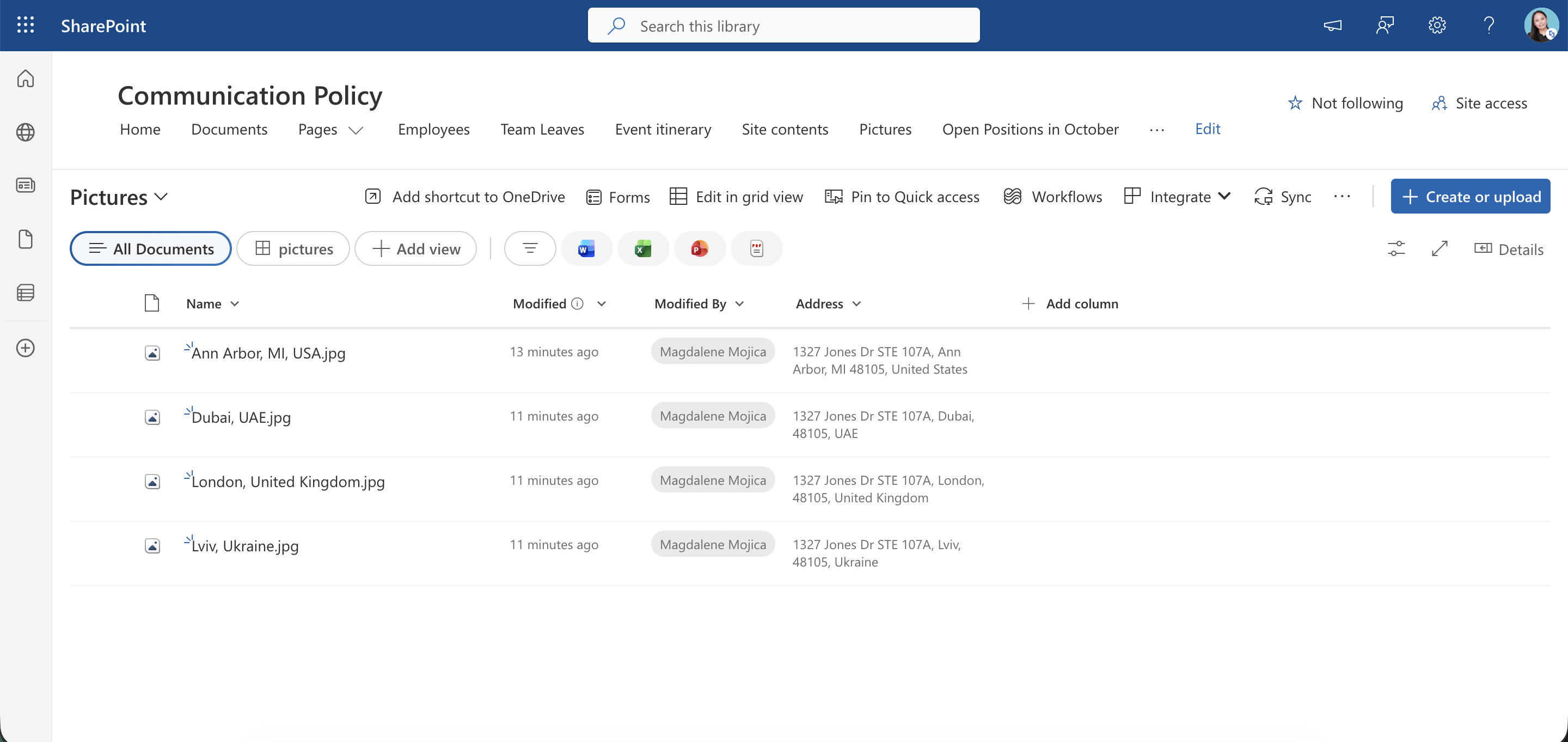
Follow the steps in this article to learn how to display images in an engaging image gallery section on your SharePoint page.

TABLE OF CONTENTS
- Prerequisites
- What is ShortPoint Connect?
- Interactive Tutorial
- Step-by-step tutorial
- Frequently Asked Questions
Prerequisites
- You must have the latest version of ShortPoint SPFx installed.
- You must be a ShortPoint Designer with an active license.
- You must already have an Image Library / Picture Library. For more information on how to create one, check out How to Create a Modern Picture Library in SharePoint Online.
- You must already have a Design Element that allows listing of multiple images (Image List, Image Cards, Slideshow, Tiles, Image Caption, etc.).
What is ShortPoint Connect?
ShortPoint Connect is a powerful data-integration feature that turns static design elements (like Image lists, Image Cards, Slideshows, etc.) into dynamic, real-time components that update automatically whenever the source data changes.
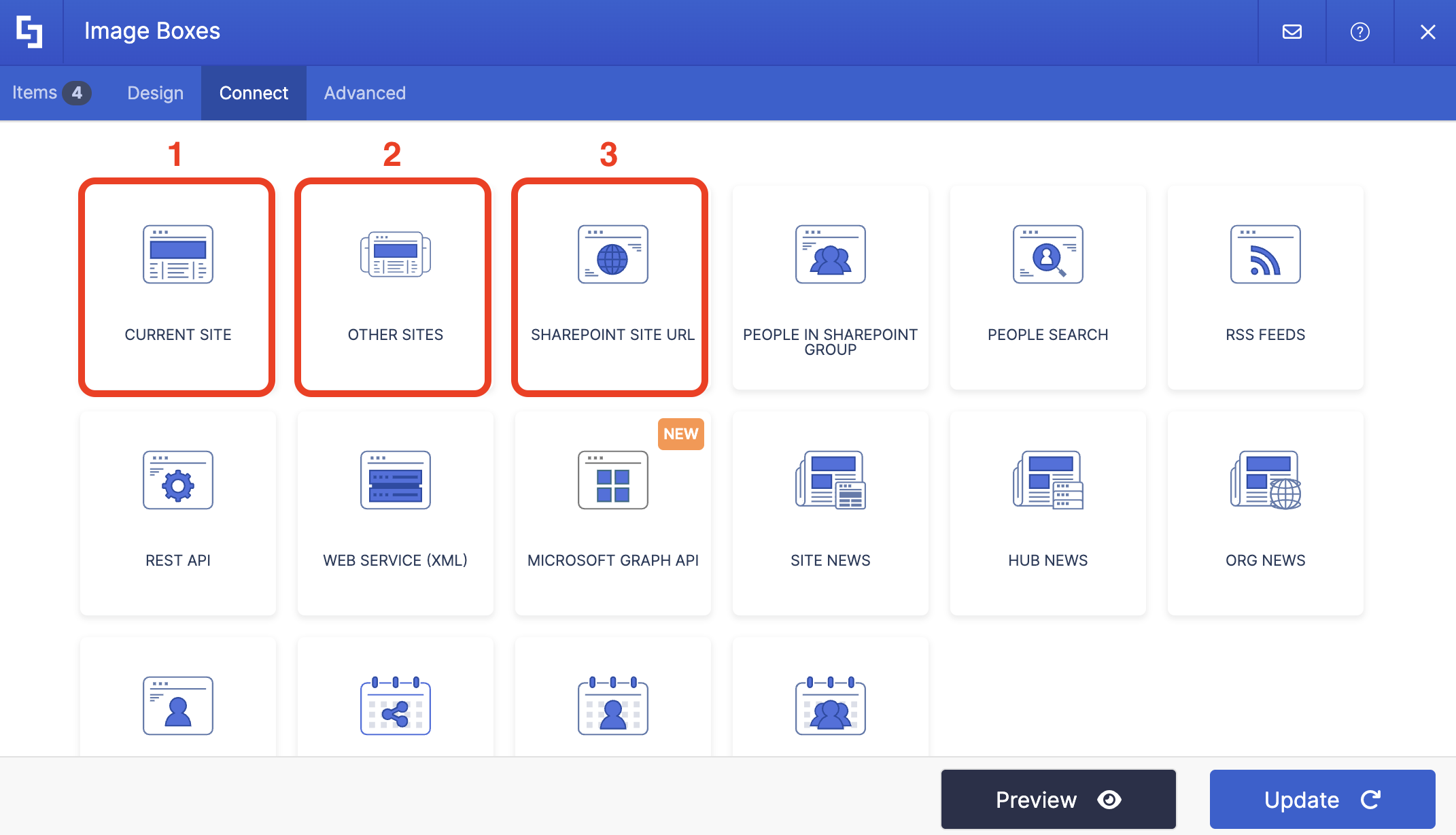
It offers over 20 integrations, ranging from SharePoint data connections to Outlook and other external sources. For this article, you have the option to use any of the following connection types to showcase image files from your document library:
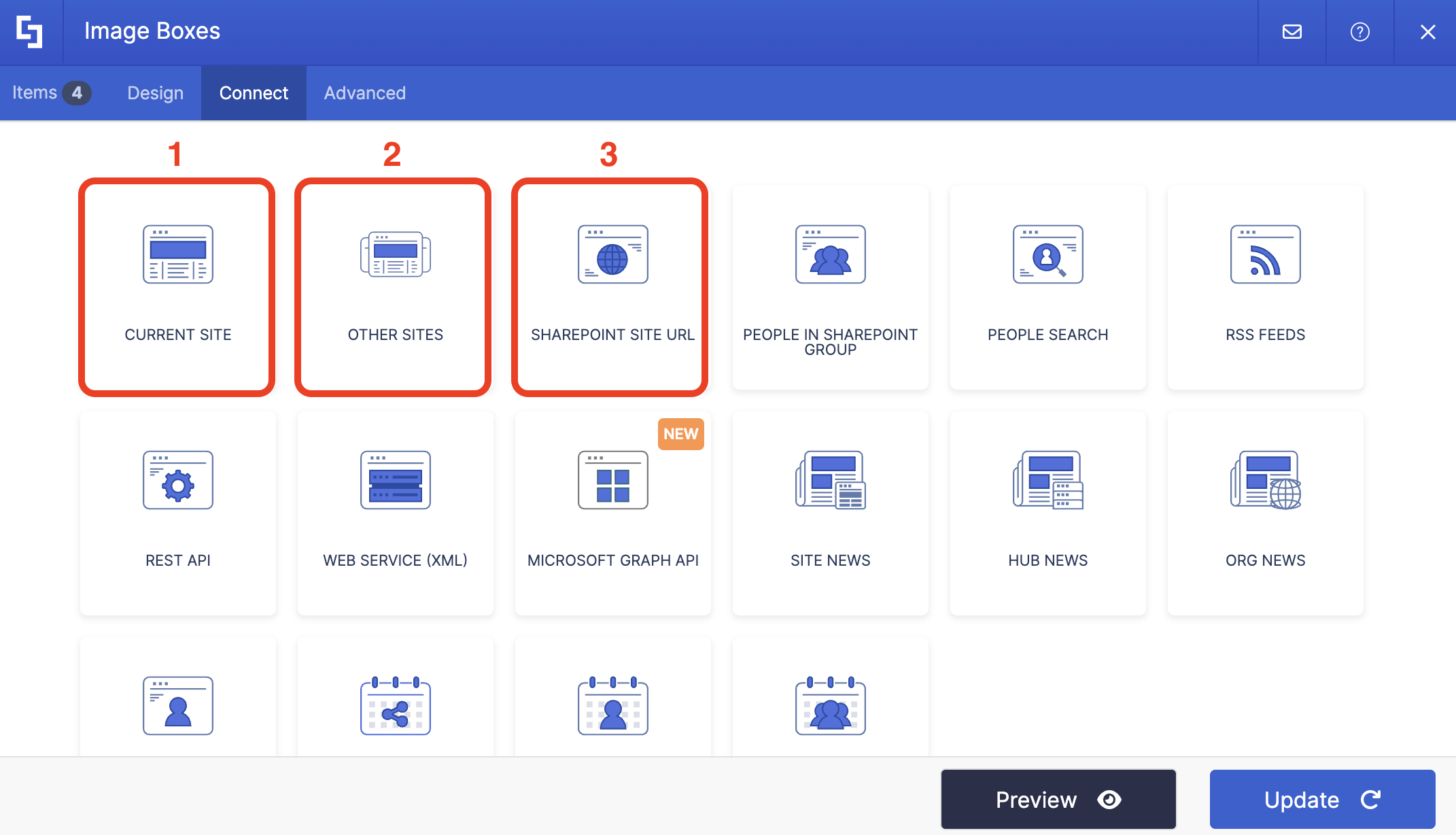
- Current Site - allows you to connect to a SharePoint Image Library located on your current site
- Other Sites - allows you to connect to a SharePoint Picture Library located on other sites across your tenant or farm.
- SharePoint URL - allows you to connect to a SharePoint Picture Library using a specific SharePoint URL.
Interactive Tutorial
Start the interactive tutorial to start showcasing your SharePoint image library in SharePoint Online, enabling you to display pictures beautifully using ShortPoint Design Elements:
Step-by-step tutorial
Follow the steps below to connect your SharePoint Picture library to a ShortPoint Design Element:
Step 1: Edit the ShortPoint Web Part
- Go to the SharePoint page you want to use and click Edit.
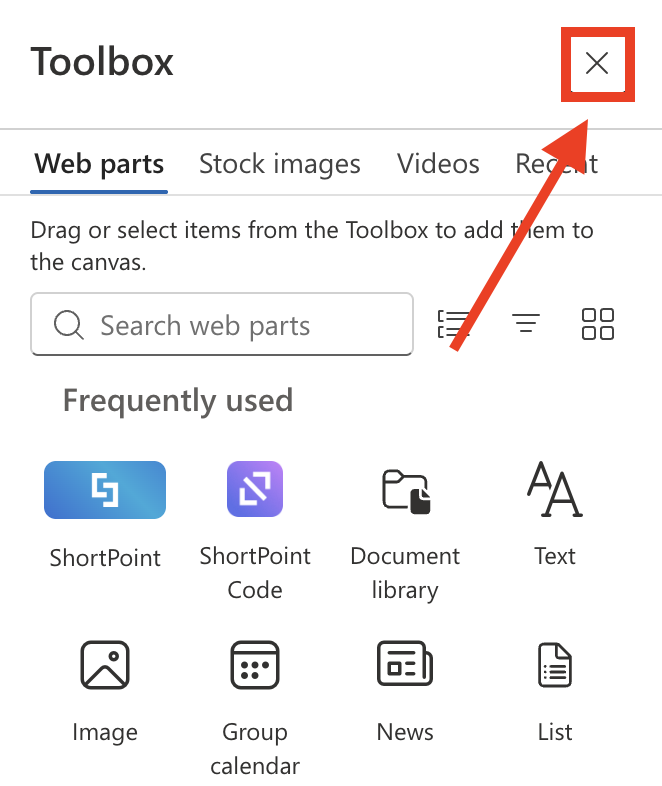
- Close the Toolbox:
- Click the Edit properties icon:

Step 2: Edit the Design Element
NOTEBefore proceeding, you must already have a Design Element that allows listing of multiple images (Image List, Image Cards, Slideshow, Tiles, Image Caption, etc.).
- Select the EasyPass tag of the Design Element:
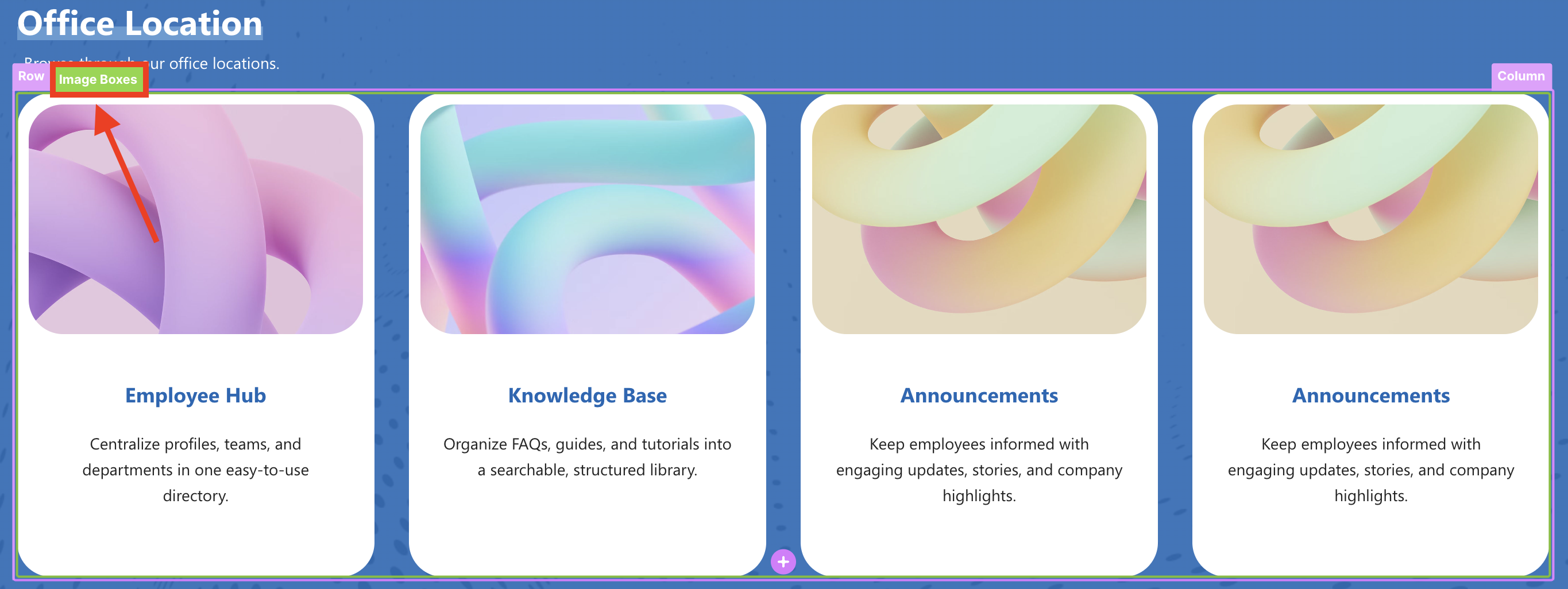
- Click the cogwheel icon to open the Settings window:
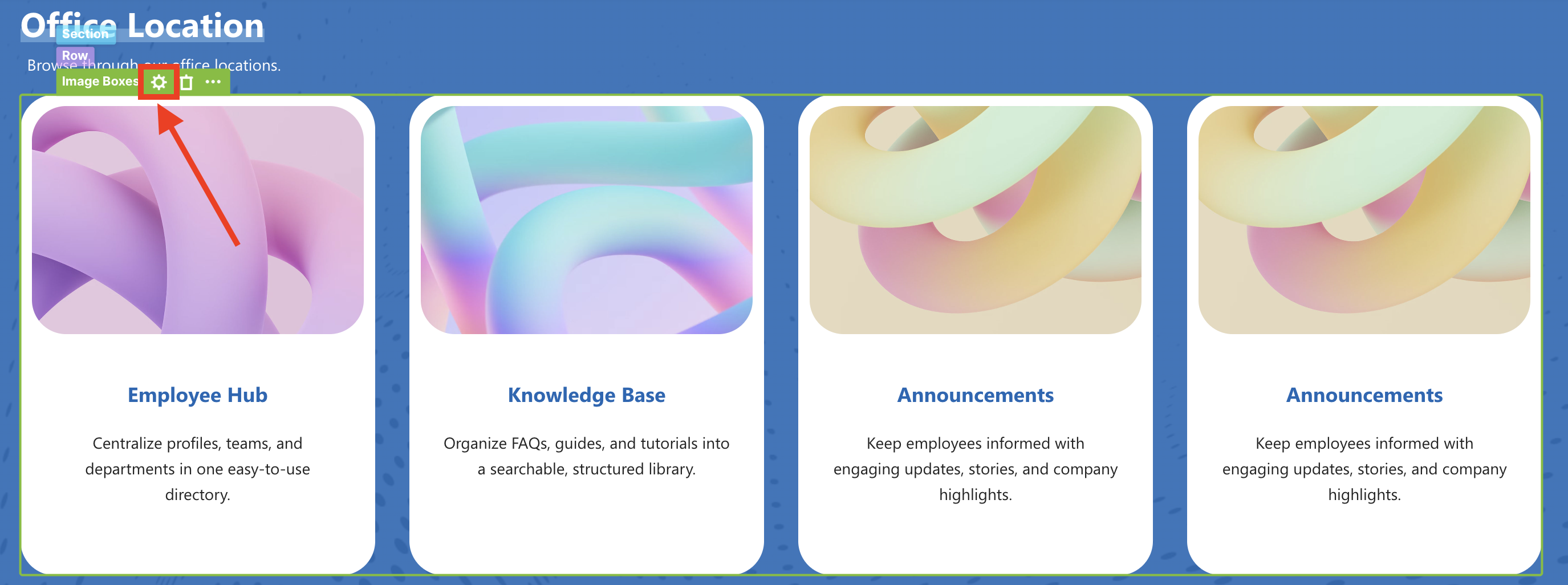
NOTEFor more information on how to insert Design Elements into your page, check out ShortPoint Basics: How to Insert a Design Element.
Step 3: Connect your Image Library to the Design Element
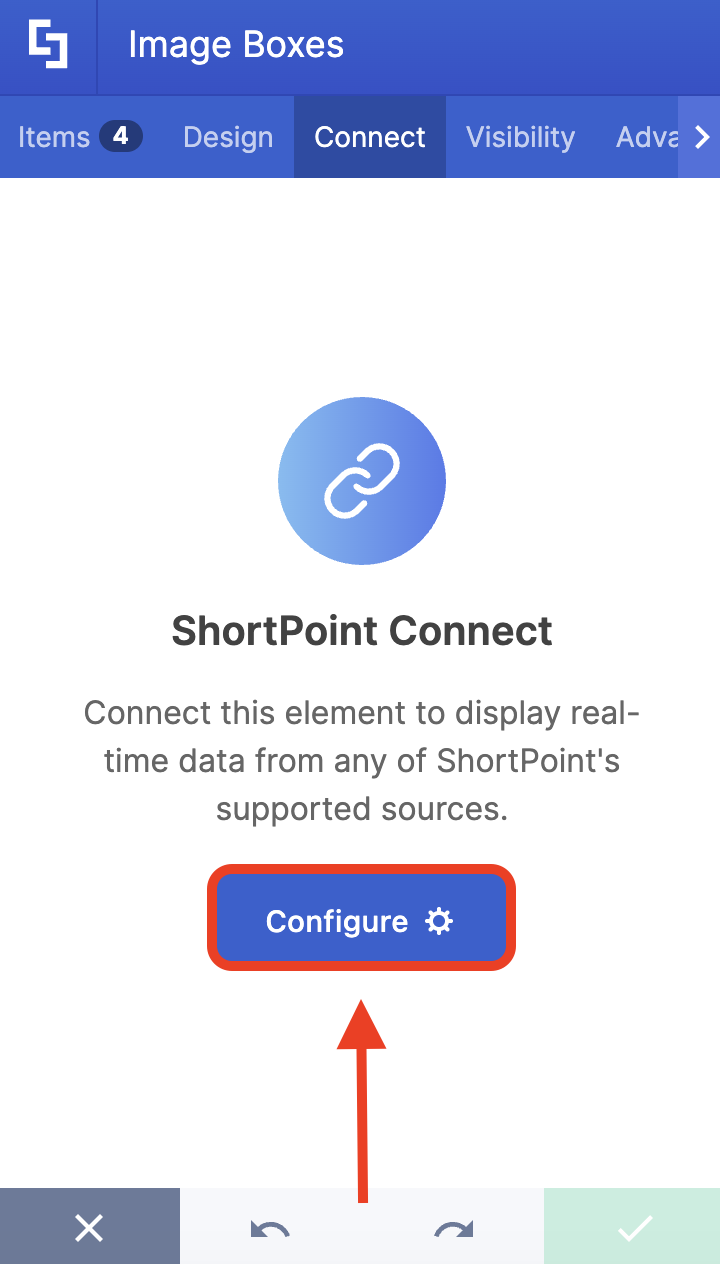
- Go to the Connect tab.
- Click Configure:
- Choose the connection type you want to use. You can choose from [1] Current Site, [2] Other Sites, or [3] SharePoint URL. For this guide, we will be using the Current Site connection type since our Image Library is located in the site we're using.
- Select the name of your SharePoint Library under the List/ Library field.
- Select the View you want to showcase.
NOTEDepending on the connection type you choose. The fields you need to modify may vary.
- Then, click Connect.
Step 4: Map Items
- Go to the Items tab.
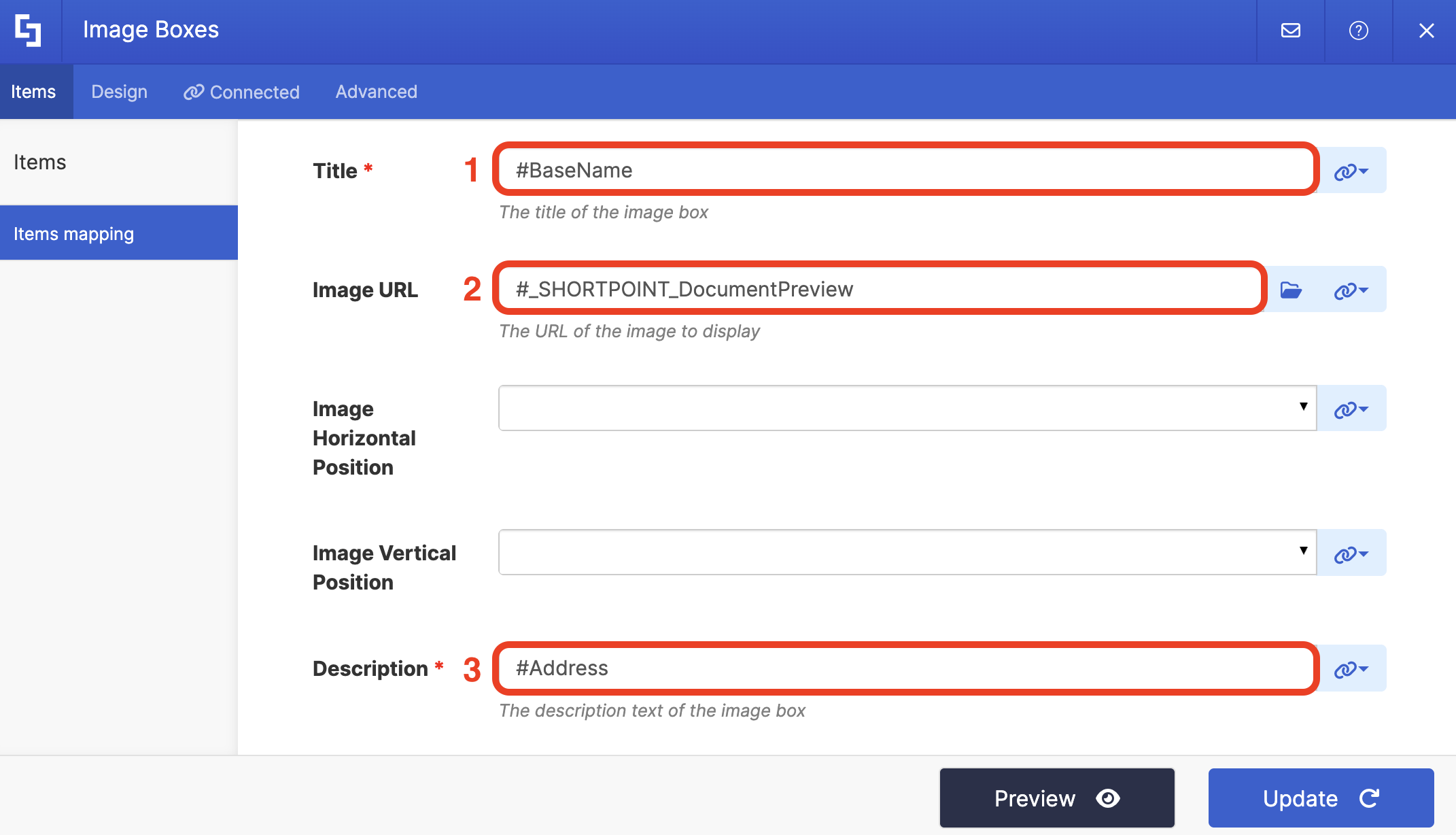
- Delete all default content and use the link icon to map the properties you want to show:
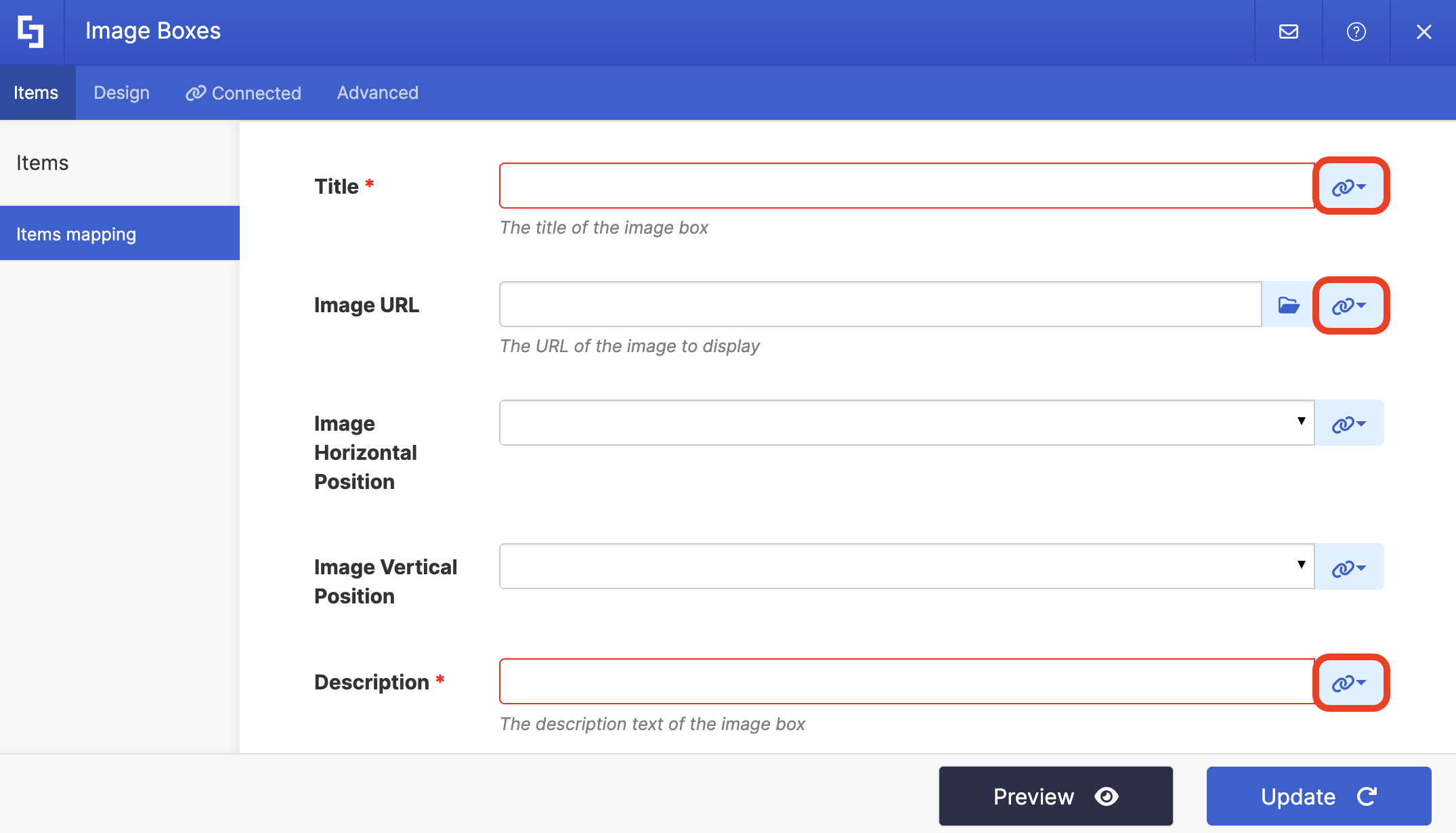
- You can use the mapped items below as a reference or map your own:
- #BaseName - shows the file name as the tilte.
- #_SHORTPOINT_DocumentPreview - shows the image.
- #Address -shows the location address.
NOTEFor more information on Items Mapping, check out ShortPoint Connect: How Items Mapping Works.
Step 5: Update and Save
- Click Update once satisfied.
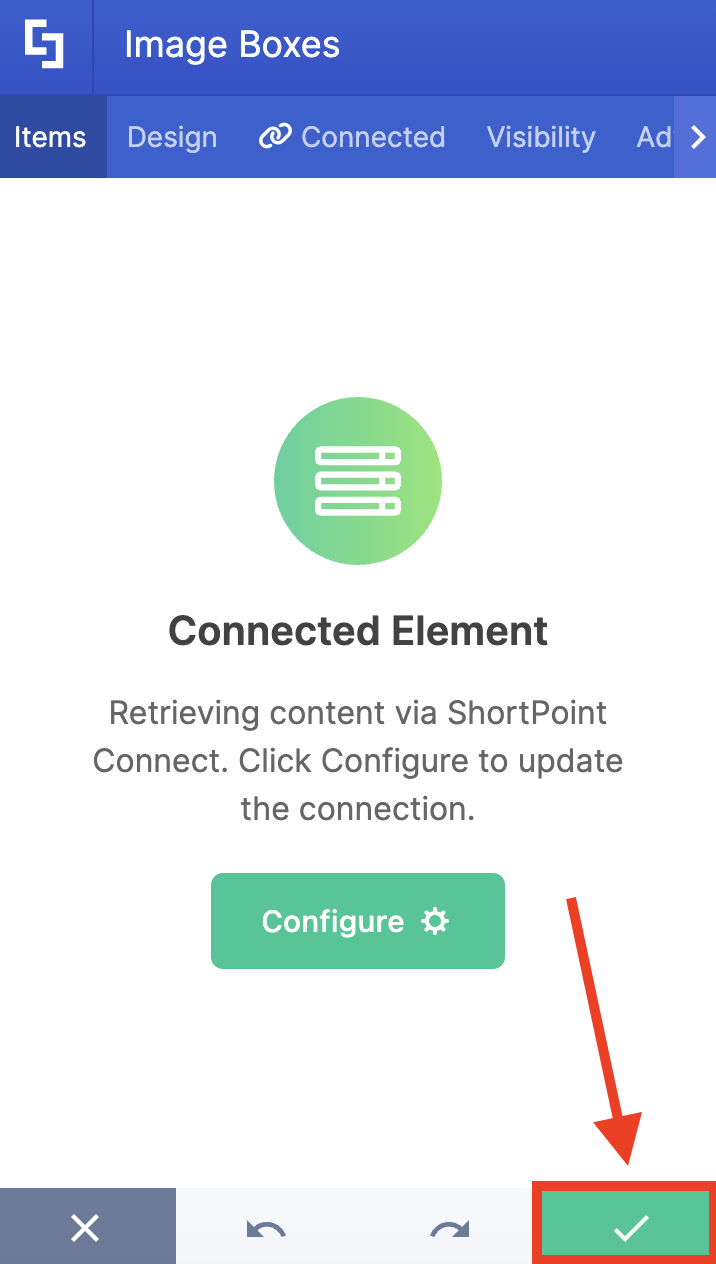
- Select the green checkmark:
- Then, click Save to keep your changes:

- Publish your page:

Congratulations! You now know how to showcase the content of your SharePoint image library, including photos and other assets, on your SharePoint site.
Frequently Asked Questions
What is a SharePoint image library?
A SharePoint image library, also known as a picture library, is a dedicated SharePoint document library optimized for storing, organizing, and managing image files such as JPEG and PNG formats. It supports features like metadata tagging, thumbnails, and versioning to improve performance and enable users to easily access and navigate image collections.
How can I display images from a SharePoint image library on my site?
You can showcase images stored in your SharePoint image library by connecting it to ShortPoint Design Elements using ShortPoint Connect. This allows you to create dynamic image galleries, slideshows, or tiles that automatically update when images are uploaded or modified in the library.
What connection types can I use?
ShortPoint Connect supports multiple connection types to access your SharePoint image library, including Current Site, Other Sites across your tenant, and direct SharePoint URLs. This flexibility lets you easily connect to libraries stored in different sites or folders.
How do I map image metadata in ShortPoint Connect?
In the Items tab of ShortPoint Connect, you can map image attributes such as title, description, keywords, and date to display alongside your images. To learn more, check out ShortPoint Connect: How Items Mapping Works.
Is it possible to connect to image libraries stored in other sites?
Yes, ShortPoint Connect allows you to connect to SharePoint picture libraries located on other sites within your tenant or farm, making it easy to showcase images from multiple sources. For more informartion, go to How to Use the SharePoint URL Connection.
Related articles:
