 Try ShortPoint now
In this article, we will walk you through how to use the Image Caption Design Element to add SharePoint picture.
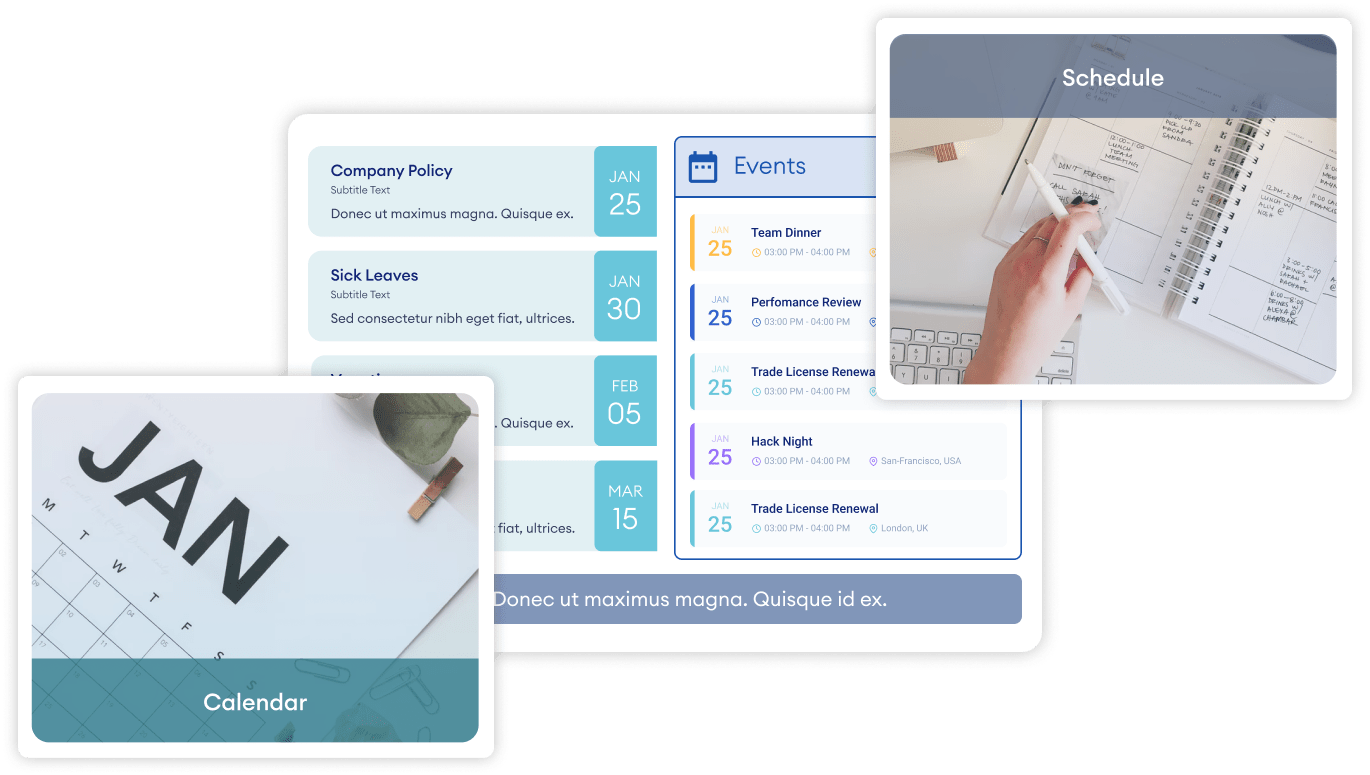
TABLE OF CONTENTS
Prerequisites
- You have the latest ShortPoint public version installed for your environment
- You are a ShortPoint designer with an active license
Step-by-step Tutorial
Follow the steps below to learn how to customize the Image Caption Design Element:
Step 1: Insert the Image Caption Design Element
Go through the interactive video below to learn how to insert the Image Caption Design Element using Live Mode:
NOTE: Check out ShortPoint Basics: How to Insert a ShortPoint Design Element in Live Mode for more details.
Step 2: Customize the Image Caption
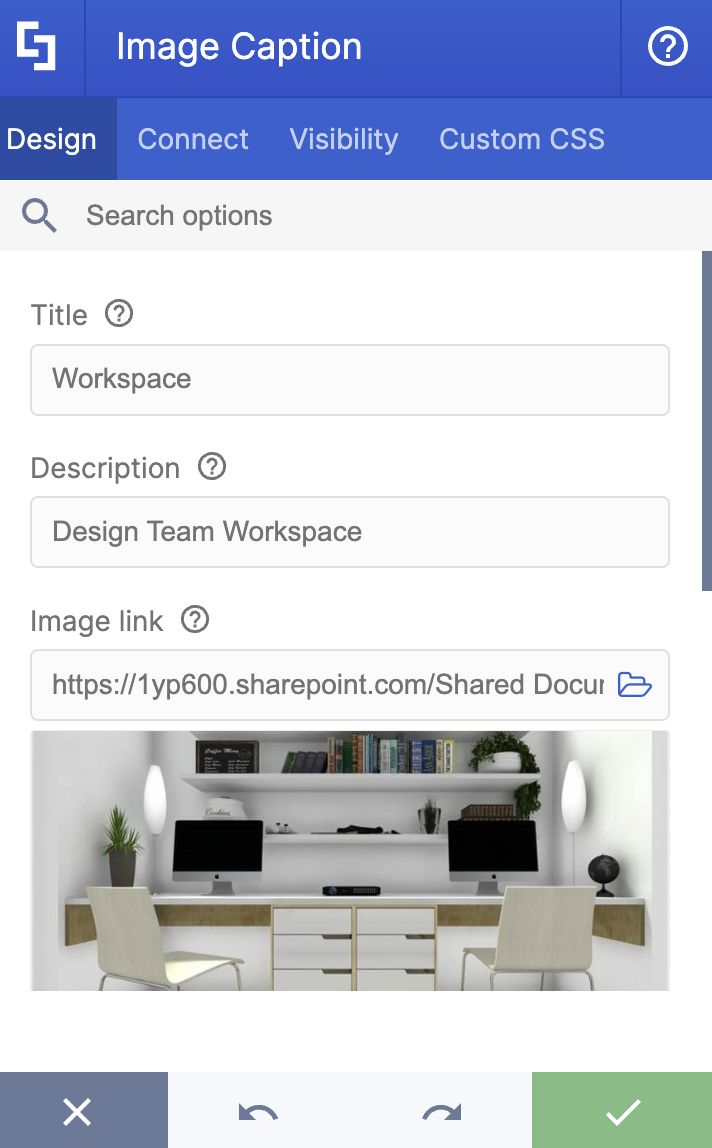
Add a Title (1) and a Description (2).
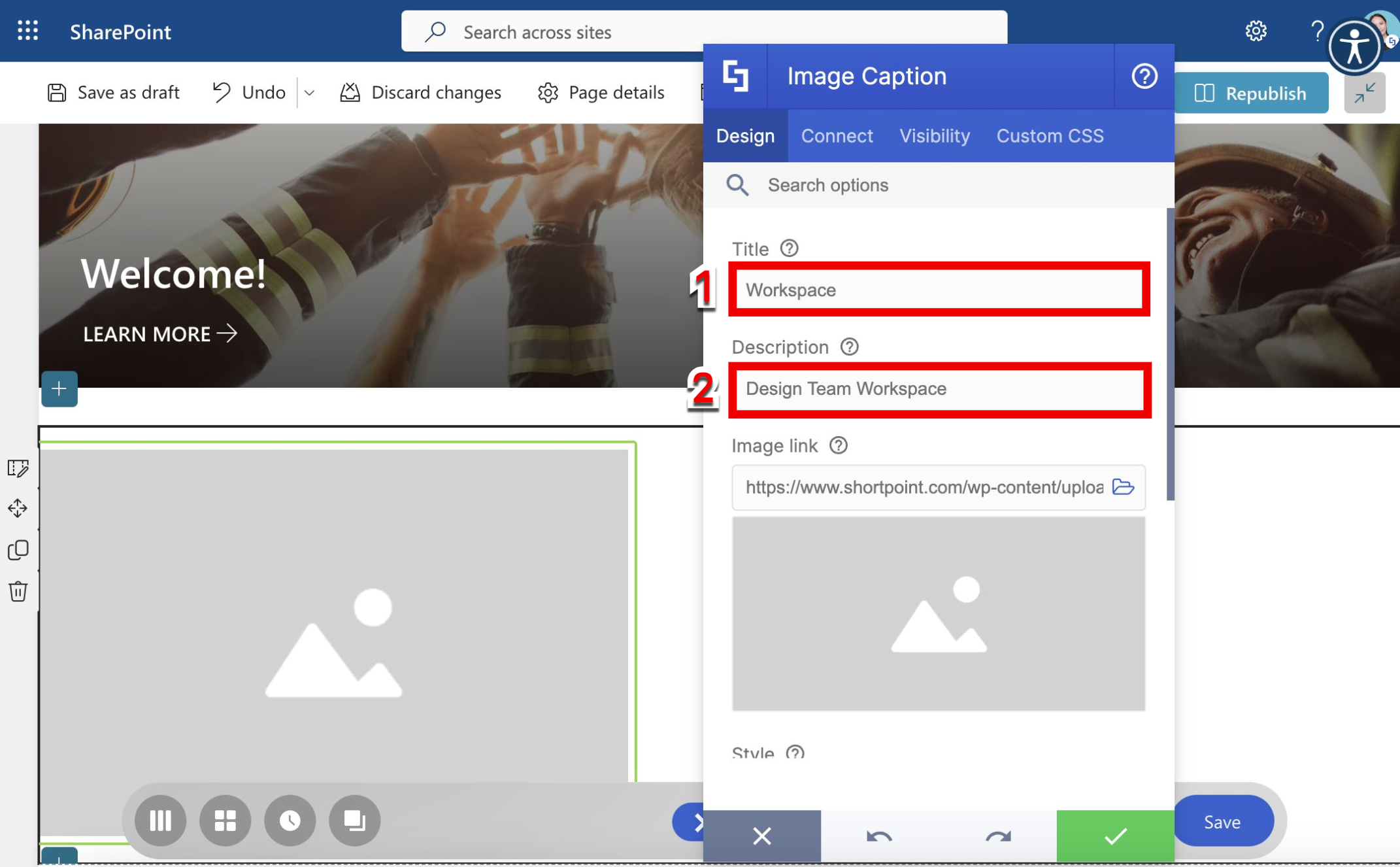
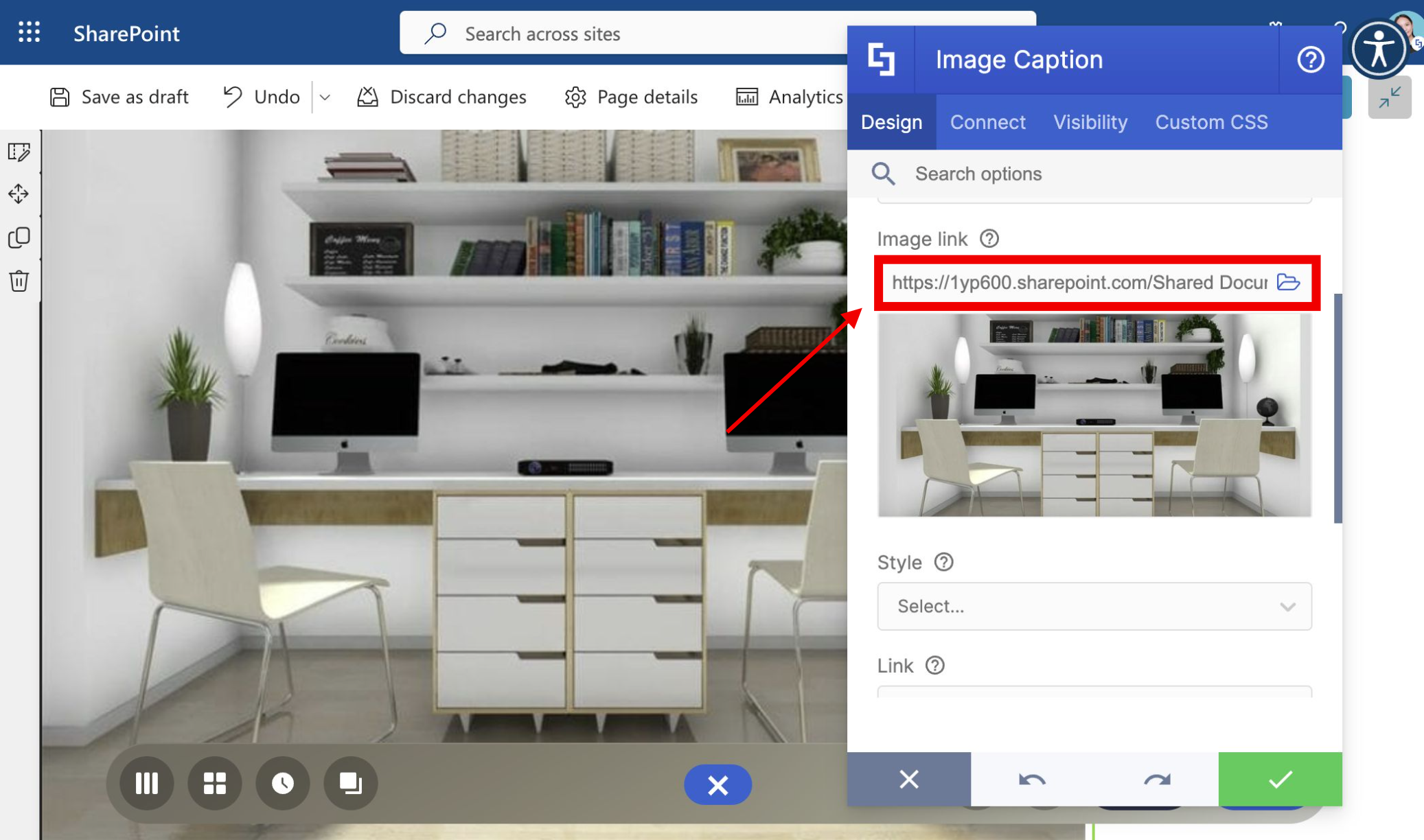
Add the Image Link.
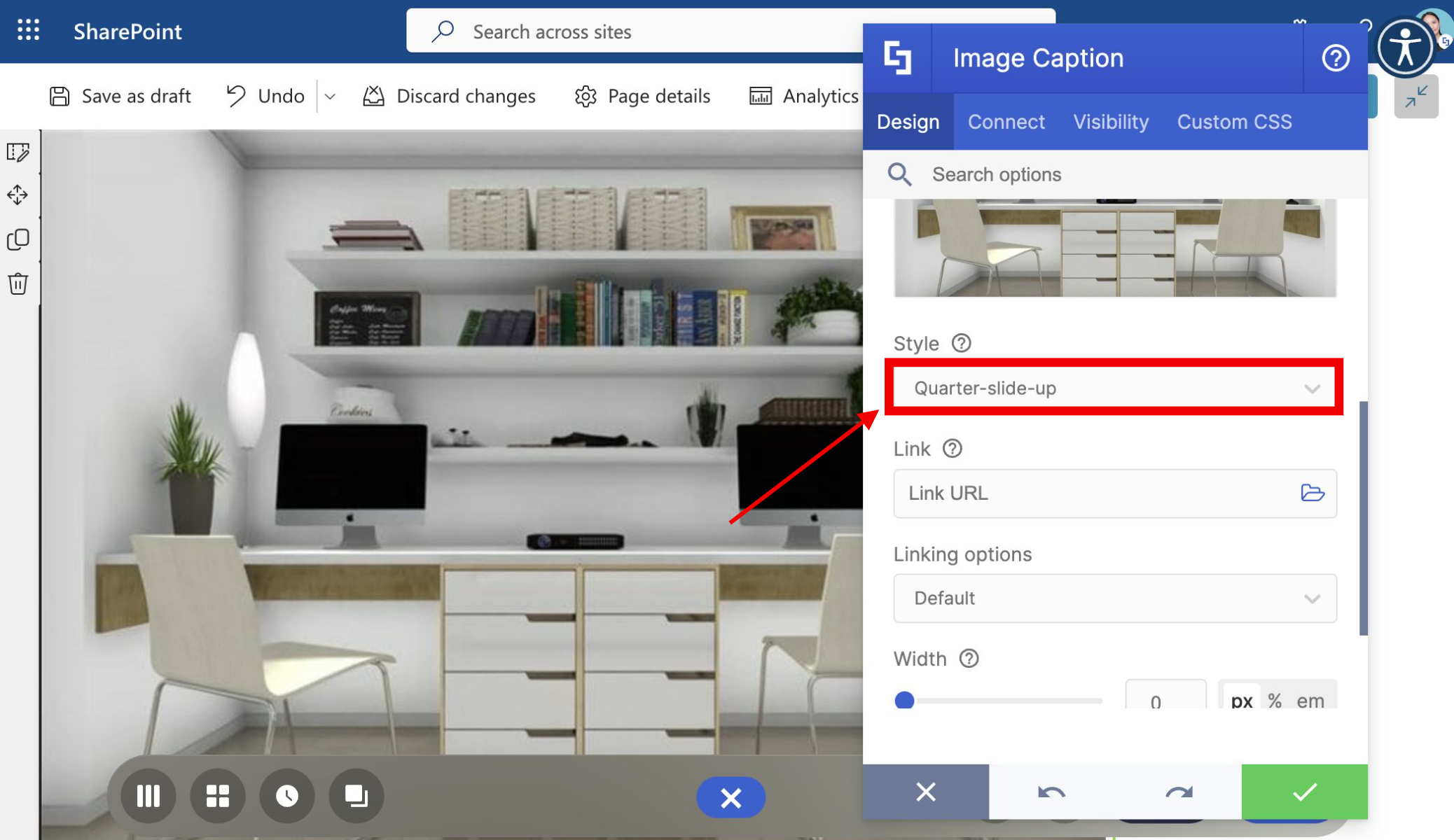
Choose the Style of the Image Caption.
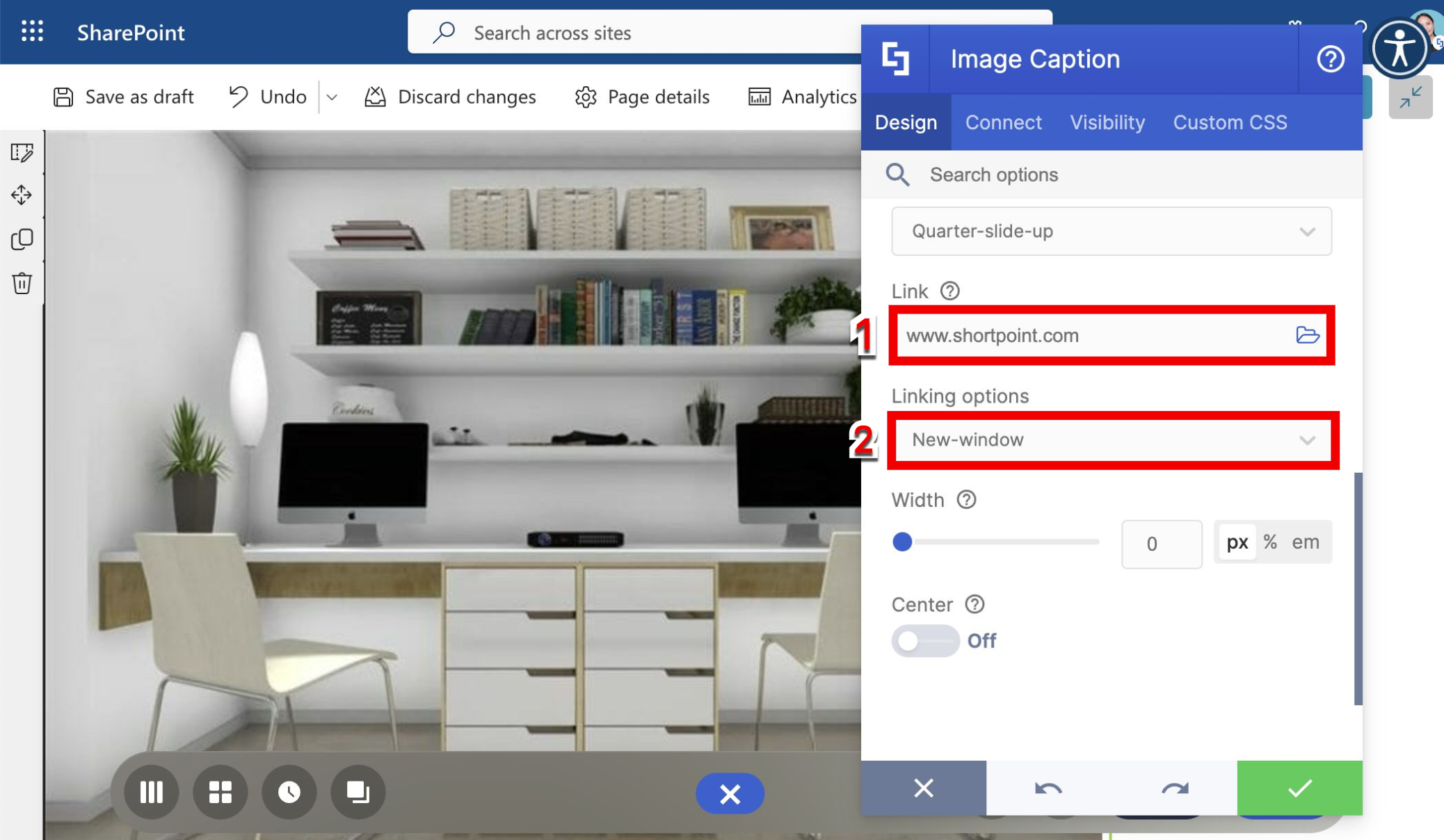
(Optional) Add a Link (1) and specify the Linking Option (2).
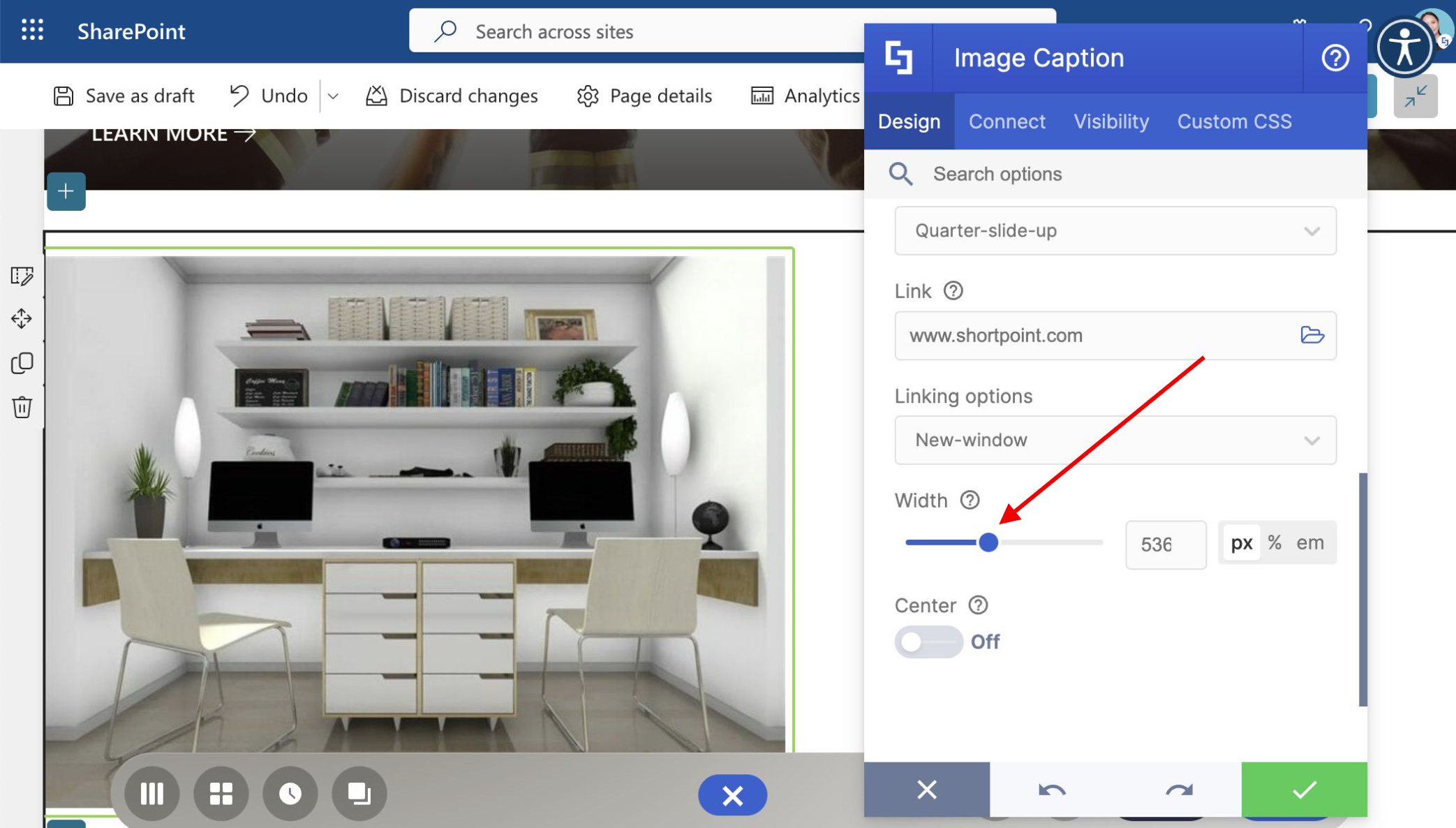
Adjust the width of the image by using the blue slider.
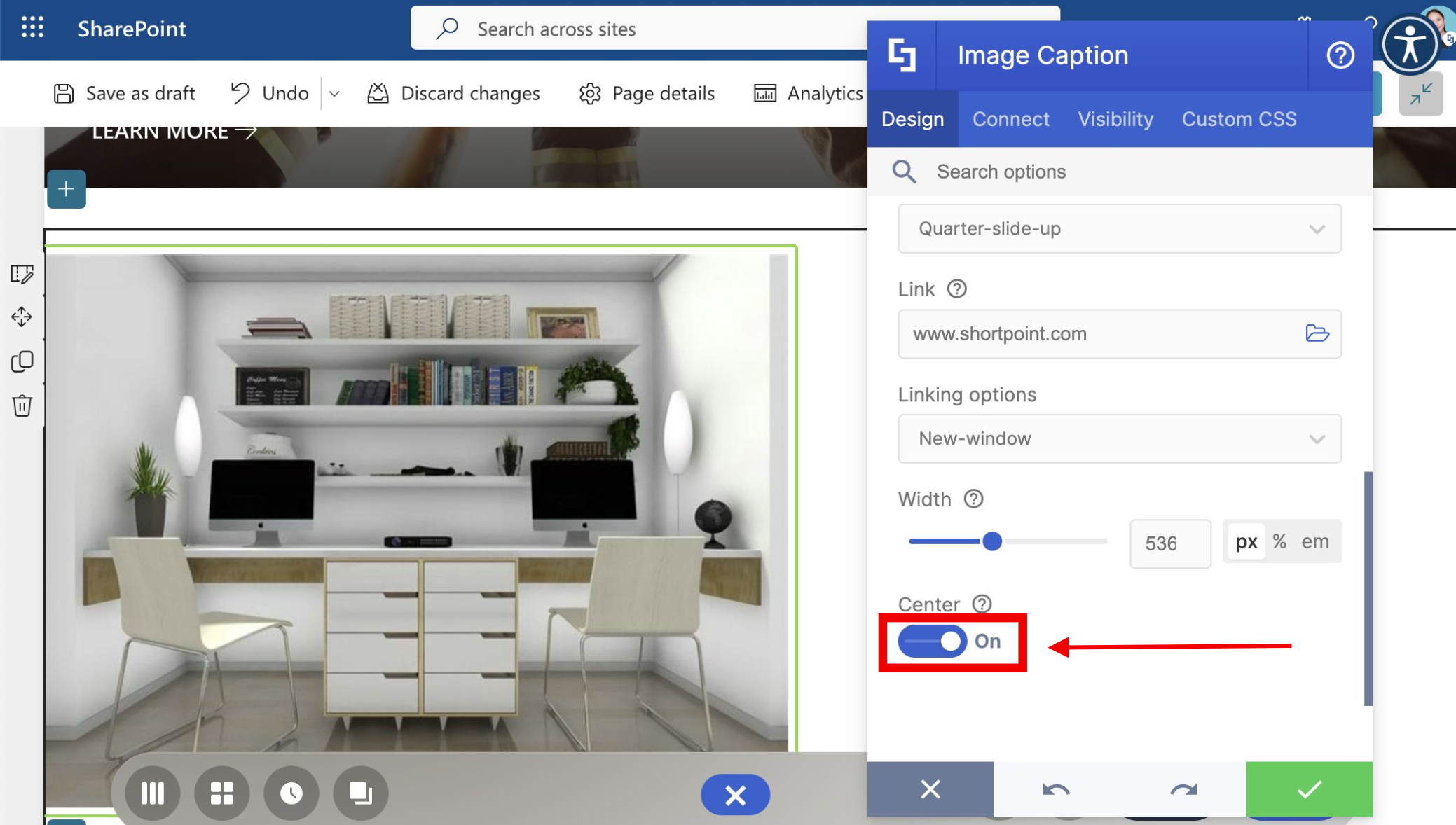
(Optional) Enable Center if you want to align the Title and the Description at the center of the image.
Step 3: Insert and Save
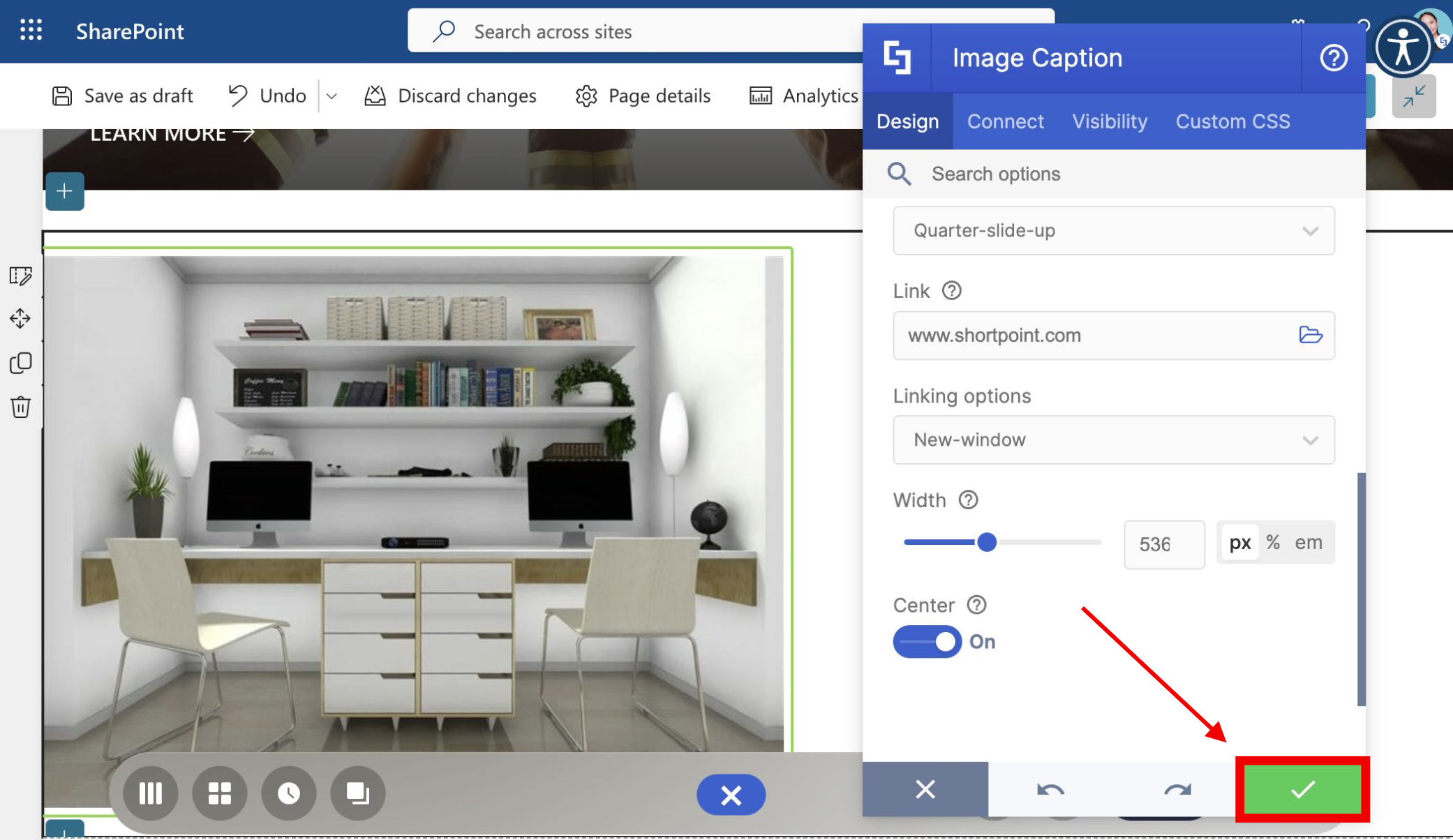
Once satisfied, click the green checkmark.
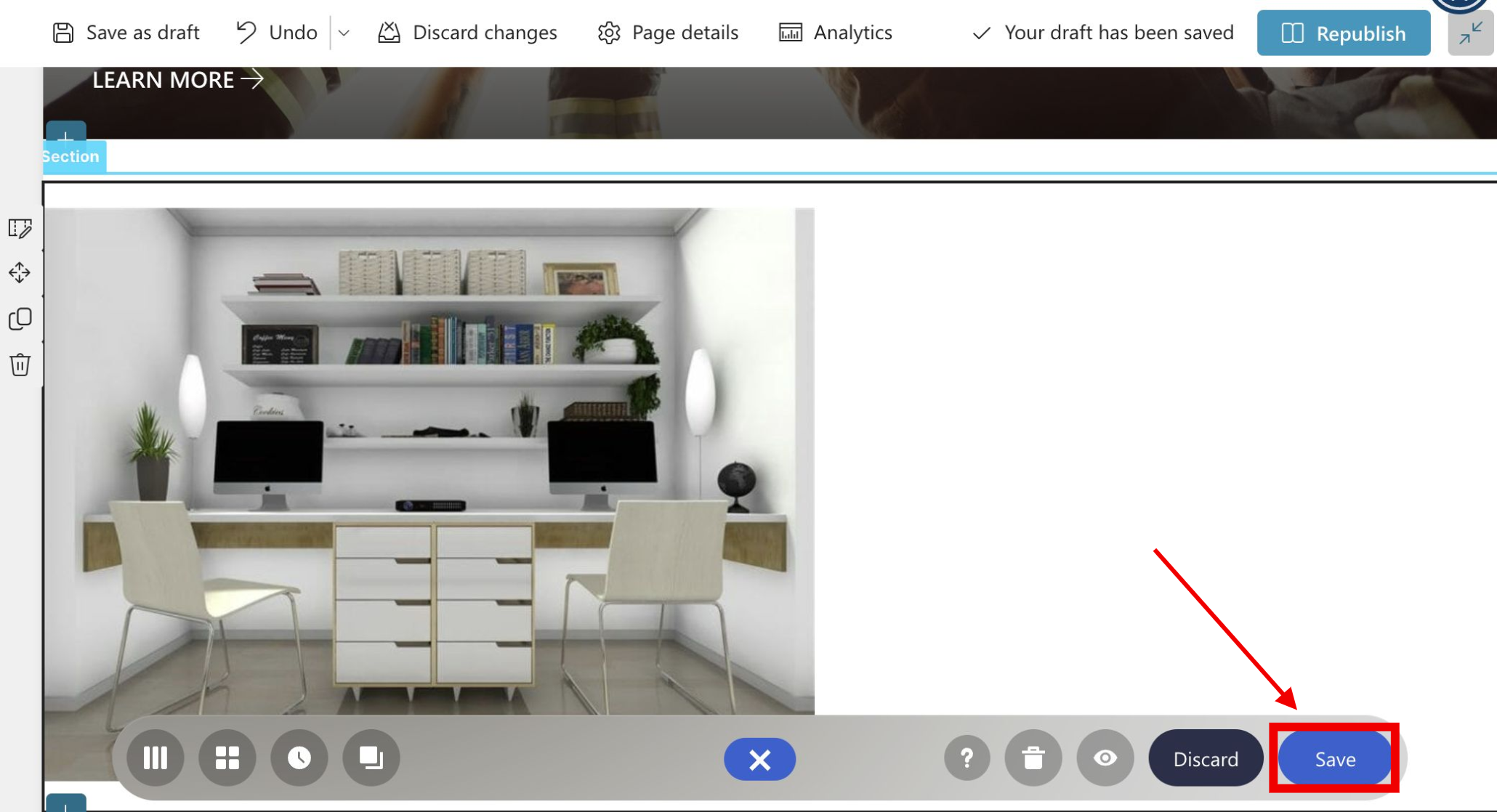
Click Save.
Then, click Republish.
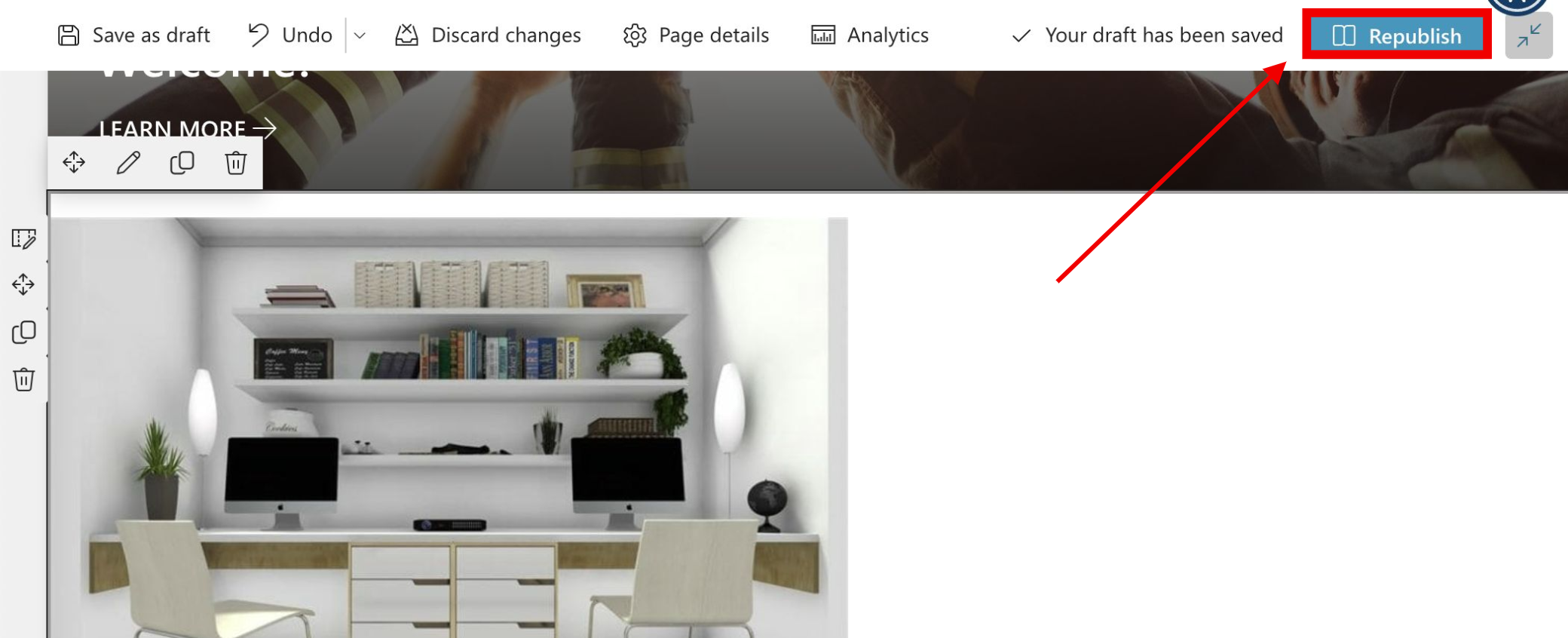
Congratulations! You now have SharePoint picture in your page with the help of Image Caption Design Element.
Image Caption Features
There are many ways to customize the features of the Image Caption Design Element. In the settings window, you will find the following tabs:
A. Content tab
The content tab allows you to modify the content inside the Image Caption. It has the following options:
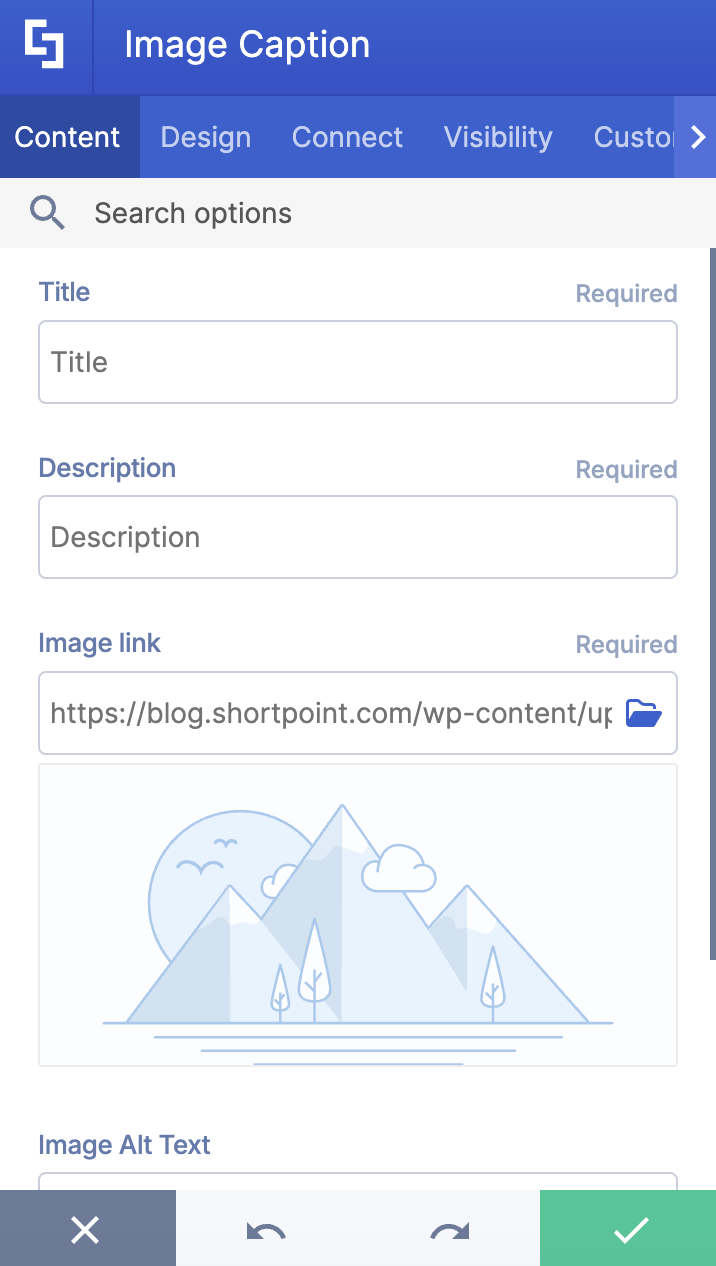
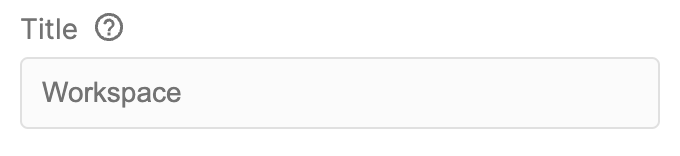 | Title | adds image title. |
 | Description | adds Image description. |
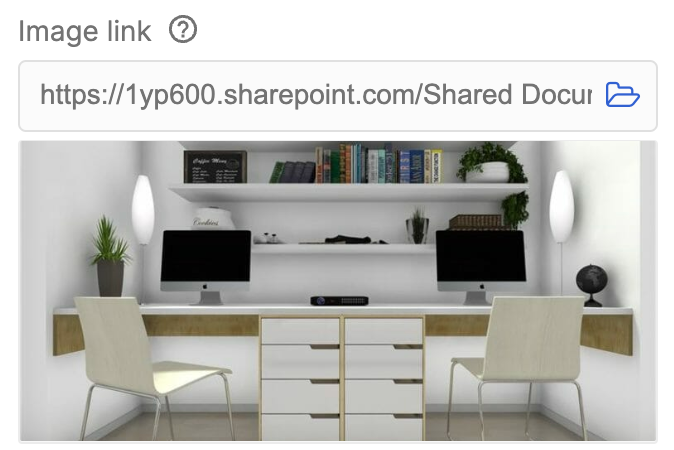 | Image Link | adds an image. |
 | Image Alt Text | allows you to assign an alternative text to the image used. |
 | Link | specify the link where you will redirect users. |
B. Design Tab
You can modify the default design of the element in the Design Tab. Below are the settings you can configure:
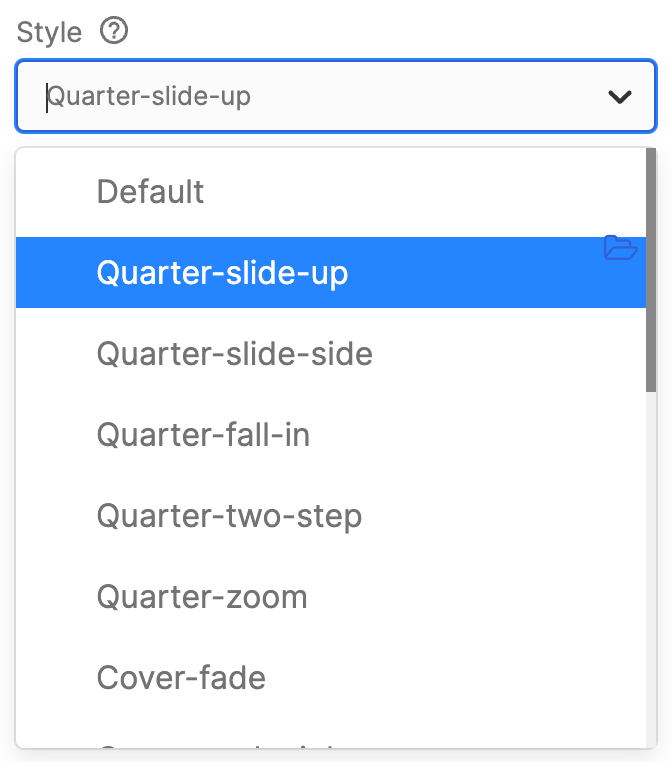 | Style | choose the caption’s animation style including: Quarter Slide Up, Quarter Slide Side, Quarter Fall In, Quarter Two Step, Quarter Zoom, Cover Fade, Cover Push Right, Revolving Door Left, Revolving Door Right, Revolving Door Top, Revolving Door Bottom, Cover Slide Top, Offset, Guillotine revers, Half Slide, Sqkwoosh, and Tunnel. |
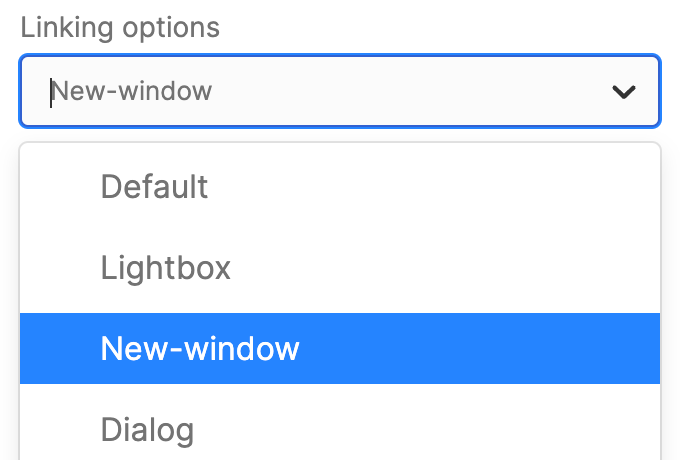 | Linking options | specify how the link will be opened. You can choose from:
|
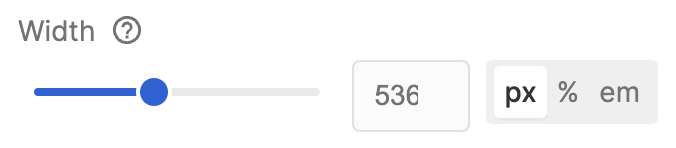 | Width | the width value in pixels |
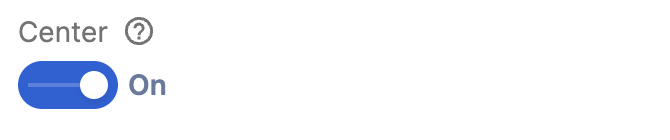 | Center | the title and description will be aligned center |
C. Connect Tab
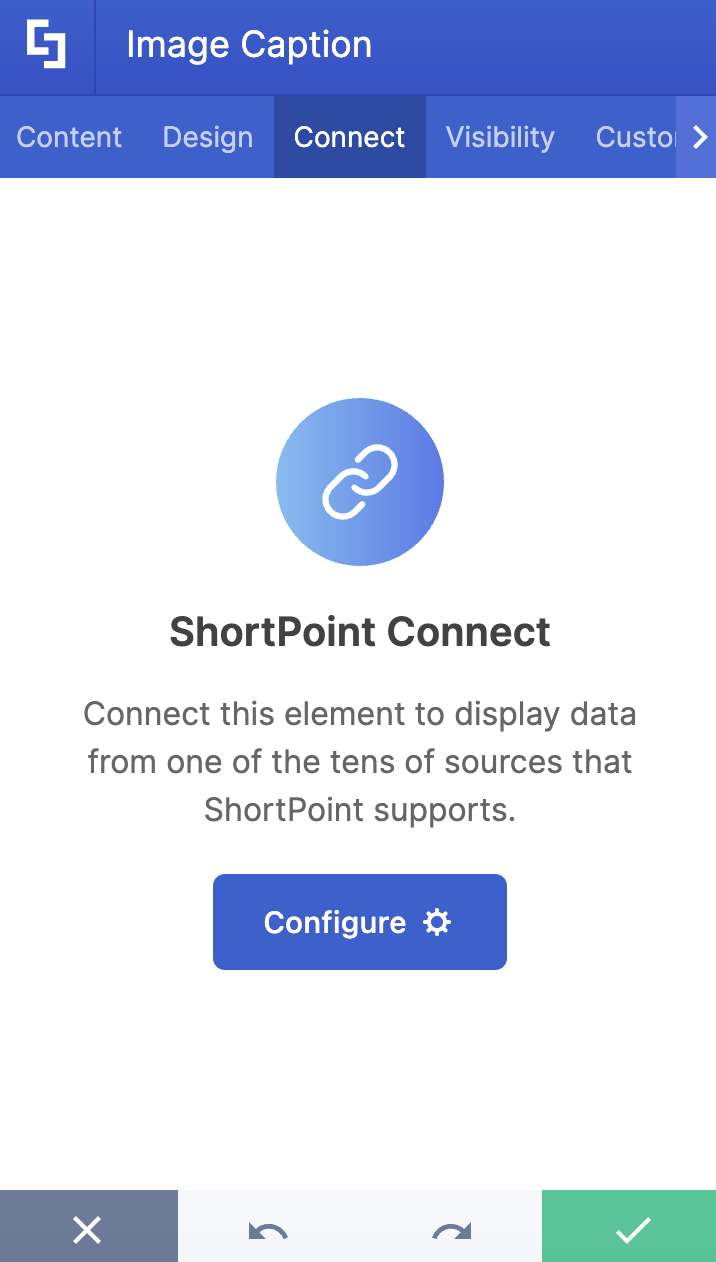
The Connect tab allows you to link the Design Element to SharePoint sources (List, Document Library, News, etc.) and other external sources (Microsoft Graph API, Teams, Outlook, etc.). For more details about ShortPoint Connect, check out Basic Tutorial: How to Establish Seamless SharePoint Connection with ShortPoint Connect.
D. Visibility Tab
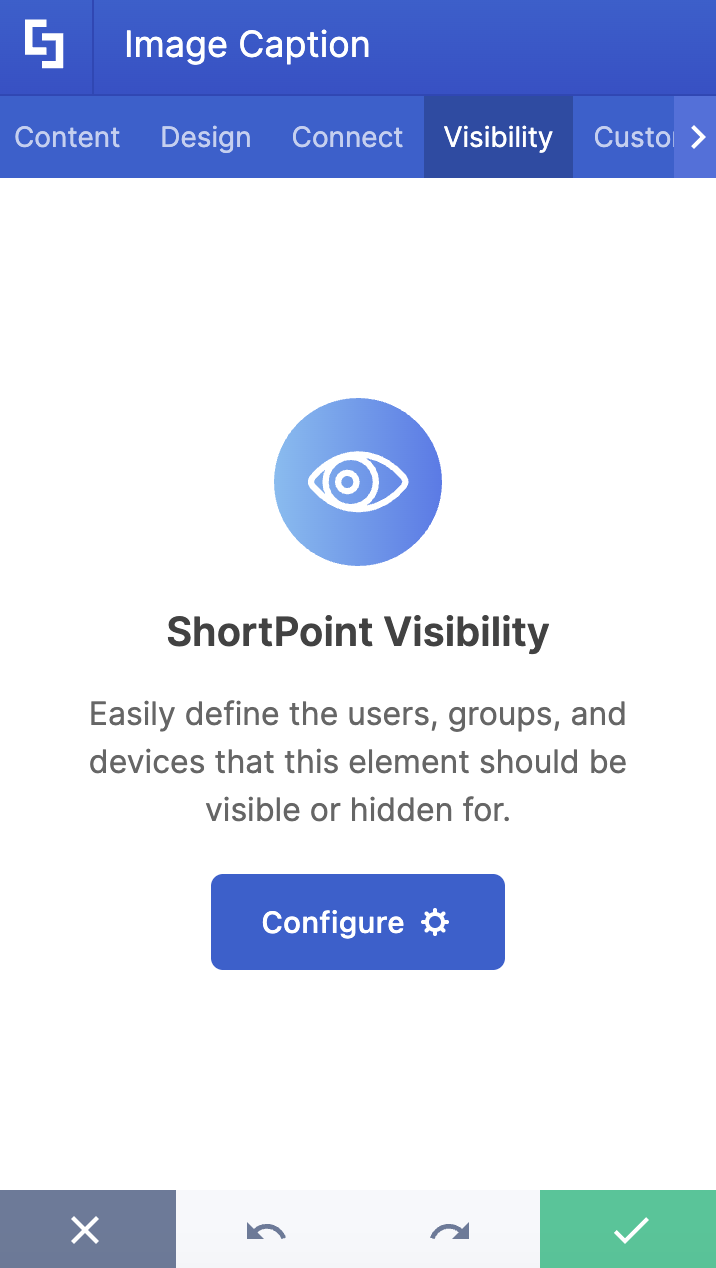
The Visibility tab allows you to specify who can see the Design Element and what type of devices it can be shown on. For more details, check out How to Use the ShortPoint Visibility Feature for Effective SharePoint Access Management.
E. Custom CSS Tab
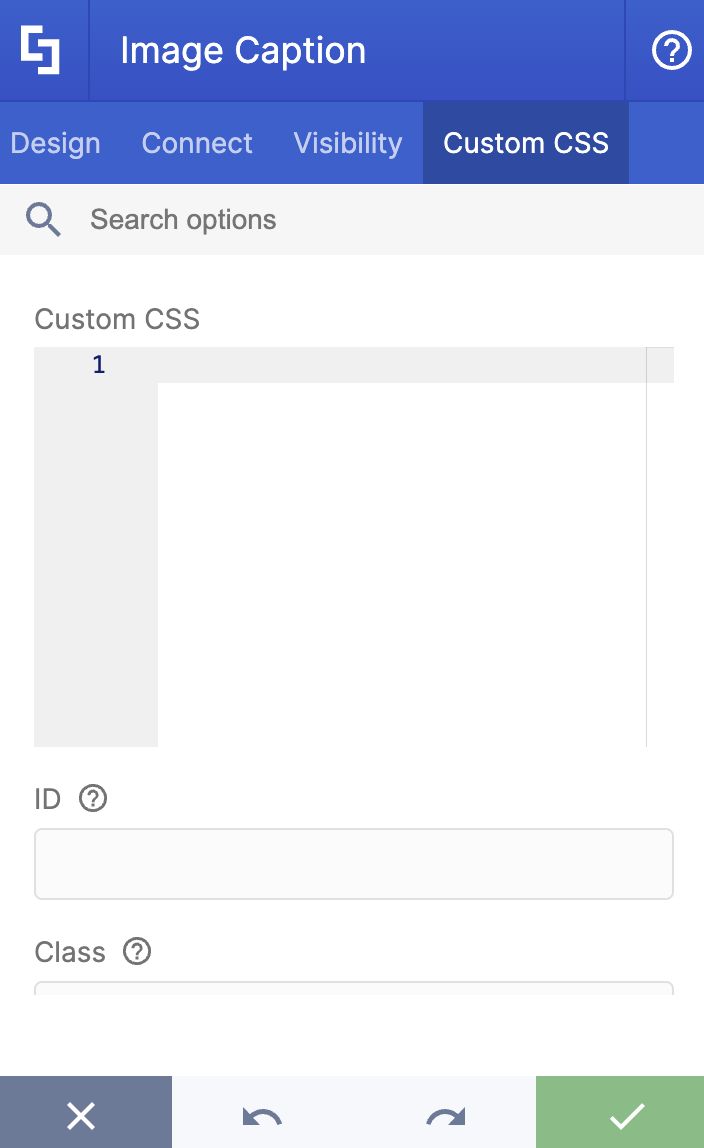
This tab allows you to use your own CSS, HTML, and Javascript code to customize the Image Caption Design Element.
NOTE: Check out our support article on How to Insert Custom CSS into a Page Builder Element? (Basic Tutorial) to know more about Custom CSS.
You now know how to customize the Image Caption Design Element in Live Mode. You can also check out how to customize it in Grid Mode.
Related Articles:
