 Try ShortPoint now
If you've ever used ShortPoint's Code Design Element to add custom code to your pages, you may have run into a frustrating timing issue where your code tries to run before the external library it needs has finished loading.
In simpler terms, it’s like baking a cake before the ingredients are delivered to your house. This guide walks you through how to fix it.
TABLE OF CONTENTS
Prerequisites
- You must have the latest version of ShortPoint SPFx installed.
- You must be a ShortPoint Designer with either a Pro or Enterprise License. For more information, check out Licensing Options.
- You must already have a JavaScript code that loads external JavaScript assets.
- You must add the source domain to the Trusted Script Sources list in your SharePoint Admin Center. Check out Authorizing External Scripts for more information.
What's the Problem?
The Code Design Element lets you add HTML, CSS, and JavaScript snippets directly to your ShortPoint pages. Sometimes, though, you need to load an external JavaScript file (like a library) and run your own inline JavaScript that depends on it.
Here's where things get tricky: your inline code runs before the external library has finished loading. That means your script tries to use something that isn't ready yet. Because of it, things break, and you may see a blank container:
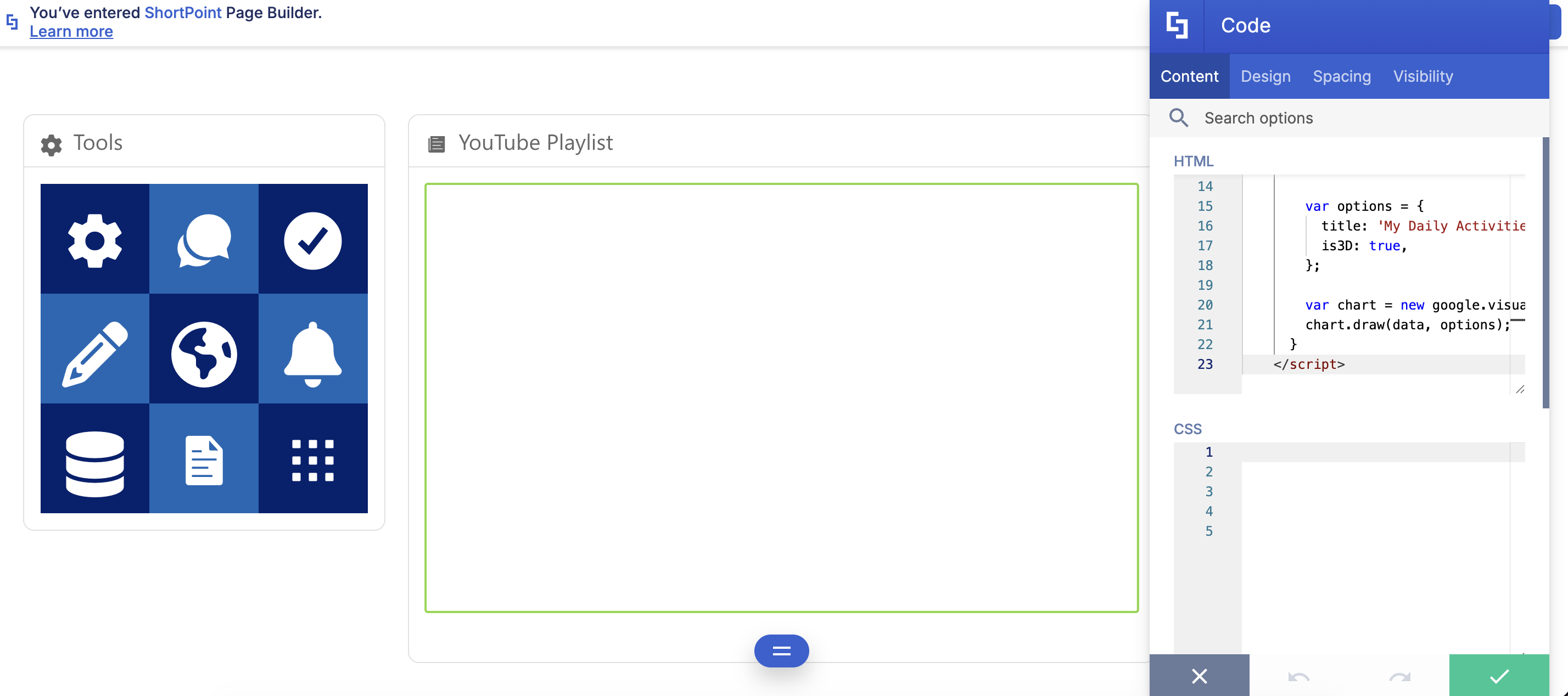
Let’s take the code below as an example. It’s supposed to show a 3D pie chart of our daily activities. However, when the Code Design Element reads the code below, it tries to do two things at once:
- It sends a request to Google's servers to "Go get the chart tools."
- It immediately tries to run your custom instructions (your code).
Here’s the problem: Your [2] custom instructions (your code) finish loading in 0.001 seconds, but the [1] Google chart tools take 0.5 seconds to arrive over the internet. In short, your code can’t show the pie chart because it simply isn’t there yet.
<div id="piechart_3d" style="width: 100%; min-height: 500px;"></div>

<script type="text/javascript" src="https://www.gstatic.com/charts/loader.js"></script>
    <script type="text/javascript">
      google.charts.load("current", {packages:["corechart"]});
      google.charts.setOnLoadCallback(drawChart);
      function drawChart() {
        var data = google.visualization.arrayToDataTable([
          ['Task', 'Hours per Day'],
          ['Work',     11],
          ['Eat',      2],
          ['Commute',  2],
          ['Watch TV', 2],
          ['Sleep',    7]
        ]);

        var options = {
          title: 'My Daily Activities',
          is3D: true,
        };

        var chart = new google.visualization.PieChart(document.getElementById('piechart_3d'));
        chart.draw(data, options);
      }
    </script>
Solution
The solution is to control when your JavaScript runs, so it only fires after the external file has fully loaded.
Essentially, here’s how we will solve the problem:
- Step 1 (The Guard): We create a function (
loadScript) that acts like a doorbell. It sits and waits specifically for the Google tools to arrive. - Step 2 (The Pause): We put your "Draw the Chart" instructions inside a box (a function). This stops them from running the moment the page opens.
- Step 3 (The Trigger): We tell the doorbell: "The moment the Google tools arrive, then open the box and run the instructions."
Step-by-step Tutorial
Follow the steps below to learn how to start running JavaScript in the Code Design Element when using External Scripts. We’ll use the pie chart example for this tutorial:
Step 1: Add a Helper Function Called loadScript
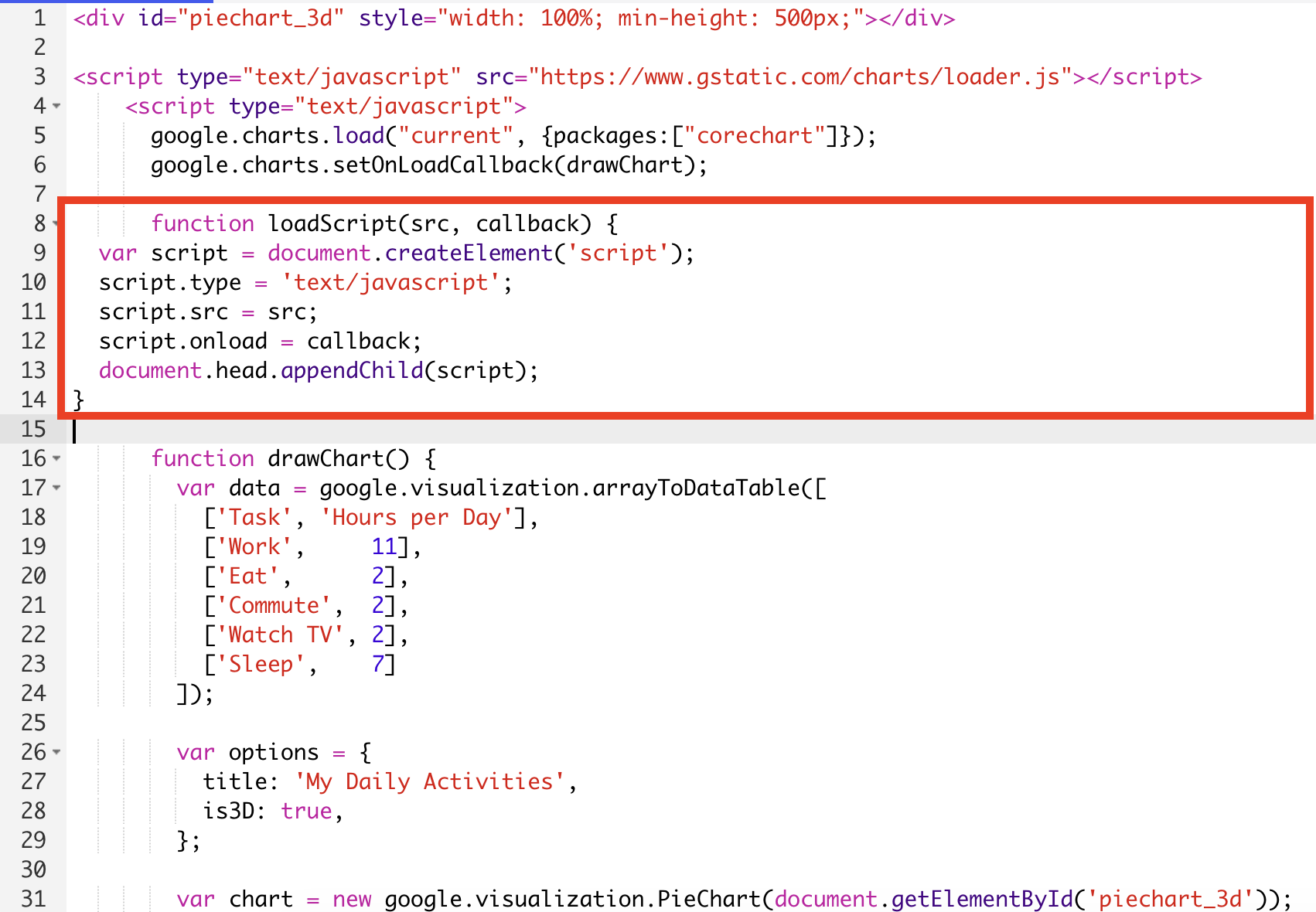
This little helper does the heavy lifting. It loads your external script and then lets you know when it's done. Paste this at the bottom of your inline <script> tag:
function loadScript(src, callback) {
  var script = document.createElement('script');
  script.type = 'text/javascript';
  script.src = src;
  script.onload = callback;
  document.head.appendChild(script);
}
Here’s how it looks:
Step 2: Wrap Your Code in a Function Called onScriptLoad
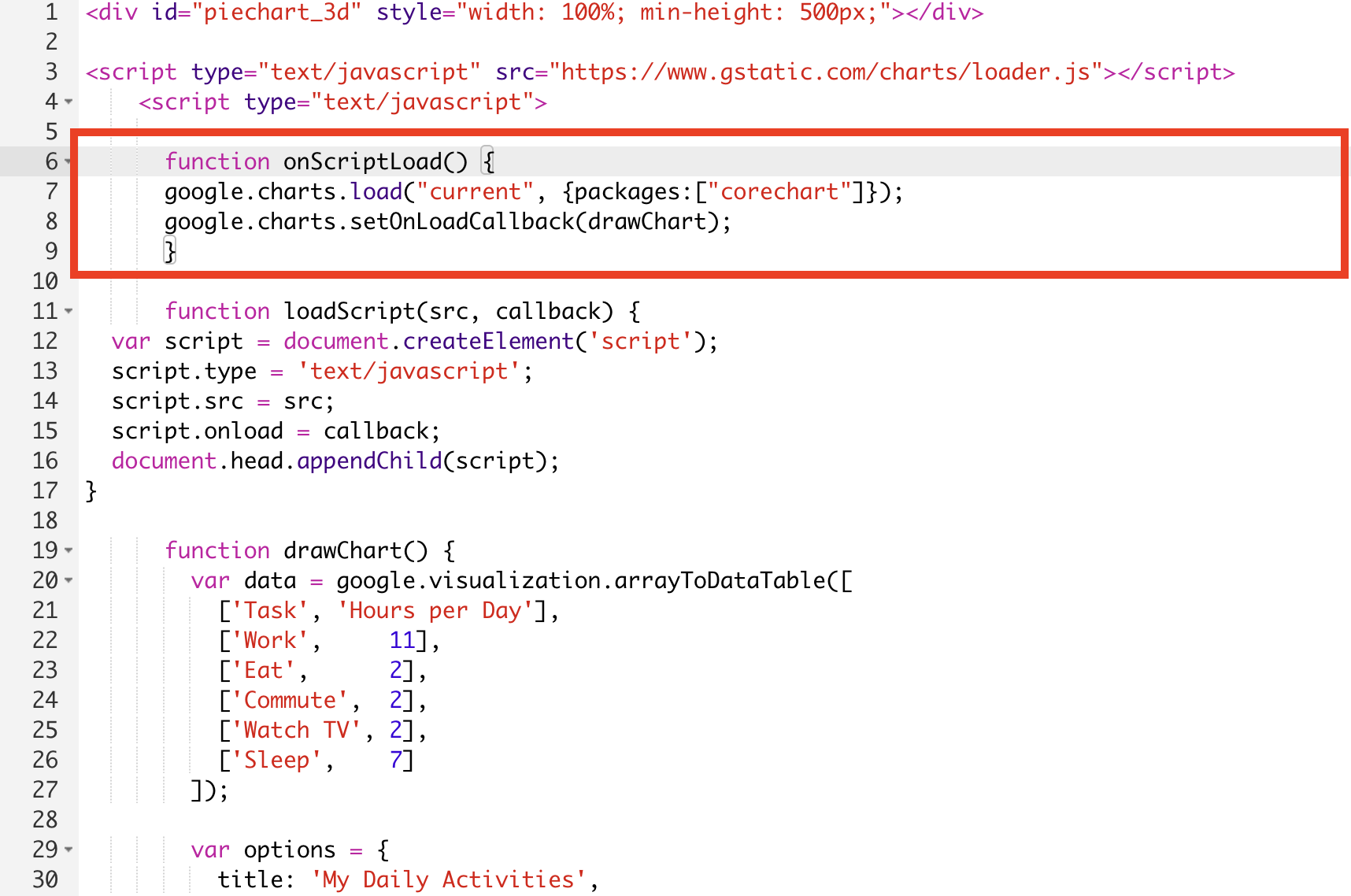
Take whatever inline JavaScript you were running before and wrap it inside a function called onScriptLoad. This prevents it from running on its own — it'll only run when you tell it to. In our case, our inline JavaScript codes are google.charts.load("current", {packages:["corechart"]}); and google.charts.setOnLoadCallback(drawChart);
function onScriptLoad() {
        google.charts.load("current", {packages:["corechart"]});
        google.charts.setOnLoadCallback(drawChart);
    }
Here’s how it looks:
Step 3: Tell loadScript to Run Your Code When It's Ready
Instead of using a standard <script src="..."> HTML tag to load your external library, use the loadScript function instead. Place this at the top of your inline <script> tag:
NOTERemember to replace https://www.gstatic.com/charts/loader.js with your external library.loadScript("https://www.gstatic.com/charts/loader.js");Here’s how it will look:
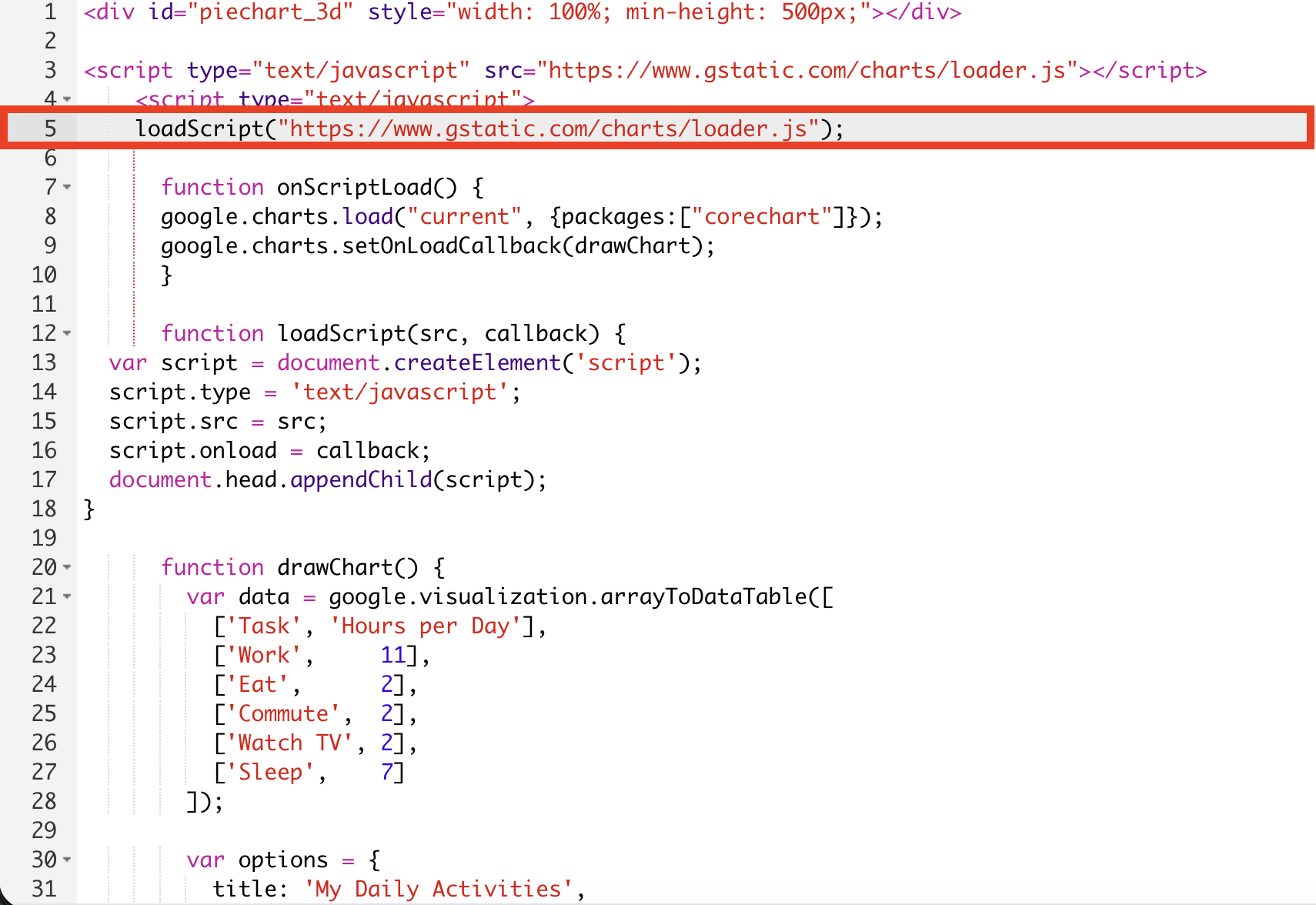
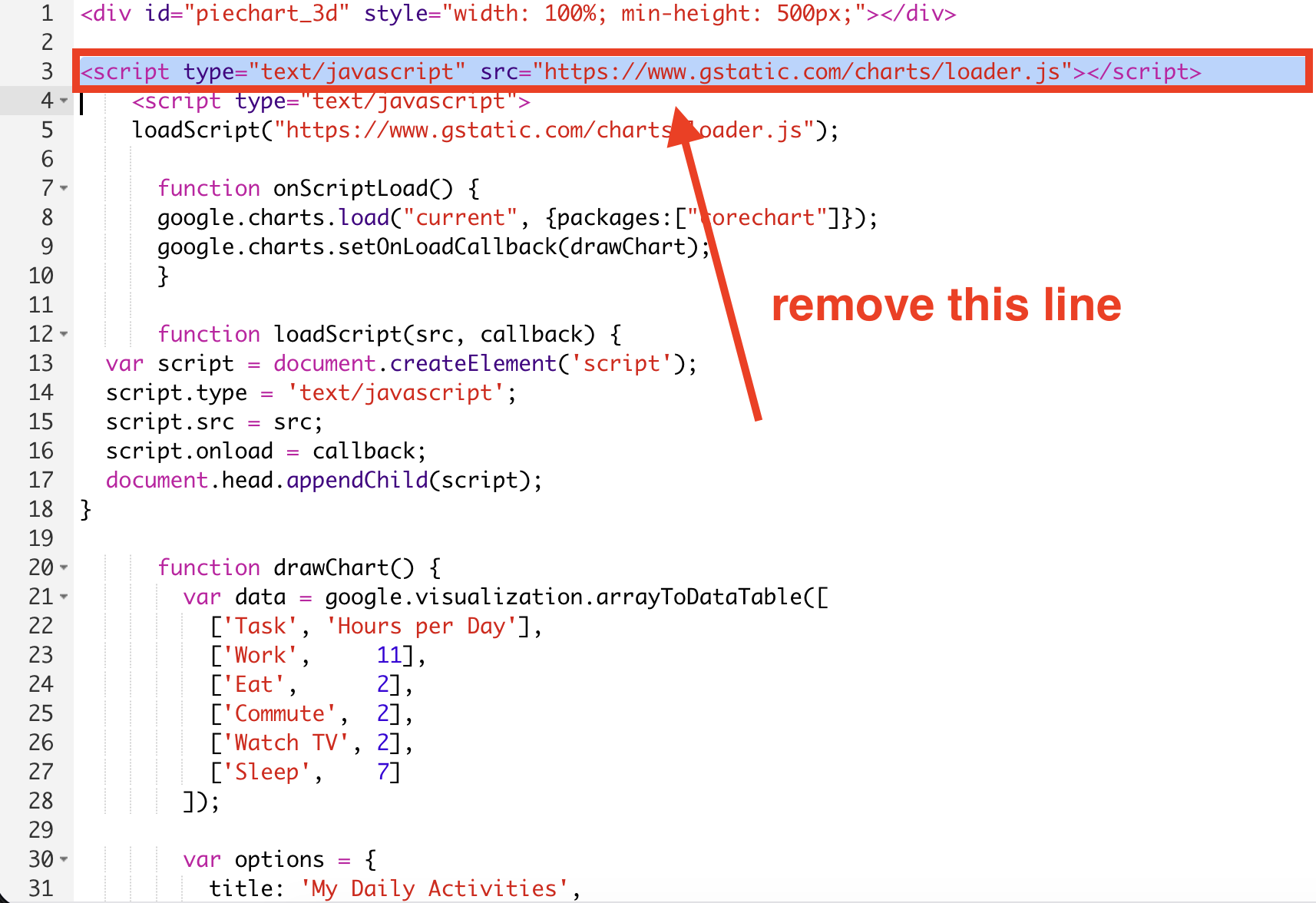
loadScript("https://www.gstatic.com/charts/loader.js", onScriptLoad);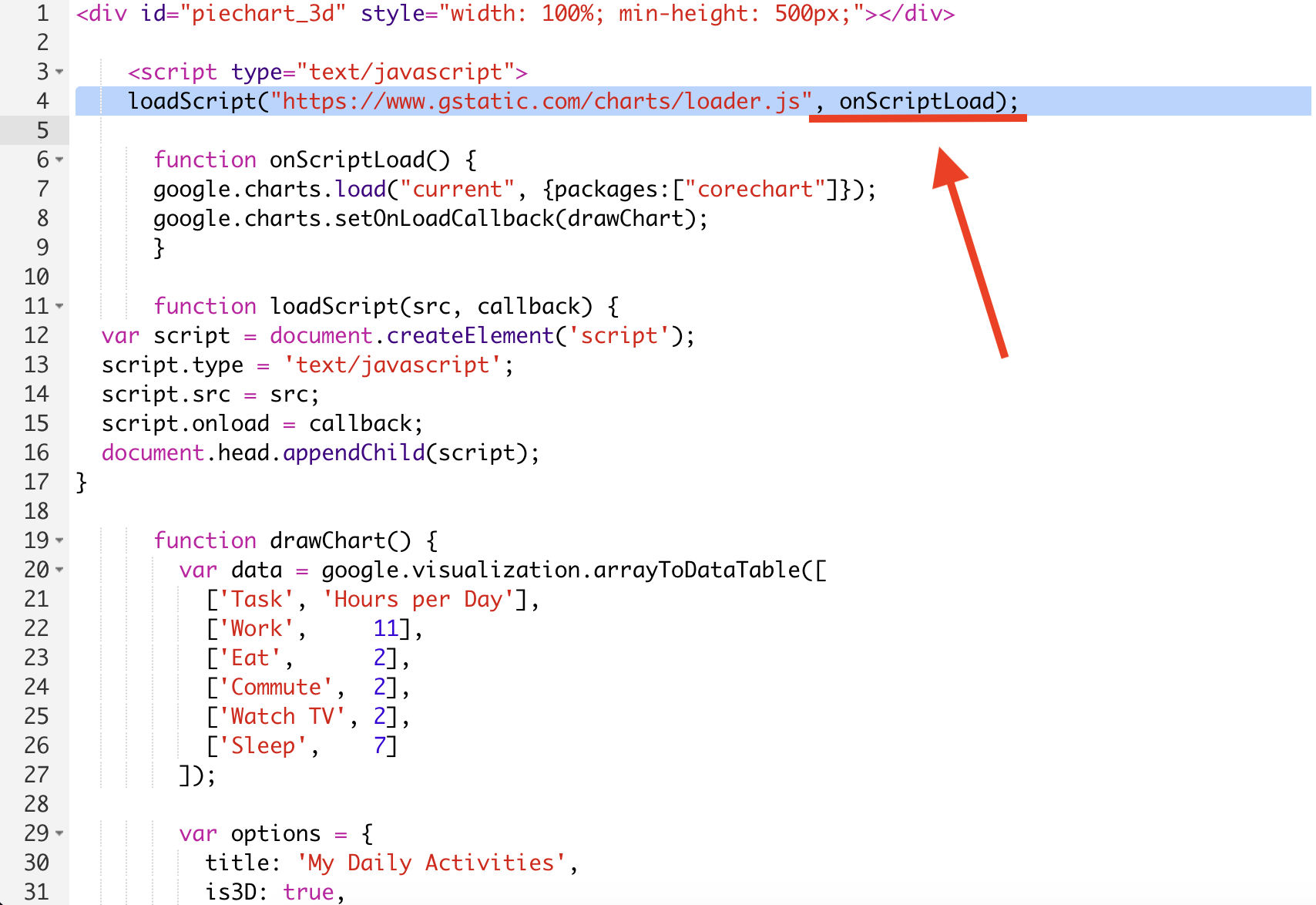
Your complete, working script should look like this:
<div id="piechart_3d" style="width: 100%; min-height: 500px;"></div>

    <script type="text/javascript">
    loadScript("https://www.gstatic.com/charts/loader.js", onScriptLoad);

      function onScriptLoad() {
      google.charts.load("current", {packages:["corechart"]});
      google.charts.setOnLoadCallback(drawChart);
      }

      function loadScript(src, callback) {
  var script = document.createElement('script');
  script.type = 'text/javascript';
  script.src = src;
  script.onload = callback;
  document.head.appendChild(script);
}

      function drawChart() {
        var data = google.visualization.arrayToDataTable([
          ['Task', 'Hours per Day'],
          ['Work',     11],
          ['Eat',      2],
          ['Commute',  2],
          ['Watch TV', 2],
          ['Sleep',    7]
        ]);

        var options = {
          title: 'My Daily Activities',
          is3D: true,
        };

        var chart = new google.visualization.PieChart(document.getElementById('piechart_3d'));
        chart.draw(data, options);
      }
    </script>
Now, everything runs in the right order, and you'll get to showcase the information you’re working on:
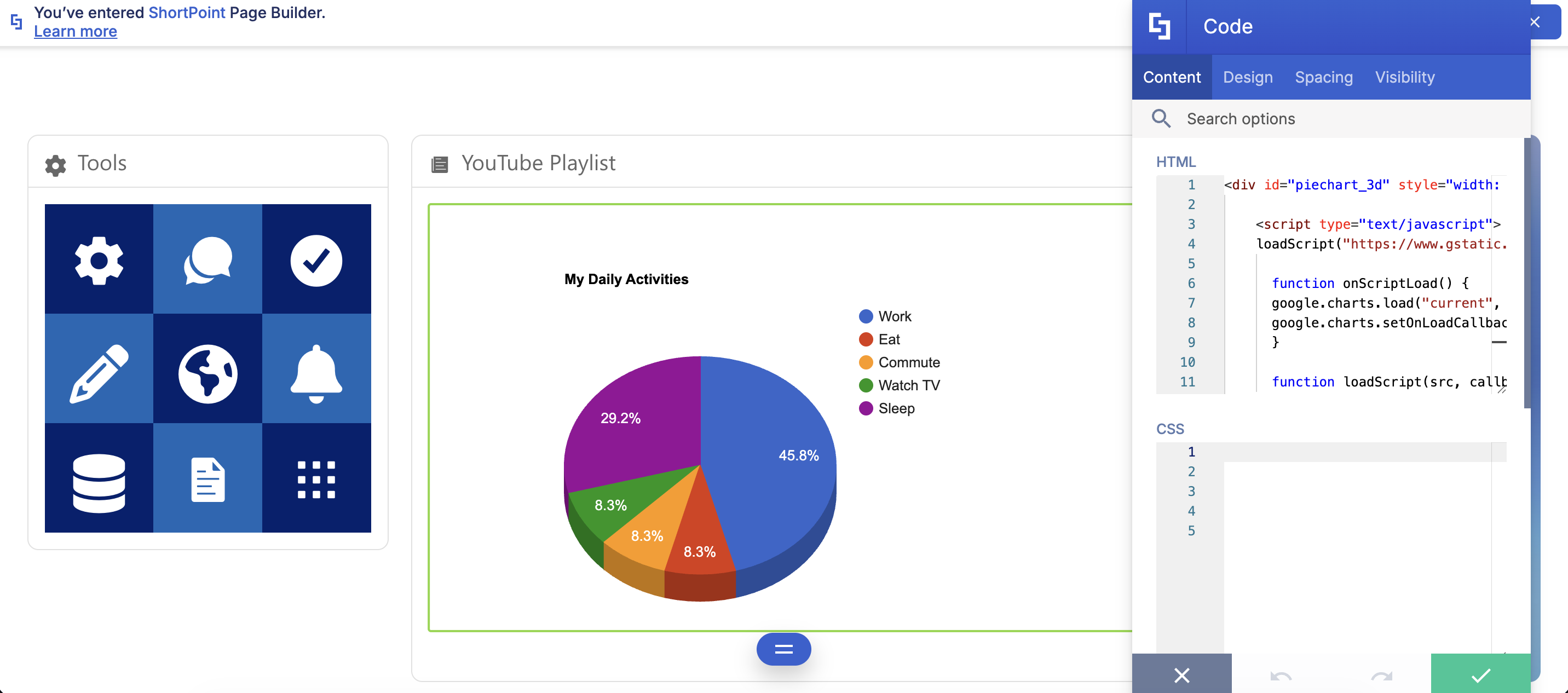
That's all there is to it! Once you get the hang of this pattern, you can use it to embed all kinds of things, including Google Charts, custom maps, third-party widgets, and more.
Authorizing External Scripts
If you are loading JavaScript from external sources, you must add the source domain to the Trusted Script Sources list in your SharePoint Admin Center. This step is required to ensure the script runs correctly under SharePoint's Content Security Policy (CSP).
For detailed instructions, please follow the "How to Add Trusted Source URLs" section in our Managing Trusted Script Sources for JavaScript Customizations in ShortPoint article.
Related articles:
